Dedupely Intelligence

Two-Factor Authentication and Passkeys
Protect your Dedupely login with a second step, and sign in without a password.


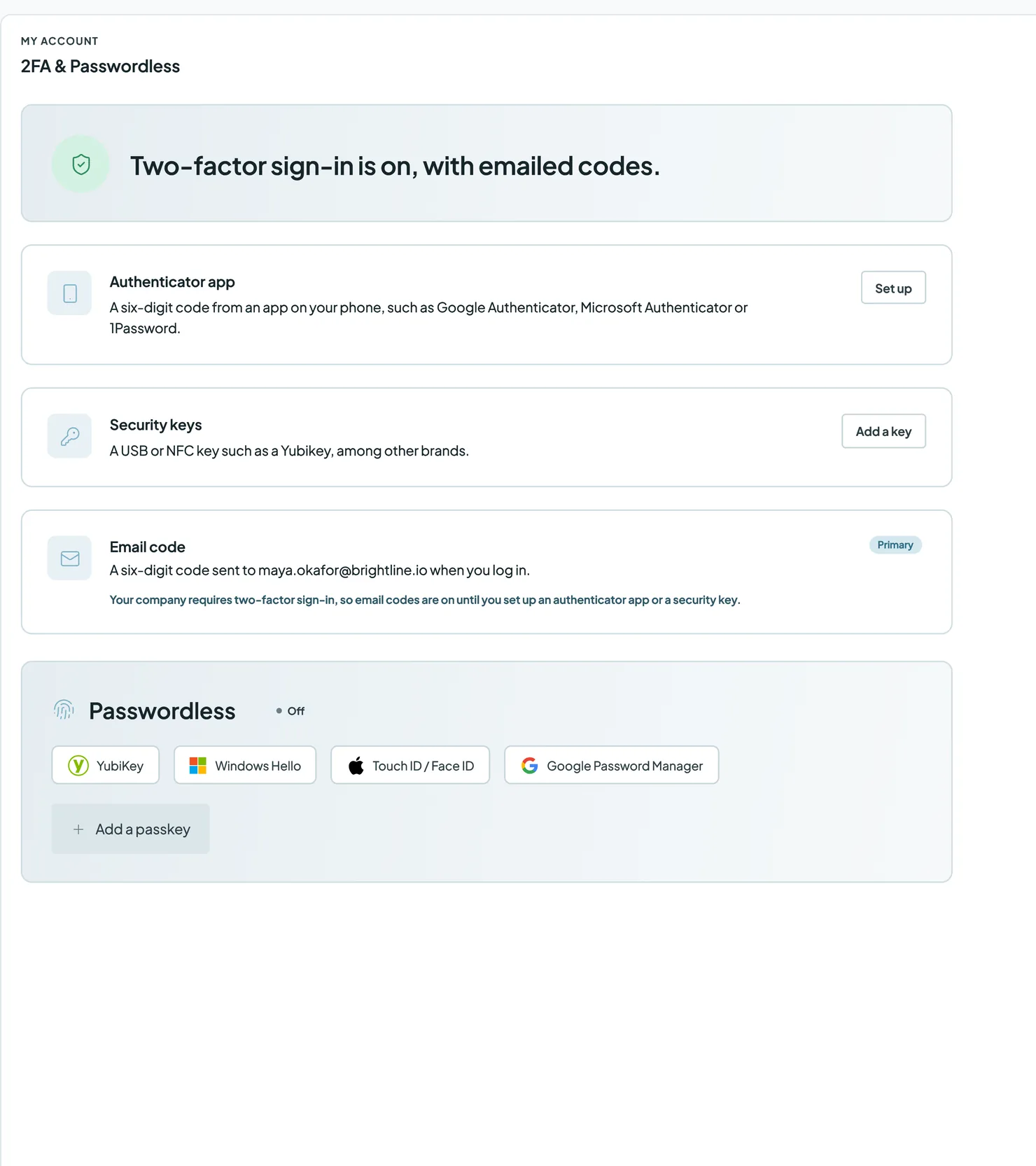
Two-factor authentication (2FA) adds a second step to your login: after your password, you confirm it's you with an authenticator app, a security key or an email code. Passkeys let you sign in without a password, with your fingerprint, face, device PIN or a security key. You set them up in My Account → 2FA & Passwordless, and your company can require 2FA and choose which methods are allowed.
2FA methods
Added
| Method | How it works | Button |
|---|---|---|
| Authenticator app | A six-digit code from an app on your phone, like Google Authenticator, Microsoft Authenticator or 1Password | Set up |
| Security keys | A USB or NFC key, like a YubiKey | Add a key |
| Email code | A six-digit code sent to your email when you log in | Turn on |
| Backup codes | Ten one-time codes to use if you lose your other methods |
You can set up several methods at once, and choose one as your primary method. Dedupely asks for your primary method first.
How to set up 2FA
- Click your profile icon at the top right and select My Account.
- Open 2FA & Passwordless. The top of the page shows whether two-factor sign-in is on or off.
- Choose a method:
- Authenticator app: click Set up and follow the steps to add Dedupely to your app.
- Security keys: click Add a key and follow the steps with your key.
- Email code: click Turn on.
- Save your backup codes somewhere safe.
- (Optional) Add more methods, and choose your primary one.
How to sign in with a passkey
A passkey lets you sign in without your password. You can save it with a YubiKey, Windows Hello, Touch ID or Face ID, or Google Password Manager.
- In 2FA & Passwordless, go to Passwordless and click Add a passkey.
- Follow the steps on your device.
- Next time, click Sign in with passkey on the login page, and confirm with your fingerprint, face, device PIN or key.
If your company requires 2FA
Your company can require 2FA, and choose which methods are allowed, in its Security Policy.
- If 2FA is required, you set it up at your next sign-in. People who are invited set it up before they join.
- Email codes stay on while 2FA is required, until you set up an authenticator app or a security key.
- If a method you use is no longer allowed, you confirm it's you with a method you have at your next sign-in, then set up an allowed one. Nobody is locked out.
What happens next
- Each time you log in, Dedupely asks for your primary method after your password, unless you sign in with a passkey.
- People who manage users can see whether you've set up 2FA, in the 2FA column on the Users page.
Troubleshooting
I lost my phone or security key. Sign in with another method you've set up, or one of your backup codes. Then remove the lost method and add a new one.
I've used all my backup codes. Sign in with another method, then get new backup codes in 2FA & Passwordless.
I can't set up the method I want. Your company might not allow it. Choose one of the methods it allows, or ask someone who manages your Security Policy.
My passkey doesn't work on a new device. Passkeys are saved on your device or in your password manager. Sign in with your password and 2FA, then add a passkey on that device too.
FAQs about 2FA and passkeys
- Is 2FA required? Not by default. Your company can require it in its Security Policy.
- Can I use more than one method? Yes. Set up several and choose your primary one.
- How many backup codes do I get? Ten. Each one works once.
- What's the difference between a security key and a passkey? A security key is a second step after your password. A passkey replaces your password: you sign in with your fingerprint, face, device PIN or key.
- Can I sign in with Google or Microsoft? Yes. Choose Google or Microsoft on the login page.
- Where do admins choose which methods are allowed? In Company Settings → Security Policy, under Two-factor methods allowed.
Next up
Changelog
-
More 2FA methods and passkey sign-in
Two-factor authentication now works with an authenticator app, security keys, an email code or backup codes, and a passkey signs you in without a password. Your Security Policy chooses which 2FA methods are allowed.
Still stuck?
Our team helps on every plan and during the free trial, by chat, email or Zoom.
- Need help? Talk to support
- Questions about plans? Book a Zoom with sales
- Reading this with a model? Read this page as Markdown
- Feeding it the whole site? Read llms.txt




 Or sign up with Google