How to Merge Duplicates
Merge all your duplicates without losing important data, one at a time, in bulk, or automatically.


Dedupely gives you four ways to merge: Single Merge, Custom Merge, Bulk Merge and Auto Merge. Use the one that fits how sure you are about your matches and how many you have. This article covers how to start a merge. To control which values survive, see Merge Rules. Merging is included in every Dedupely plan, and the 7-day free trial includes 20 free merges.
Merge options
Single Merge
Merge one match at a time. The surviving values are picked by your Merge Rules, or by the default rules if you haven't set any: the oldest record survives (the one with the most data in Google Contacts and spreadsheets), and its blank fields are filled from the other records.
- Select the checkbox of the match you want to merge. A menu appears at the bottom of the screen.
- Click Merge.
Custom Merge
Added
For edge cases where a person needs to decide which values to keep. Your choices override your Merge Rules for that match.
- Click View Match Details (the three vertical dots on the match).
- In the panel that opens, choose the winning value for each field. The Merge Preview column on the left shows the result.
- Click Merge in the same panel.

Bulk Merge
The fastest way to dedupe large lists or legacy data:
- Select several matches, or a whole page, with their checkboxes.
- To select every match in the search, click Select all X matches in the menu at the bottom of the screen.
- Click Merge.
Auto Merge
Merge recurring duplicates in the background, on a schedule. The full guide is Auto Merge.
- At the top of your Duplicate Search, click Automate.
- Select Auto Merge.
- Choose how often it should run and click Save.
- Click Enable, check the details in the confirmation view, and confirm.

You can schedule Auto Merge:
- As soon as possible: a continuous loop. Dedupely scans, merges, and starts again right away.
- Every X minutes, hours, days, weeks or months.
- On specific weekdays, or specific days of the month.
- Only within certain hours of the day (e.g. between 5 PM and 9 PM).
Once Auto Merge is on, its dashboard shows recent merges, total merges and records that need attention. From there you can change the settings or schedule, Pause it without losing your schedule, or Disable it for that search.
Merge statuses
- Pending: the merge is queued.
- Merging: the merge is in progress.
- Finished: the merge is done.
- Error: something went wrong. Hover over the status to see the error message.
How to stop a merge
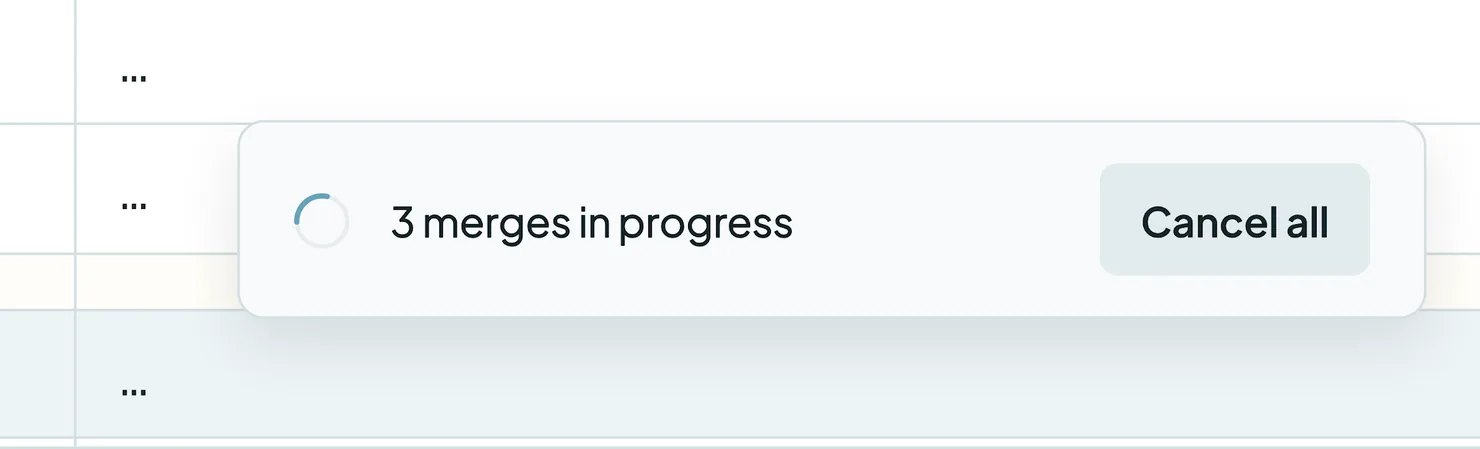
To stop a running bulk merge or Auto Merge:
- Go to the top right of your Duplicate Search.
- Click Cancel all next to the merge counter.
Merges already in progress finish; the rest are cancelled.
What happens next
- Your CRM is updated. Merges happen directly in your synced CRM, following your Merge Rules and your CRM's own merge behavior. See your CRM's deduplication guide for what it does on each merge.
- Every merge is logged in Merge History.
- Treat every merge as permanent. Most merges can be undone within 30 days from Merge History (see Undo a Merge). For older merges, download your Merge History and use it to restore the original values in your CRM.
Troubleshooting
A merge shows "Error". Hover over the status to see the message. It might be a permission issue in your CRM, or a read-only field. If it's not clear, contact support via email or live chat.
The wrong values survived a merge. Check your Primary Record rule and add field-level rules in Merge Rules. For one-off cases, use Custom Merge.
I can't merge anymore. You might have used your 20 free merges, or your account might be read-only: over your record limit, a failed payment or a paused plan. See Billing & Usage.
Auto Merge isn't merging anything. Check that it's enabled and not paused, and that your search has matches. Matches in the Excluded tab aren't merged automatically. See Excluded Matches.
FAQs about merging duplicates
- Can I undo a merge? Yes, within 30 days for most merges, from Merge History. Undo is for records that weren't duplicates, so treat every merge as permanent. See Undo a Merge.
- What happens if I merge without setting Merge Rules? The default rules apply: the oldest record is the Primary Record (the one with the most data in Google Contacts and spreadsheets), and a blank field on it is filled from the first record that has a value. Your CRM's own merge behavior still applies, like HubSpot's new record ID.
- What's the difference between Single Merge and Custom Merge? Single Merge uses your Merge Rules automatically. Custom Merge lets you pick each value yourself, and your choices override your Merge Rules for that match.
- How do the 20 free merges work? Every free trial includes 20 free merges. After that, upgrade to keep merging.
- Does "As soon as possible" run Auto Merge nonstop? Yes. It scans, merges, and immediately starts scanning again.
Next up
Merge Rules Decide which record wins and which values survive every merge.Changelog
-
Every field in filters, match settings and custom merge
Filters, Match Settings and custom merge offer every field of the record type, ordered by relevance rather than alphabetically.
Still stuck?
Our team helps on every plan and during the free trial, by chat, email or Zoom.
- Need help? Talk to support
- Questions about plans? Book a Zoom with sales
- Reading this with a model? Read this page as Markdown
- Feeding it the whole site? Read llms.txt




 Or sign up with Google