
Suggested Merge Rules
The Merge Rules Dedupely recommends for your fields, what each one keeps, and how to apply them.


Dedupely suggests a Merge Rule for each field it recognizes, so you don't have to work out which value should win in every field. After your CRM syncs, the Merge Rules page shows a suggestion on the row of each field it fits, like Checked wins for an opt-out checkbox or From the record with a street for address fields. You check it, apply it with one click, and test it in the Merge Preview tab before you save. Suggestions are on every plan and the 7-day free trial.
How do suggested Merge Rules work?
Dedupely looks at each field, not at the values in your records, so a suggestion shows even when the field is empty. It checks:
- The type of field: checkbox, dropdown, text, number or date.
- Words in the field's name or label, like "opt out", "rating" or "revenue".
- The dropdown options, like Hot, Warm and Cold.
A few suggestions depend on the record type: Customer wins, revenue and employees only show on companies and accounts, and the amount suggestion only on deals and opportunities.
Each field gets one suggestion at most, and only while it's on its default rule. Read-only, sensitive and hidden fields never get one.
How do you apply a suggestion?
- Go to Merge Rules and pick the Record Type, like Contacts or Companies.
- Find a field labeled SUGGESTED. Each suggestion has a name and a one-line reason.

- Click Apply. The rule is filled in, and you see "Suggestion applied" with Undo.

- Open the Merge Preview tab at the bottom of the page. It shows real matches with your rules, including changes you haven't saved yet: the Primary Record is labeled, and the winning values are in bold.
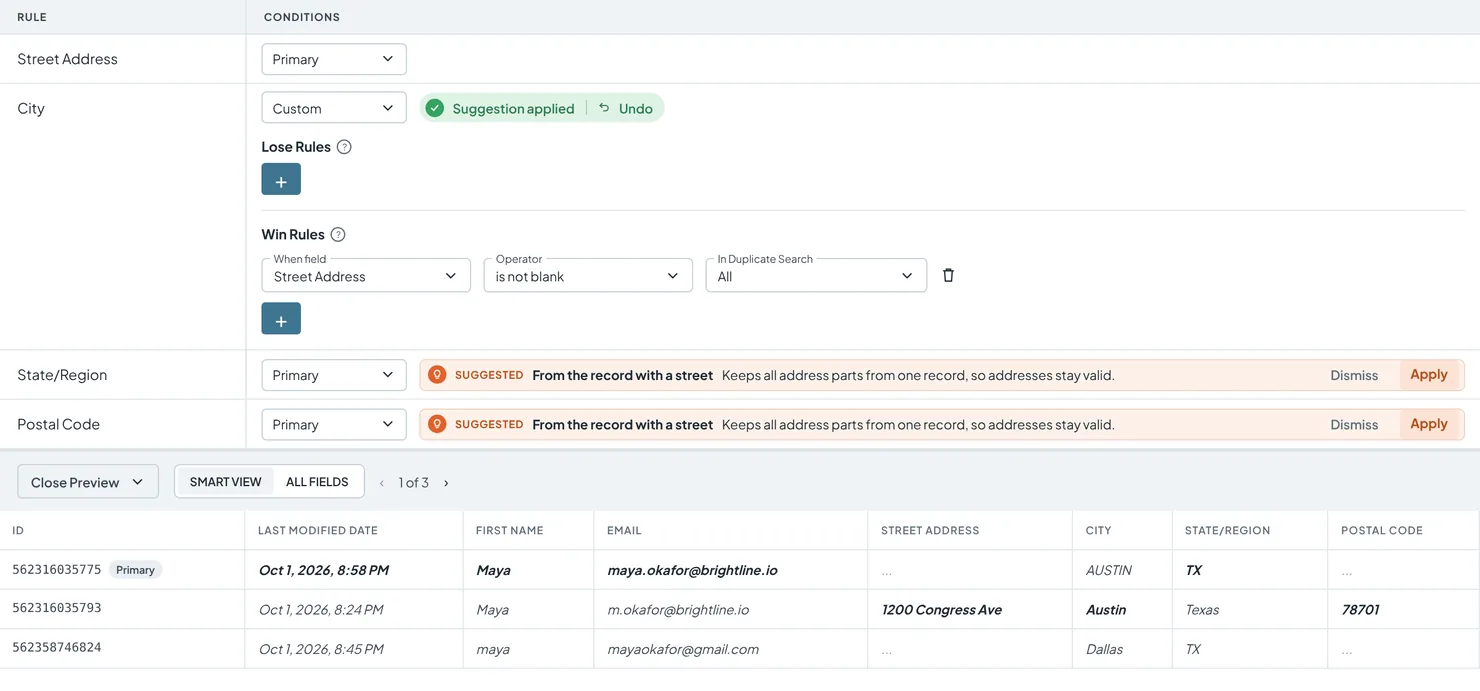
- Click Save.
Suggestions are applied one at a time. Undo works until you save; after that, edit or delete the rule like any other. Some suggestions set one of the field's options, like Primary or best name or Append. The others switch the field to Custom with a regular Win Rule, like Street Address is not blank for the address suggestion, so you can change it, reorder its options, or choose the search it applies to under In Duplicate Search.
To skip a suggestion, click Dismiss. Dismissing is remembered only in that browser, for that CRM and record type, so the suggestion can show again on another device, for a teammate, or after you clear your browser data.
Which suggestions are there?
Added
There are 25 suggestions. Some share a name, so you see 21 different names on screen. Which ones you see depends on your fields, custom fields included.
Contact and consent fields
| Suggestion | Fields it fits | What it keeps |
|---|---|---|
| Checked wins | Checkboxes like Email opt-out or Unsubscribed | The opt-out, if any record has it checked |
| Checked wins | Checkboxes like Do not call, Do not contact or SMS opt-out | The do-not-contact flag, if any record has it checked |
| Most restrictive status wins | Dropdowns like subscription, consent, marketing status or email status, with an opt-out option | An opt-out option first, then a recorded consent over none |
| Primary or best email | A single email field | A person's work email over shared inboxes like info@ or free email |
| Primary or best phone | A single phone field | A direct number over toll-free or placeholder numbers |
| Primary or best name | First name and last name fields | The full, well-capitalized name over initials or placeholders |
| Best name | A full name field | The most complete name, like Maya Okafor over maya |
Company fields
| Suggestion | Fields it fits | What it keeps |
|---|---|---|
| Primary or best name | The company's own name, on companies and accounts | The full company name with its legal suffix, like Brightline Inc. |
| Best name | The company a person works at, on people | The full company name with its legal suffix |
| Customer wins | Type, Account type, Company type or Customer type dropdowns, on companies and accounts | Customer options first, then partner, reseller or channel, then prospect |
| Highest wins | Revenue, Employees, Employee count or Headcount, on companies and accounts | The highest value |
Address fields
| Suggestion | Fields it fits | What it keeps |
|---|---|---|
| From the record with a street | City, state, province, region, postal code and country, when a street field with the same prefix exists (like Billing City and Billing Street) | Every part of the address from the record that has a street, so the address isn't mixed |
| Proper case wins | City, when it isn't part of an address with a street | New York over NEW YORK or new york |
Sales fields
| Suggestion | Fields it fits | What it keeps |
|---|---|---|
| From the most recently worked record | Lead status or status dropdowns | The status from the record worked most recently |
| Hottest rating wins | Rating or temperature dropdowns with Hot, Warm and Cold | Hot, then Warm, then Cold |
| Highest wins | Score fields | The highest score |
| From the oldest record | Lead source, original source, first source or UTM source | The source from the oldest record, so first-touch attribution is kept |
| From the last updated record | Deal or opportunity amount | The amount from the most recently updated deal |
Other fields
| Suggestion | Fields it fits | What it keeps |
|---|---|---|
| Append | Multi-value fields, like several emails or phones | Every value from every record |
| Primary or active | Owner fields | An active user, so the record isn't left with a deactivated owner |
| From the last updated record | Title fields | The value from the most recently updated record |
| Longest wins | Description, about, summary, bio or background | The longest text |
| Placeholders lose | Industry, department, sector or segment text fields | A real value over placeholders like Unknown, N/A or TBD |
| Catch-all choices lose | Dropdowns with an option like Other, Unknown or Not specified | A specific option over Other |
| Oldest wins | Dates named like first, original, since or signup | The oldest date |
| Newest wins | Dates named like last, latest or recent | The newest date |
How do the date-based suggestions decide?
- From the most recently worked record uses your CRM's last activity date, with the last modified date as a tiebreaker. In HubSpot, Salesforce and Pipedrive, that's the last activity date. In Close, Nimble and Google Contacts, it's the last modified date.
- From the oldest record uses the create date. It isn't offered in Google Contacts.
- From the last updated record uses the last modified date.
What should you check before you apply some suggestions?
- Hottest rating wins only shows when the dropdown has all three options, Hot, Warm and Cold. Any other option, like "Very hot," isn't ranked and loses to Cold. After you apply it, edit the rule and drag that option to the top.
- Customer wins counts every option with the word "customer," so "Former Customer" wins too, and it can be listed above "Customer." Check the order when you apply it, and drag the options you want first to the top.
- Placeholders lose looks for exact values, like Unknown, N/A, none, TBD, test or a single dash.
- Catch-all choices lose only shows on a dropdown with at least two specific options besides the catch-all ones, and no other dropdown suggestion.
Do suggestions work with field names in other languages?
Mostly in English. Most suggestions look for English words in the field's name or label.
- Standard CRM fields keep their English internal names when your CRM is set to another language, so they still get suggestions.
- Email, phone, name, company and city fields are recognized in some other languages too. A field called "Teléfono" gets Primary or best phone, and "Ciudad" gets Proper case wins.
- Other custom fields in another language, like "Industria," don't get a suggestion. Set their rules yourself. See How to Choose Which Value Wins in Each Field When You Merge.
Do suggestions work in spreadsheets?
Yes, but you see fewer. A spreadsheet has no dropdowns, owners, or create and update dates, so these don't show: the dropdown suggestions (consent status, lead status, rating, Customer wins, catch-all choices), Primary or active, and From the oldest or From the last updated record.
The rest show depending on your columns: the best email, phone and name, Append on multi-value columns, opt-out checkboxes, city and address, Longest wins, Placeholders lose, Highest wins, and the first and last dates. See Merge duplicates in spreadsheets.
Example setup
A marketing team cleaning HubSpot contacts opens Merge Rules for Contacts and sees suggestions on nine fields:
- Applied: Checked wins on Unsubscribed from all email and Do not call, Most restrictive status wins on their Email consent status dropdown, Primary or best email on Email, From the record with a street on City, State and Postal code, and From the oldest record on Original source.
- Edited after applying: Hottest rating wins on their Lead rating dropdown, with their extra option "Very hot" dragged to the top.
- Checked: ten matches in the Merge Preview tab, then Save.
Troubleshooting
A field doesn't show a suggestion. It isn't on its default rule, it's read-only, or its name doesn't match a suggestion. A field set to Custom only gets the Append suggestion, on multi-value fields.
A suggestion I dismissed came back. Dismissing is remembered only in that browser. On another device, for a teammate, or after clearing browser data, it shows again. There's no button to bring a dismissed suggestion back on purpose; apply it or set the rule by hand.
Hottest rating wins doesn't show on my rating field. The dropdown needs all three options, Hot, Warm and Cold. Set the rule by hand: Custom, with a Win Rule on that field, and the options in your order.
I added a field in my CRM and don't see a suggestion. Suggestions are worked out every time you open Merge Rules. Once the new field syncs, open Merge Rules again.
FAQs about suggested Merge Rules
- What are suggested Merge Rules? Rules Dedupely recommends for fields it recognizes, like opt-outs, addresses, emails and lead sources, so the right value is kept when duplicates merge.
- Do suggestions change anything on their own? No. A suggestion only becomes a rule when you click Apply and save.
- Can I edit a suggested rule? Yes. Once applied, it's a regular rule: change the field's option, or edit, reorder or delete its Win Rule.
- Can I apply all the suggestions at once? No. You apply them one at a time, so you can check each one.
- Are suggestions in the free trial? Yes. They're on every plan and the trial.
- Does Auto Merge use the suggested rules I apply? Yes. Every merge follows your saved Merge Rules, except Custom Merge.
Next up
Changelog
-
Suggested Merge Rules
Dedupely suggests rules for fields like phone, name and address once your CRM syncs. Apply one in a click, check it in the Preview panel, and save.
Still stuck?
Our team helps on every plan and during the free trial, by chat, email or Zoom.
- Need help? Talk to support
- Questions about plans? Book a Zoom with sales
- Reading this with a model? Read this page as Markdown
- Feeding it the whole site? Read llms.txt


Was this article helpful?
Thanks for letting us know!
Thanks! Need help now?


 Or sign up with Google
 HubSpot Marketplace