Syncing Records
Dedupely pulls in your CRM records so you can find and clean up duplicates in one place.


When you connect a CRM, Dedupely copies the records from the objects you choose and keeps them up to date in the background. Syncing never changes anything in your CRM; only merges do.
How syncing works
The first sync
When you first connect a CRM, Dedupely runs a full sync of every record in the objects you chose. How long it takes depends on the size of your database:
| Records | Typical first sync |
|---|---|
| Up to 50k | 2–15 minutes |
| 50k–300k | 15–90 minutes |
| 300k–600k | 1–3 hours |
| 600k–1M | 3–10 hours |
| 1M+ | 10–12 hours |
These are estimates. Your CRM's API rate limits can make it take longer.
Background refreshes
Added
- Automatic: after the first sync, Dedupely refreshes your data every 10–30 minutes. There's no button to press.
- New records: records you create in your CRM usually show up in Dedupely within 1–5 minutes.
- Not real-time: Dedupely isn't a live mirror of your CRM. A change you make in your CRM can take a few minutes to appear in Dedupely.
- CRM API limits: Dedupely reads each CRM's rate limits and slows down as it nears them. If a limit runs out, that connection pauses: its icon turns orange, Dedupely emails you, and CRM Settings shows when the pause ends. A merge that meets the pause is cancelled rather than failed.
Supported CRM objects
| CRM | Objects you can sync |
|---|---|
| HubSpot | Contacts, Companies, Deals, Leads, Tickets, Custom Objects |
| Salesforce | Accounts, Contacts, Leads, Opportunities, Individuals (when your org uses them), Custom Objects |
| Pipedrive | People, Organizations, Deals, Leads, Products |
| Close | Contacts, Leads, Opportunities |
| Nimble | People, Companies |
| Google Contacts | Contacts |
How to manage your synced records
Go to CRM Settings in the left menu to manage what Dedupely syncs.
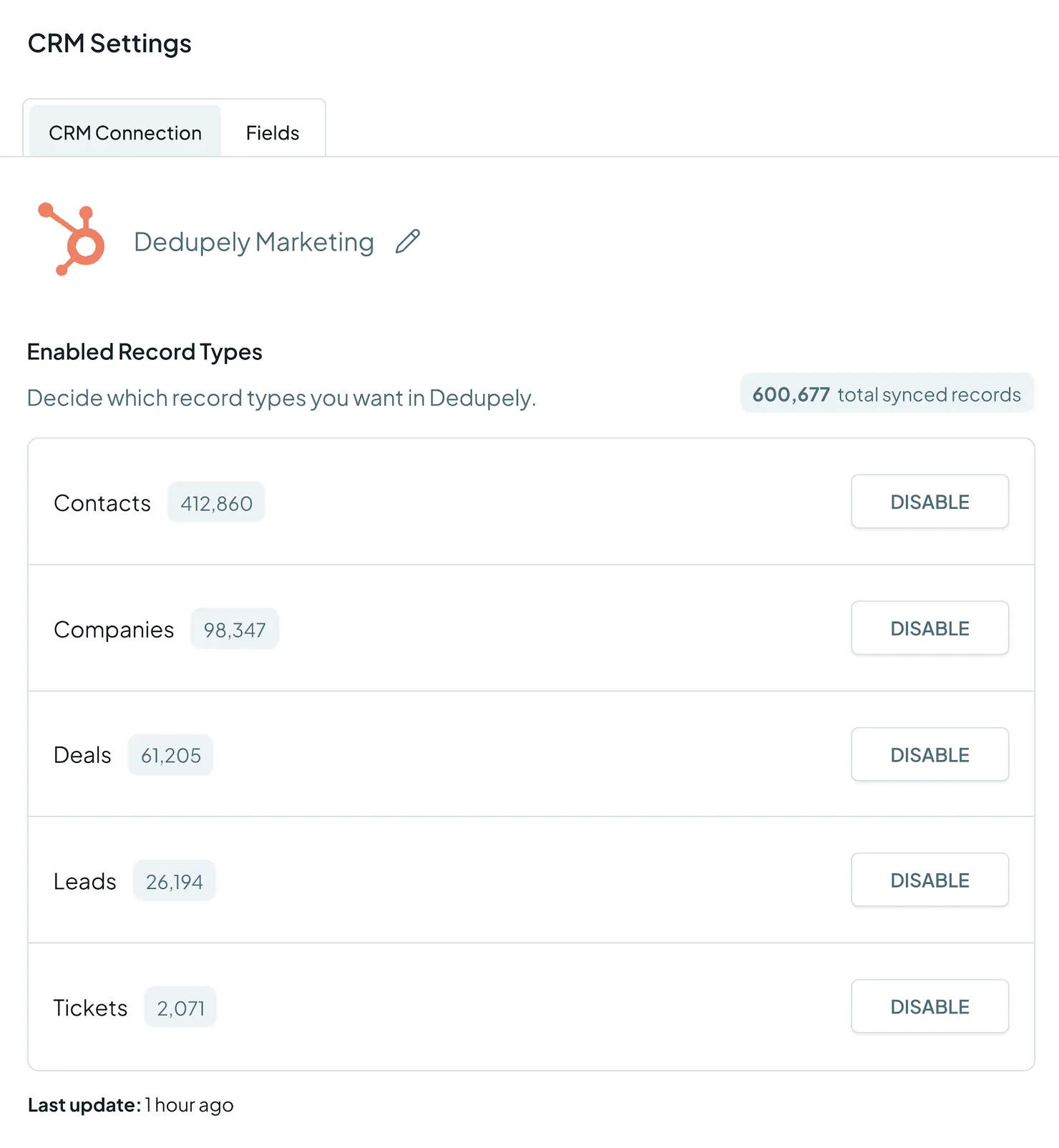
From there you can:
- Turn individual objects on or off.
- Disconnect CRMs you no longer use, to free up your record limit.
- See your total synced record count.
How record counts work
Your plan is based on the total number of records synced across the objects you turn on.
- All objects add up. Example: 15,000 Contacts + 18,000 Companies + 4,000 Deals in HubSpot = 37,000 synced records.
- All CRMs add up. Example: 20,000 Contacts in HubSpot + 30,000 Accounts in Salesforce = 50,000 synced records.
- Spreadsheets don't count. Every plan includes unlimited spreadsheet imports.
If you go up to 10% over your plan’s limit, everything keeps working for 10 days, once per billing period, while you upgrade or turn objects off. After that, or if you go more than 10% over, your account becomes read-only until you upgrade or get back under the limit: syncing and scans keep running, but merging, Auto Merge, Auto Match and exports stop. See Billing & Usage.
Your data is safe
- No automatic changes. Connecting or syncing never merges, edits or deletes anything in your CRM.
- You're in control. Records only change when you click Merge (single, custom or bulk merges) or when Auto Merge runs on a search you turned it on for.
- Salesforce Sandbox: you can connect a Salesforce Sandbox to test your match settings and Merge Rules before using them in production.
What happens next
- Check that your sync finished. Open CRM Settings and look at the record count for each object. It should be close to the number of records in your CRM.
- Find your first duplicates. Create a Duplicate Search to see how many duplicates you have. See Finding Duplicates.
Troubleshooting
My first sync seems stuck. Databases over 300k records can take several hours because of CRM API limits. Check the table above. If it's taking much longer than the estimate, contact support.
A change I made in my CRM isn't showing in Dedupely. Dedupely refreshes every 10–30 minutes, so give it up to half an hour. If it still doesn't show, check that the object is turned on in CRM Settings and that your Duplicate Search filters aren't hiding the record.
My record count is higher than I expected. Every record in every object you turned on counts, across all connected CRMs. Sandbox records count too. Turn off objects you're not cleaning right now in CRM Settings.
My account is read-only. Your synced record count is probably more than 10% over your plan’s limit, or the 10-day grace period ended.
FAQs about syncing records
- Do I need to refresh my data manually? No. Dedupely syncs automatically every 10–30 minutes in the background.
- Can I connect more than one CRM to the same account? Yes. Records from all connected CRMs count together toward your plan's limit.
- Does turning off an object lower my record count? Yes. Its records are removed from Dedupely, which lowers your total synced record count.
- Do spreadsheet imports count toward my plan's limit? No. Spreadsheet imports are unlimited on all plans. Only CRM records count.
- Can I connect a sandbox? Yes, for Salesforce. Sandbox records count toward your plan's limit like any other synced record.
- Does syncing change anything in my CRM? No. Syncing only reads your data. Records change only when you merge.
Next up
How to Approach CRM Deduplication Plan your cleanup in three phases before you start merging.Changelog
-
Dedupely respects CRM API limits
Dedupely reads each CRM's rate limits and slows down near them. If a limit runs out, that connection pauses with a warning icon and an alert, and merges caught by it are canceled rather than failed.
Still stuck?
Our team helps on every plan and during the free trial, by chat, email or Zoom.
- Need help? Talk to support
- Questions about plans? Book a Zoom with sales
- Reading this with a model? Read this page as Markdown
- Feeding it the whole site? Read llms.txt




 Or sign up with Google
 HubSpot Marketplace











