Merge duplicates in spreadsheets
Upload your spreadsheets to Dedupely, merge the duplicate rows, and download a clean file.


Dedupely can dedupe spreadsheets as well as CRMs. Upload a CSV file, find and merge its duplicates with the same tools you'd use on CRM records, and export a clean CSV, for example before importing an event list into your CRM. Unlimited spreadsheet uploads are included in every Dedupely plan and the 7-day free trial, and spreadsheet records don't count toward your plan's record limit.
Spreadsheet limits
| Limit | Value |
|---|---|
| Total size | 100 MB |
| Files per upload | 10 |
| Rows | 1,000,000 |
| Columns | 50 |
| Characters per cell | 350 |
| Values per multi-value field | 175 |
| Field name or label | 100 characters |
| CSV instance name | 50 characters |
| Size per line | 4 MB |
One file or several
- Separate CSV instances: upload each file as its own CSV instance to keep your lists apart.
- One combined CSV instance: upload several files into one CSV instance, or add more files later.
When you combine files, make sure the column headers are spelled the same in every file (e.g. "First Name", "Email", "Company"), so Dedupely puts them in the same fields.
How to upload a spreadsheet
Added
When you sign up
- After creating your account, go to the bottom of the Connect a CRM to Get Started screen.
- Under Other Data Sources, click Upload on the CSV tile.
- Upload your file(s), name your CSV instance, and confirm.
From an account with a CRM connected
You don't need a CRM to dedupe spreadsheets.
- Click the CRM icon in the left menu.
- Click + Add New CRM or CSV at the bottom of the list.
- Under Other Data Sources, select CSV and click Upload.
- Choose your file(s) and name your CSV instance.
From an existing CSV instance
- New, separate CSV instance: click the CSV icon in the left menu and select + Add New CRM or CSV.
- More files in the same CSV instance: click Edit CSV Settings (the gear icon in the left menu), then Upload More Files in the General tab.
How to dedupe and export

- Create a Duplicate Search for your CSV instance, just like for a CRM object. See How to Find Duplicates.
- Merge the duplicates. See How to Merge Duplicates.
- In Edit CSV Settings → General, click Create Export and choose the fields to include.
CSV settings
General
- Details: your total number of records and fields.
- Create Export: download a clean CSV, with the fields you choose. You can create as many exports as you need.
- Upload More Files: add spreadsheets to this CSV instance at any time, e.g. a new event list.
- Remove: permanently delete the CSV instance and its data from Dedupely.
Fields
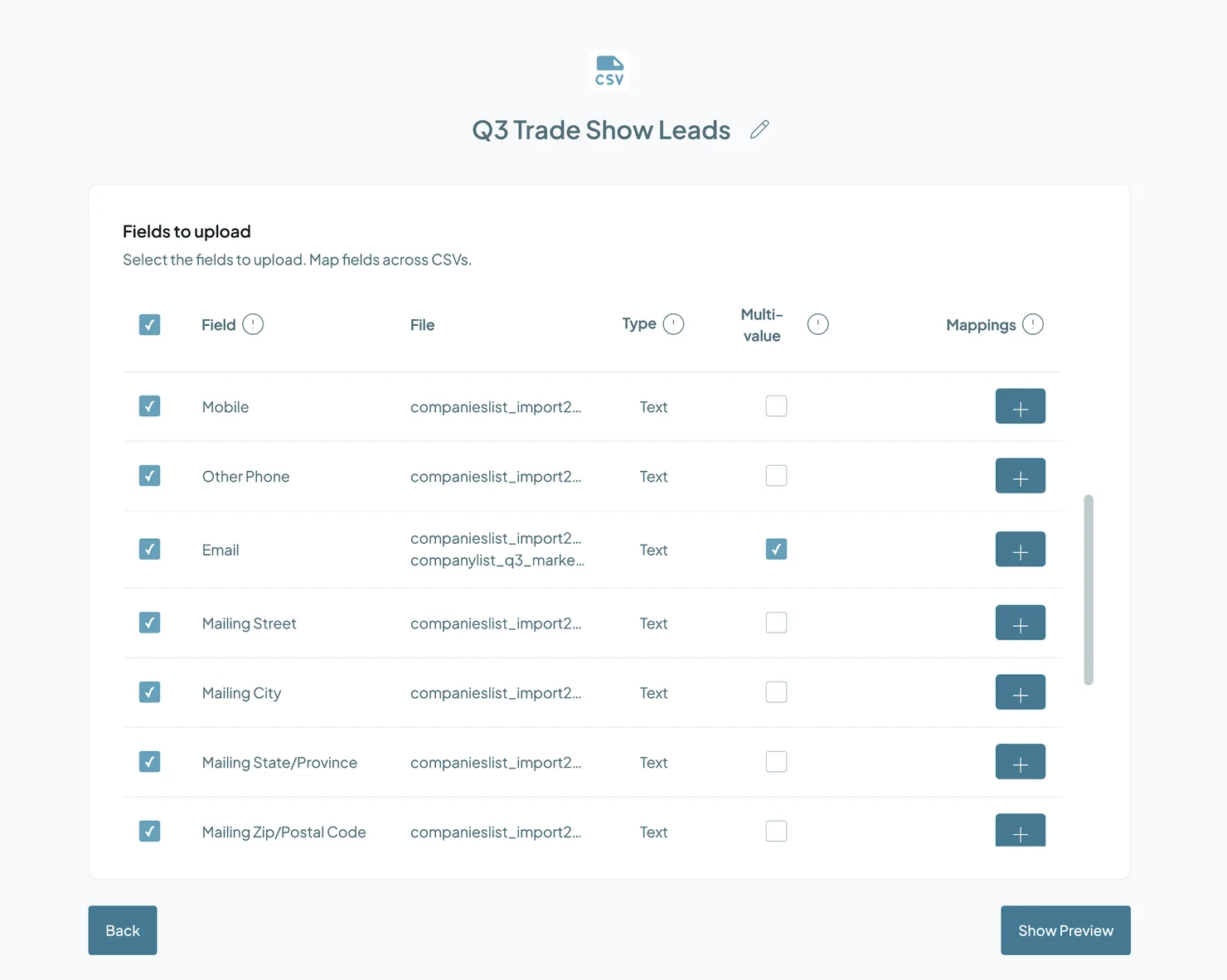
- Type: how Dedupely reads the column. Spreadsheet columns import as text.
- Multi-value: check this for columns with more than one value, like several email addresses. Merge Rules can then Append those values instead of overwriting them.
Exports
- Export History: every export you've created for this CSV instance.
What happens next
- Your file is ready to dedupe once it's uploaded. Create a Duplicate Search to find duplicates.
- Merges stay inside Dedupely. Merging a spreadsheet doesn't change anything in your CRM. Use Create Export to download the clean file.
- Your plan isn't affected. Spreadsheet records don't count toward your record limit.
Troubleshooting
My file won't upload. Check that it's a CSV file with a header row, and within the limits above (100 MB, 1,000,000 rows, 50 columns, 10 files per upload). If you have an Excel file, save it as CSV first.
Columns from two files didn't combine. Their headers are spelled differently. Rename the headers so they match, then upload again.
My file has very long values. Cells can hold up to 350 characters, and multi-value fields up to 175 values. Shorten longer values before uploading.
Merging overwrote one of several emails. Mark the column as Multi-value in the Fields tab, then set it to Append in Merge Rules.
FAQs about deduping spreadsheets
- Can I upload Excel files? Save them as CSV first. Dedupely accepts CSV files, including ones exported from Excel and Google Sheets.
- Do my files need a header row? Yes. The first row must have the column names.
- What happens if my files have different column headers? Matching headers are combined into one field. Different headers become separate fields.
- Do spreadsheets count toward my plan's record limit? No. Spreadsheet uploads are unlimited and don't count toward your record limit.
- Do I need a CRM to dedupe spreadsheets? No.
- Why use Dedupely instead of cleaning spreadsheets by hand? You decide what counts as a duplicate and which values win, reject false matches, and can automate the whole thing, instead of checking rows one by one.
Next up
How to Find Duplicates Create a Duplicate Search for your spreadsheet and choose what counts as a duplicate.Changelog
-
CSV upload rebuilt
CSV upload has a new flow and processes files faster. A file is searchable for matches as soon as it is imported, and matches exports carry each record's ID.
Still stuck?
Our team helps on every plan and during the free trial, by chat, email or Zoom.
- Need help? Talk to support
- Questions about plans? Book a Zoom with sales
- Reading this with a model? Read this page as Markdown
- Feeding it the whole site? Read llms.txt




 Or sign up with Google