HubSpot Deduplication Guide
Find every duplicate in your HubSpot portal and merge them in bulk, step by step.


Dedupely connects directly to your HubSpot portal to find and merge duplicates, from simple exact matches to complex cases. It works with every HubSpot tier, including the free version.
Supported HubSpot objects
You can dedupe these HubSpot objects:
- Contacts
- Companies
- Deals
- Tickets
- Leads
- Custom Objects
You can't merge records across different object types, e.g. a Contact into a Lead.
Common HubSpot duplicate issues
HubSpot drives a lot of marketing and top-of-funnel activity, so duplicates tend to arrive in big waves rather than one at a time. These are the most common causes:
- Spreadsheet imports: HubSpot only matches on exact email and company domain during imports. If an event list is missing domains, HubSpot creates a new company for every row.
- Conflicting data sources: a sales rep creates a record with a .eu email, then a web form submits the same person with a .com email.
- Cross-team data: Marketing often cleans up a mix of its own inbound data and records created by Sales, and needs to avoid losing valuable sales notes.
- Paywalled native tools: HubSpot's duplicate manager needs a Professional or Enterprise subscription and merges one pair at a time. Bulk merging and custom duplicate rules need Data Hub Professional or Enterprise.
How HubSpot's native merge works
Added
Dedupely merges through HubSpot's own API. You control which values survive with Merge Rules, but every merge still follows HubSpot's built-in rules:
- New record ID: unlike most CRMs, HubSpot usually gives the merged record a brand-new ID, and neither original ID is kept.
- Redirected IDs: if your integrations or reporting tools use stored IDs, HubSpot redirects the old IDs to the new merged record.
- Leads are merged by Dedupely: HubSpot has no merge for leads, so Dedupely copies their associations to the surviving lead and archives the others.
- Parent and child companies: HubSpot doesn't merge a company with its own parent or child. Dedupely asks first, and Merge and remove the parent-child link removes the link so the merge goes through. Set a standing answer in Safety Settings → Merge choices.
- Association and merge limits: HubSpot caps how many associations one record holds and how many times a record can be merged. Dedupely spots these before a merge, and your Merge choices decide whether to ask, merge or skip. See Merge Safety.
- Workflow unenrollment: by default, HubSpot removes both records from their active workflows. If your portal is in HubSpot’s Primary ID Preservation beta, the primary record keeps its ID and stays enrolled, and only the secondary record leaves its workflows.
How to dedupe HubSpot records, step by step
- Dedupe data before and after imports. Dedupe your spreadsheets before importing them into HubSpot. After each import, run a targeted Duplicate Search to catch the records that slipped past HubSpot's exact email and domain matching.
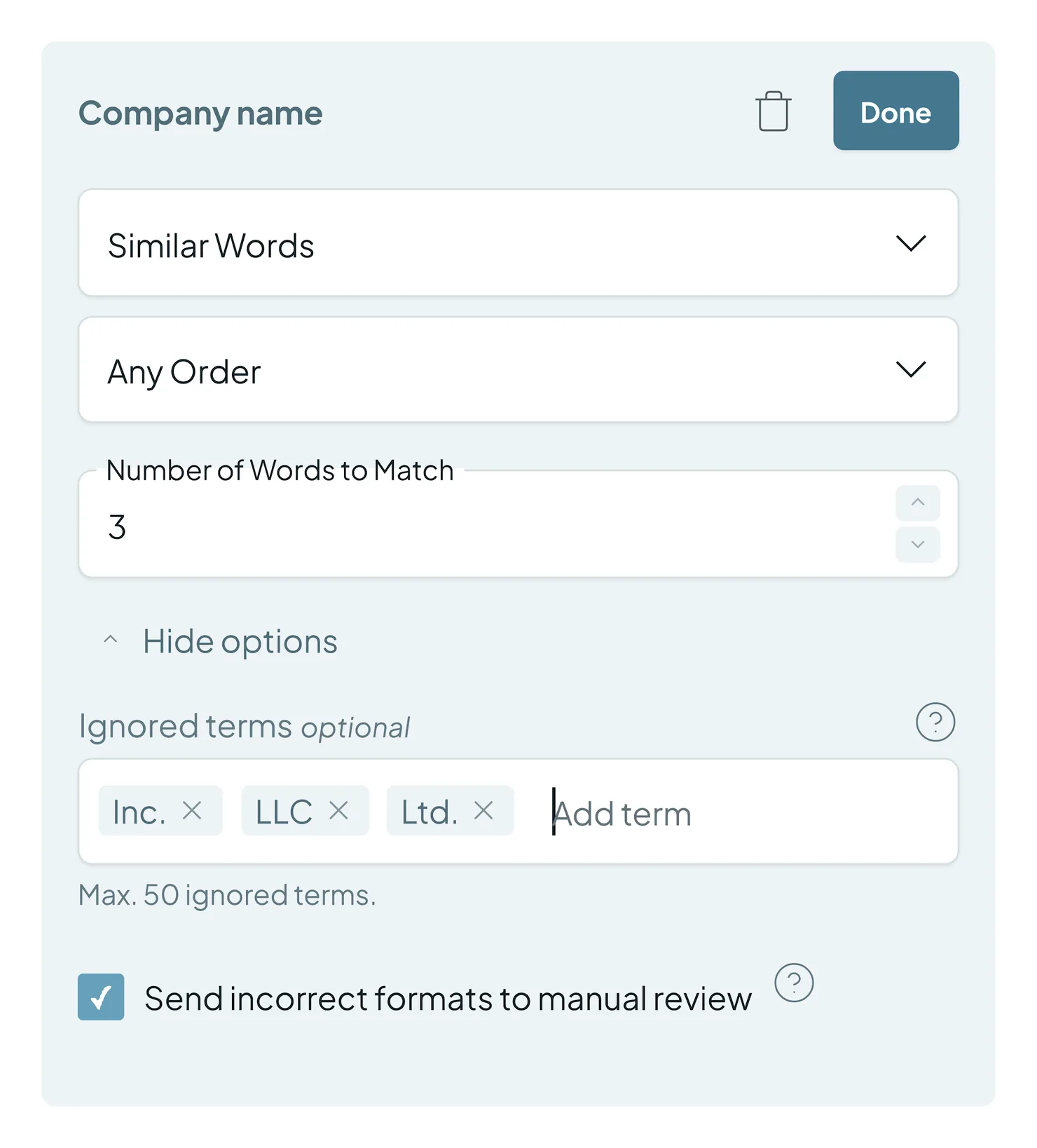
- Dedupe your legacy data. Older portals often hold thousands of duplicates from past events, old integrations and previous teams. Run Duplicate Searches on fields like First Name + Last Name + Phone Number to find records imported without an email, and bulk merge these first.
- Control incoming duplicates. Find the forms, landing pages and integrations that create the most duplicates. Build a Duplicate Search for each one, based on the data that tool sends, so you can manage what it creates.
- Build confidence across teams. If Marketing is cleaning up data other teams created, start with Auto Match before fully automating. You'll be notified when duplicates reach the threshold you set, and can merge them, reject them, or send them to Manual Review so someone from the other team can weigh in.

- Automate the top of the funnel. Once your legacy data is clean and your Duplicate Searches are proven, turn on Auto Merge. Schedule it to merge duplicates from forms and integrations, so teams only see clean records by the time a lead is routed to them.
What happens next
After each merge in HubSpot:
- The merged record usually gets a new ID. Old IDs redirect to it, so integrations keep working. If a tool stores HubSpot IDs, it may be worth updating them over time.
- Both records leave their workflows. Re-enroll the merged record in any workflow it should still be in. In HubSpot’s Primary ID Preservation beta, the primary record stays enrolled.
- Every merge is logged. Check what was merged and when in Merge History.
HubSpot's own merges can't be undone. Most Dedupely merges can be undone within 30 days from Merge History, except HubSpot leads, company merges in a portal synced with Salesforce and merges made in HubSpot and Salesforce at once (see Undo a Merge). For anything else, download your Merge History and use it to restore the original values in HubSpot.
Troubleshooting
I can't connect HubSpot, or merges fail. Your HubSpot user might be missing permissions. You need to be a Super Admin, or have Merge records and Edit permissions for that object. Ask your HubSpot admin to update your role, then try again.
A merged record dropped out of a workflow. That's HubSpot's default merge behavior. Re-enroll the merged record in the workflow, or turn on re-enrollment in the workflow's settings in HubSpot.
An integration or report still shows the old record ID. HubSpot redirects old IDs to the merged record through its API, so lookups should still work. If a tool stores IDs locally, update it to the new ID.
The wrong values survived a merge. Check your Primary Record rule and add field-level rules in Merge Rules. Preview a few matches before your next bulk merge.
FAQs about HubSpot deduplication
- Do I need a paid HubSpot plan, like Data Hub, to use Dedupely? No. Dedupely works with every HubSpot tier, including the free version. You can bulk merge and automate without upgrading HubSpot.
- Can I dedupe Deals in HubSpot? Yes. Deals work like any other supported object: you set up Duplicate Searches, match settings and Merge Rules that fit how your Deals are created, test them, and then merge.
- How do I handle contacts with more than one email address? HubSpot matches on the primary email, so a secondary email can create a duplicate. In Dedupely you're not limited to email: match on a custom field or a combination of fields.
- Can I undo a merge? Yes, within 30 days for most merges, from Merge History, but not for leads, company merges in a portal synced with Salesforce, or merges made in HubSpot and Salesforce at once. Undo is for records that weren't duplicates, so treat every merge as permanent. See Undo a Merge.
- Can I fully automate HubSpot deduplication? Yes, you can fully automate HubSpot deduplication with Dedupely. We recommend Auto Merge for high-confidence matches and Auto Match to flag complex edge cases for review.
- Why did HubSpot create duplicates when I imported existing companies? HubSpot needs the Company Domain Name column to match existing companies. If it's missing or formatted differently, HubSpot creates new records. In Dedupely, use Domain Root to match domains by their root (ignoring www, .com, etc.) and Ignored Terms to skip legal suffixes like Inc. or LLC. See Match Options.
Next up
How to Find Duplicates Create your first Duplicate Search and choose what counts as a duplicate.Changelog
-
Merge choice for parent and child companies in HubSpot
Merging a HubSpot company with its own parent or child asks first, and can remove the parent-child link so the merge goes through. Always ask is the default. Set your answer in Safety Settings.
-
Merge choices before a risky merge
Dedupely predicts four CRM refusals before a merge: HubSpot association and merge-count limits, Salesforce records that point at each other, and retired Salesforce picklist values. Answer Always ask, the fix, or Skip in Safety Settings. A skipped match moves to Attention Required.
Still stuck?
Our team helps on every plan and during the free trial, by chat, email or Zoom.
- Need help? Talk to support
- Questions about plans? Book a Zoom with sales
- Reading this with a model? Read this page as Markdown
- Feeding it the whole site? Read llms.txt




 Or sign up with Google
 HubSpot Marketplace











