Auto Merge
Merge new duplicates in the background on a schedule, once you've tested your Duplicate Search.


Auto Merge is how you automate deduplication in Dedupely. It runs one Duplicate Search on a schedule you choose and merges the matches it finds, using your Merge Rules. Because a merge changes your live CRM, Auto Merge is for searches you've already tested by hand. Matches set aside by your Safety Settings, and matches in Manual Review, are never merged automatically. Auto Merge is included in every Dedupely plan and the 7-day free trial, where it uses your 20 free merges and stops when they run out.
What does Auto Merge do, and what doesn't it do?
| Auto Merge… | What it means |
|---|---|
| Runs on one Duplicate Search | You turn it on in each search you want to automate. |
| Uses that search's fields, match options and filters | It merges the same matches you see in your results. |
| Follows your Merge Rules | Including the Primary Record and field-level rules. Without your own rules, the defaults apply: the oldest record survives. |
| Never merges matches in the Excluded tab | Matches set aside by Safety Settings wait for you to review them. |
| Never merges matches in Manual Review | They wait until someone merges or rejects them. |
| Never merges rejected matches | Rejected matches stop showing up in your searches. |
| Logs every merge in Merge History | Most merges can be undone within 30 days, but treat every merge as permanent. |
Which Duplicate Searches are ready for Auto Merge?
Sort your searches by how sure you are of their matches, as in How to Approach CRM Deduplication:
| Type of duplicate | Example | Automate with |
|---|---|---|
| Obvious | Exact First Name + Exact Last Name + Exact Email | Auto Merge, once tested |
| Conditional | Similar phone number on dialer call logs | Auto Merge, after you set Merge Rules that protect real data |
| Complex | Matches on Tax ID or ERP Customer Number | Auto Match, with Manual Review for a person to approve |
A search is ready for Auto Merge when:
- You've merged 1–2 matches by hand and 1–2 bulk-merged pages, and the results in your CRM were right.
- You've rejected the false positives, so they don't come back.
- Its results stay correct when you scan again after new records sync.
How to turn on Auto Merge

- At the top of your Duplicate Search, click Automate.
- Select Auto Merge.
- Choose how often it should run and click Save.
- Click Enable, check the details in the confirmation view, and confirm.
Which schedule should I choose?
Match the schedule to how often the duplicates arrive:
| Schedule | Best for |
|---|---|
| As soon as possible | Duplicates that arrive all day, like web form submissions. Auto Merge runs in a continuous loop: it scans, merges, and starts again right away, so new duplicates are merged soon after they reach Dedupely. |
| Every X minutes, hours or days | Steady sources, like dialer call logs that should be merged before reps start their day. |
| On specific weekdays or days of the month | Sources that follow a cycle, like monthly event imports. |
| Only within certain hours (e.g. between 5 PM and 9 PM) | Merging outside your team's working hours. |
New CRM records usually reach Dedupely within 1–5 minutes, and Dedupely refreshes your data every 10–30 minutes, so even "As soon as possible" isn't instant.
Should I use Auto Match first?
Yes, for any search you're not fully sure about. Auto Match emails you when matches build up, without merging anything:
- Turn on Auto Match on the search.
- When you're notified, review the matches: merge, reject, or send them to Manual Review.
- When you stop rejecting matches from that search, it's ready for Auto Merge.
How to monitor and control Auto Merge
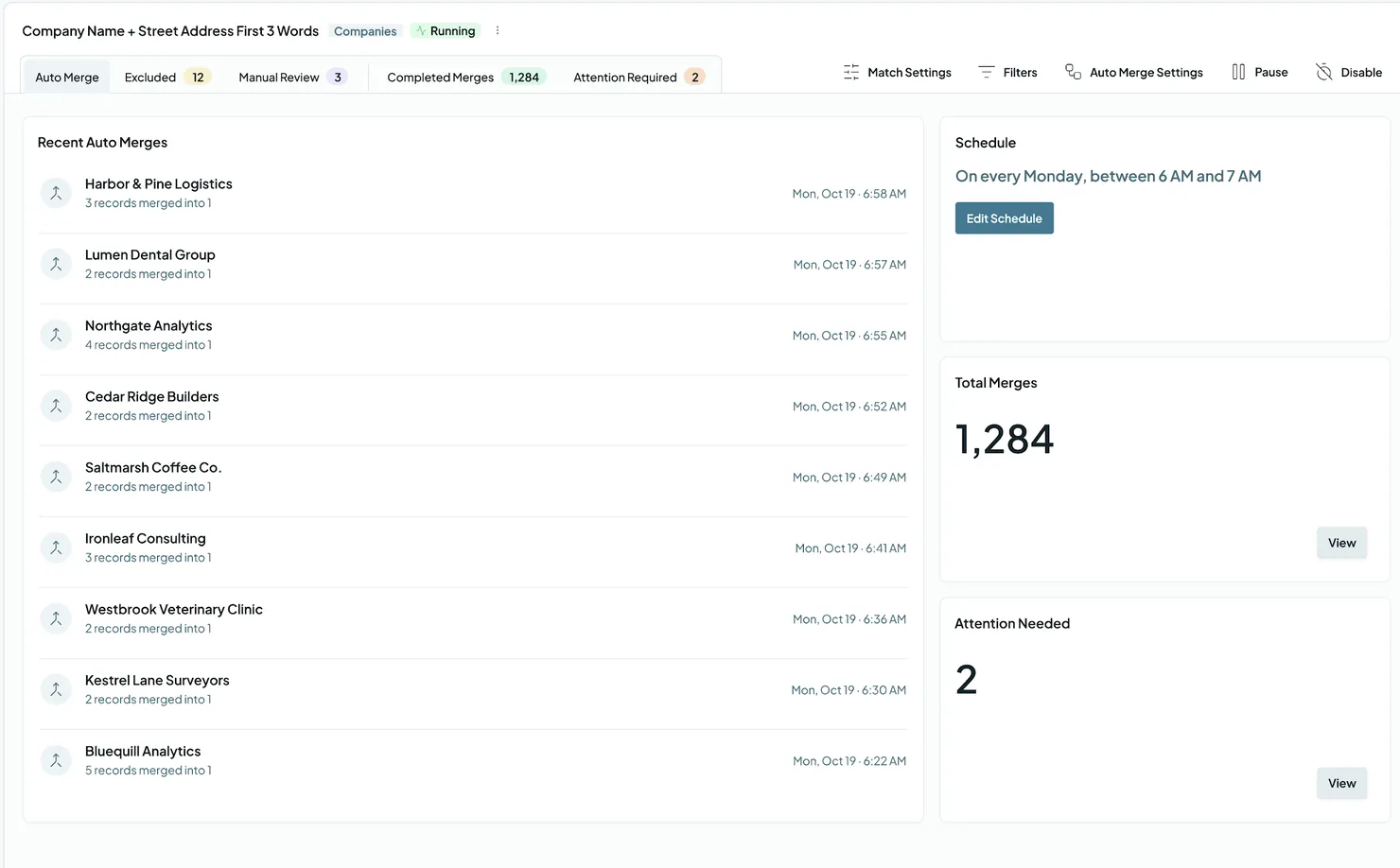
Once Auto Merge is on, the search shows a Running label and opens on its Auto Merge dashboard:
- Recent Auto Merges: the latest merges Auto Merge ran.
- Schedule: when it runs (e.g. "Every week on Monday, between 8 PM and 7 PM (next day)"). Click Edit Schedule to change it.
- Total Merges: how many merges it has run. Click View to see them.
- Attention Needed: records that need you to check them. Click View to see them.
The tabs at the top of the dashboard are Auto Merge, Excluded, Manual Review, Completed Merges and Attention Required. At the top right you'll find:
- Match Settings and Filters: the search's matching logic.
- Auto Merge Settings: change how Auto Merge runs.
- Pause: stop Auto Merge without losing your schedule.
- Disable: turn Auto Merge off for that search.
To stop a run in progress, click Cancel all. Merges already in progress finish; the rest are cancelled. Each merge shows a status (Pending, Merging, Finished or Error). Hover over an Error to see the message.
What protects your data while Auto Merge runs?
- Safety Settings set aside large matches and matches built on placeholder data, so Auto Merge skips them. They're on by default. See Merge Safety.
- Merge choices (HubSpot) decide what happens when a record has too many associations or too many past merges. Auto Merge can't ask, so it skips matches set to Always ask. Choose another answer in Safety Settings if you want Auto Merge to handle them.
- Manual Review and Rejected Matches keep the matches you've flagged or dismissed out of every run.
- Merge Rules decide which values survive every automatic merge.
- Merge History records every merge, with the original records and the values that won. Download it as a CSV to restore original values if you ever need to.
Example setups
Web form duplicates (obvious)
- Duplicate Search: First Name: Exact · Last Name: Exact · Email: Exact
- Merge Rules: Primary Record set to Oldest Record
- Schedule: As soon as possible
Dialer call logs (conditional)
- Duplicate Search: Phone Number: Similar (compares the last 7 digits), with a filter so at least one record has a blank First Name or Email
- Merge Rules: Primary Record set to Most Field Data, so the real contact wins over the thin record from the dialer. On Phone Number, choose Custom and add a Win Rule with When field Create Date and operator is newest, so the contact keeps the newest number
- Schedule: daily, before your reps start their day
Company domain variations (conditional)
- Duplicate Search: Company Domain Name: Domain Root · Company Name: Similar Words (Any Order), with Ignored Terms for legal suffixes like Inc., LLC and Ltd.
- Merge Rules: Primary Record set to Oldest Record
- Schedule: daily
What happens next
- Auto Merge runs on your schedule until you pause or disable it. The search shows a Running label while it's on.
- Every merge is recorded. New merges show in Recent Auto Merges and the Completed Merges tab, and in Merge History.
- Merges happen in your CRM and follow your Merge Rules. Most can be undone within 30 days from Merge History (see Undo a Merge). For older merges, download your Merge History as a CSV and use it to restore the original values in your CRM.
- Matches that need a person wait. Matches in the Excluded and Manual Review tabs are never merged automatically.
Troubleshooting
Auto Merge isn't merging anything. It might be paused, or the search might have no new matches. Check that the search shows the Running label and that your search still finds matches. Matches in the Excluded and Manual Review tabs aren't merged automatically, and in HubSpot, neither are matches whose Merge choice is set to Always ask. If your synced records go more than 10% over your plan’s limit, or stay over it for more than 10 days, your account becomes read-only and Auto Merge stops until you upgrade or get back under the limit. It starts again on its own once your account is back to normal. It also waits while a first sync runs or a CRM is disconnected.
Auto Merge merged matches I wanted to review first. The search might be too loose for automation. Turn off Auto Merge on that search and use Auto Match instead, or tighten it with another field (match on at least three) or a filter. Check what was merged in Merge History.
The wrong values survived an automatic merge. Check your Primary Record rule and add field-level rules in Merge Rules. Without your own rules, the defaults decide.
A merge shows "Error". Hover over the status to see the message. It might be a permission issue in your CRM, or a read-only field. If it's not clear, contact support via email or live chat.
Records show up in Attention Needed. Click View in the Attention Needed panel, or open the Attention Required tab, to see them and decide what to do. If it's not clear, contact support via email or live chat.
FAQs about Auto Merge
- What's the difference between Auto Merge and Auto Match? Auto Merge merges automatically on a schedule. Auto Match only emails you when matches build up, and a person decides what to merge.
- Does Auto Merge use my Merge Rules? Yes. It follows your Primary Record and field-level rules. A Custom Merge is the only merge that overrides them.
- Does Auto Merge merge matches in Manual Review or the Excluded tab? No. Both wait for a person to decide.
- Can I turn on Auto Merge for every Duplicate Search at once? No. You turn it on in each search, so you only automate the ones you've tested.
- Can I stop Auto Merge? Yes. Click Pause to keep your schedule, Disable to turn it off, or Cancel all to stop a run in progress.
- Can I use Auto Merge on the free trial? Yes. It uses your 20 free merges and stops when they run out, so test with Single and Bulk Merges first.
- Can I undo an automatic merge? Yes, the same way as any other merge: within 30 days, from Merge History. See Undo a Merge.
- Does Auto Merge stop if I go over my plan's record limit? Yes, once your account becomes read-only: more than 10% over your limit, or still over after the 10-day grace period. Up to 10% over, Auto Merge keeps running for 10 days. Its settings are kept, and it starts again on its own once your account is back to normal.
Next up
How to Merge Duplicates Every way to merge, from one match at a time to Auto Merge.Still stuck?
Our team helps on every plan and during the free trial, by chat, email or Zoom.
- Need help? Talk to support
- Questions about plans? Book a Zoom with sales
- Reading this with a model? Read this page as Markdown
- Feeding it the whole site? Read llms.txt




 Or sign up with Google

 Pipedrive user











