 Dedupely Intelligence

Roles and Permissions
Decide what each person can see and change in Dedupely, with built-in roles or your own.


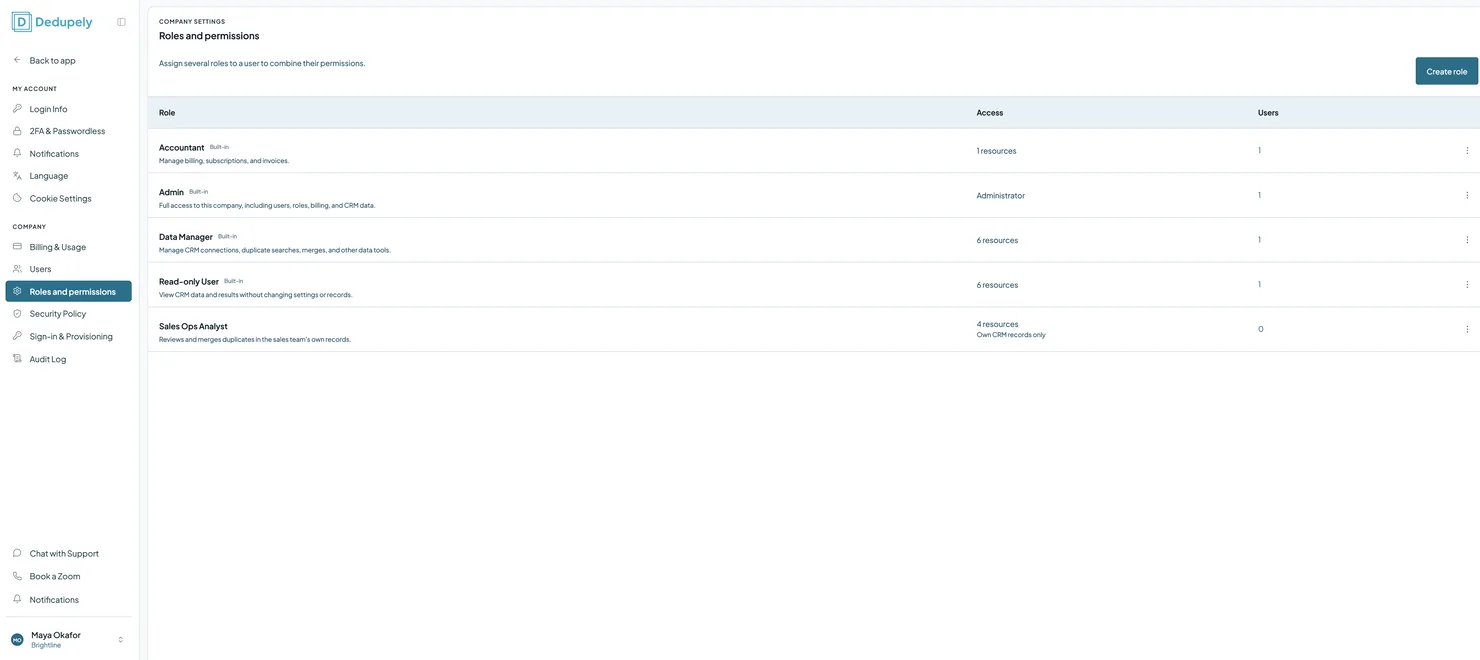
Roles decide what each person in your Dedupely account can see and do. Every role is a set of permissions, from Users and Billing to merging and Auto Merge, and each permission can be set to No access, Read or Read & Modify. Use the four built-in roles, or create your own. A person can have several roles, and gets the access of all of them.
Built-in roles
Added
| Role | What they can do |
|---|---|
| Admin | Full access to this company, including users, roles, billing and CRM data. The Admin role doesn't expire. |
| Data Manager | Manage CRM connections, Duplicate Searches, merges and other data tools. |
| Accountant | Manage billing, subscriptions and invoices. |
| Read-only User | View CRM data and results without changing settings or records. |
Personal account and sign-in settings are available to every active user, whatever their role. See My Account.
Permissions
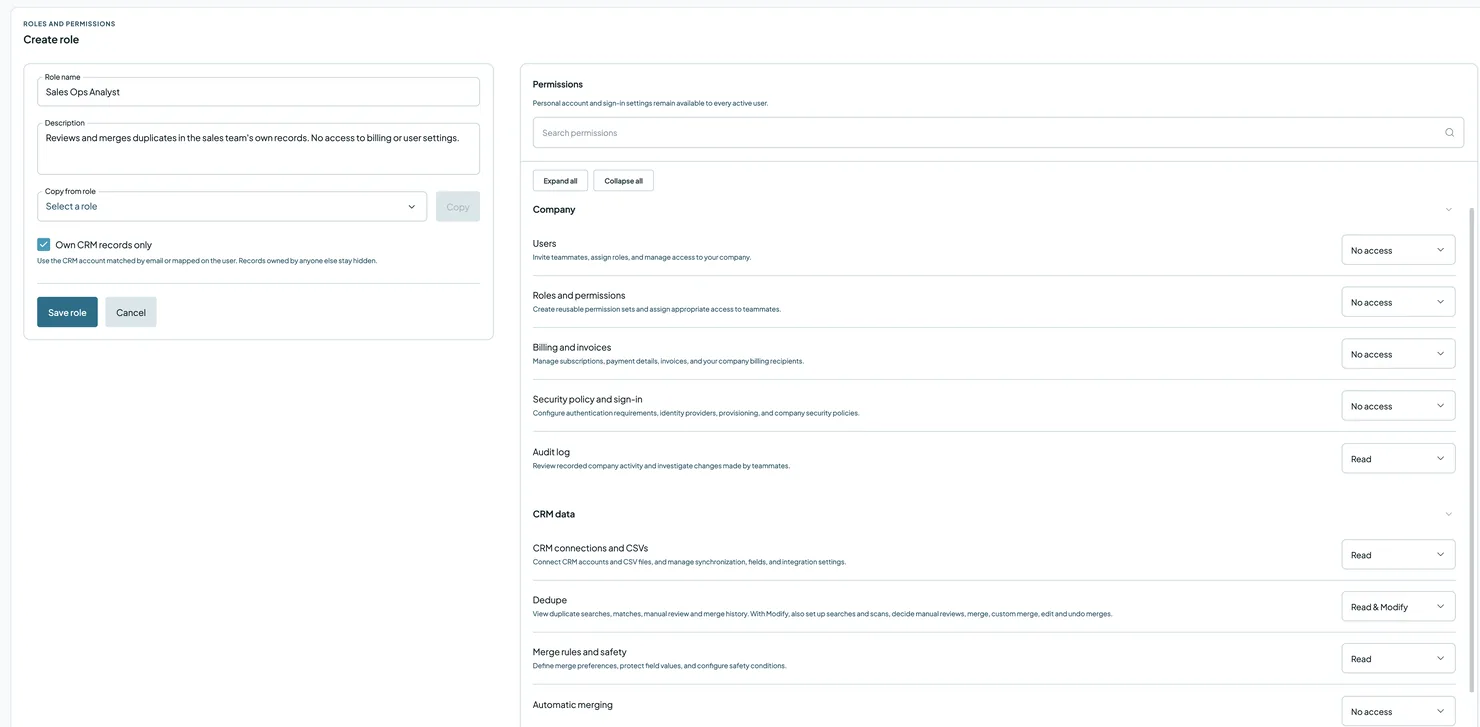
Each permission can be set to No access, Read or Read & Modify.
| Group | Permission | What it covers |
|---|---|---|
| Company | Users | Invite teammates, assign roles and manage access to your company |
| Roles and permissions | Create reusable permission sets and give teammates the right access | |
| Billing and invoices | Subscriptions, payment details, invoices and your company's billing contacts | |
| Security policy and sign-in | Authentication requirements, identity providers, provisioning and security policies | |
| Audit log | Review recorded company activity and changes made by teammates | |
| CRM data | CRM connections and CSVs | Connect CRMs and CSV files, and manage syncing, fields and integration settings |
| Dedupe | View Duplicate Searches, matches, Manual Review and Merge History. With Read & Modify, also set up searches and scans, decide Manual Reviews, merge, Custom Merge, edit and undo merges | |
| Merge rules and safety | Merge Rules, protected values and Safety Settings | |
| Automatic merging | Auto Merge schedules and unattended cleanup | |
| Export data | Download CRM data and duplicate results | |
| Import data | Upload spreadsheets and set up imports |
How to create a role
- Click your profile icon at the top right and select Company Settings.
- Select Roles and permissions, then click Create role.
- Enter a Role name and a Description.
- (Optional) Under Copy from role, select a built-in role and click Copy to start from its permissions.
- Set each permission to No access, Read or Read & Modify. Use Search permissions to find one, or Expand all to see them all.
- (Optional) Check Own CRM records only (see below).
- Click Save role.
Own CRM records only
Check Own CRM records only to limit a role to the records its members own in your CRM. Dedupely uses the CRM user matched by their email, or the one mapped on their user. Records owned by anyone else stay hidden. It works with every CRM Dedupely connects to.
- Matches: people with this role only see a match when every record in it is theirs. Matches that include someone else's record are hidden, can't be merged by them, and are left out of their counts and exports.
- Records with no owner: turn on the option to also show records with no owner if they should handle those too. It never adds records owned by someone else.
- Several roles: a person gets the access of every role they have. If one of their roles isn't limited to their own records, they see everyone's matches.
To map a person to their CRM user, go to Users, click the three dots next to them and select CRM user mapping. See Users.
How to give someone a role
- Go to Company Settings → Users.
- Click the three dots next to the person and select Roles.
- Check the roles they need. To give a role for a limited time, set an expiry date; leave it blank for permanent access.
- Click Save.
To check what someone can do, click View permissions next to their role on the Users page.
Which role should I give?
| If they need to… | Give them |
|---|---|
| Run your whole account | Admin |
| Find and merge duplicates, and manage CRM connections | Data Manager |
| Pay invoices and manage the plan | Accountant |
| Look at results without changing anything | Read-only User |
| Merge only the records they own, like a sales rep | A custom role with Dedupe set to Read & Modify and Own CRM records only checked |
| Help for a short project | Any role, with an expiry date |
What happens next
- People get the new access right away. If they have several roles, they get the access of all of them.
- A role with an expiry date stops at the end of that day, in your time zone. The person only loses that role. If it was their only role, they stay on the Users page as an active user, with the role shown as Expired, but can't get into the account until someone renews it or gives them another role.
- Changes to a role apply to everyone who has it.
Troubleshooting
A teammate can't merge. Merging needs Read & Modify on the Dedupe permission. Check their roles with View permissions.
A teammate can't see some records. One of their roles might have Own CRM records only checked, or their CRM user might not be mapped. Check CRM user mapping on the Users page.
I can't create a role. You need Read & Modify on Roles and permissions. Ask someone who manages roles in your account.
FAQs about roles and permissions
- Can someone have more than one role? Yes. They get the access of every role they have.
- Can I start from a built-in role? Yes. When you create a role, select it under Copy from role and click Copy, then change what you need.
- What happens when a role expires? The person loses only that role. If it was their only role, they can't get into the account until it's renewed, but they stay listed as a user.
- Can someone with "Own CRM records only" see a match with someone else's record? No. Every record in the match has to be theirs.
- Who can undo a merge? Anyone who can merge: Read & Modify on the Dedupe permission.
- Does the Admin role expire? No.
- What's the difference between Read and Read & Modify? Read lets people see that part of Dedupely. Read & Modify also lets them change it.
- Do roles work for partner teams? Yes. Partner teams use the same roles. See Partner Dashboard.
Next up
Changelog
-
Roles and permissions
Roles replace Admin and User. Four built-in roles, Admin, Data Manager, Accountant and Read-only User, plus your own roles, with No access, Read or Read & Modify per permission. A person can have several roles, a role can expire on a date, and Own CRM records only limits a role to the records its members own.
Still stuck?
Our team helps on every plan and during the free trial, by chat, email or Zoom.
- Need help? Talk to support
- Questions about plans? Book a Zoom with sales
- Reading this with a model? Read this page as Markdown
- Feeding it the whole site? Read llms.txt




 Or sign up with Google

 HubSpot Marketplace