Partner Dashboard
See every client at a glance, manage your plan and team, and move between client accounts.


The partner dashboard is the home page of a Dedupely partner account. It shows your plan, your total record usage and a card for each client, and from it you manage billing, your team and each client's record limit. Inside a client's account, everything works like a regular Dedupely account.
What's on the dashboard
The Dedupely Partner Program home page has three kinds of cards:
| Card | What it shows |
|---|---|
| Getting started | Links to add your clients, and to add your team, security policies and company information |
| Your plan | Your plan and price, next billing date, what's included and your CRM records usage across all clients. Go to Billing & Usage opens your billing settings. |
| Child Company (one per client) | Connected CRM(s), Objects syncing, Total records in CRM, Duplicates detected and Usage vs. limit, with Edit Record Limit |
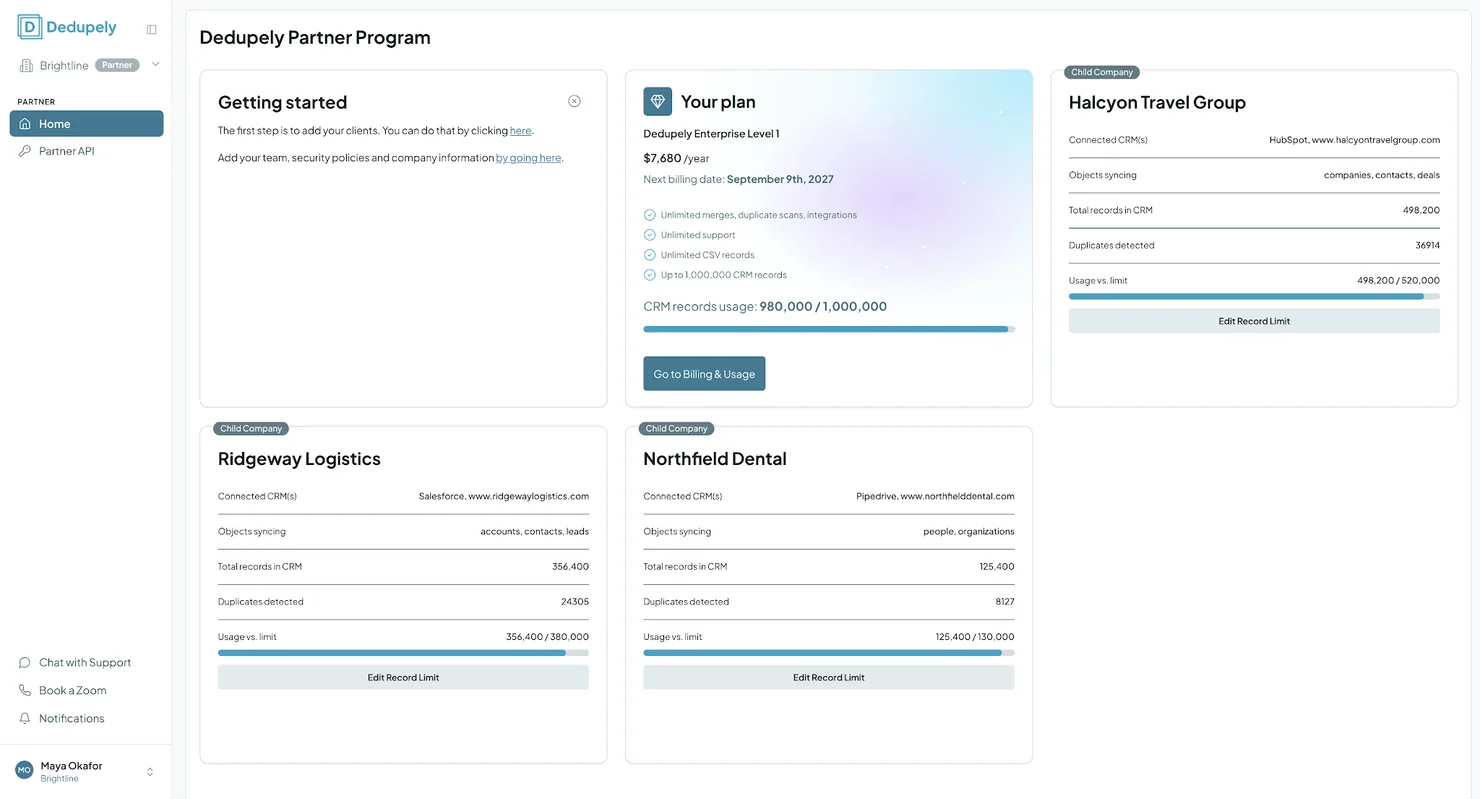
The left menu has Home and Partner API, plus Chat with Support, Book a Zoom and Notifications.
How to add a client
- Open the dropdown at the top left, next to your company name and the Partner label.
- Add a new client account.
- Connect the client's CRM and turn on the objects to dedupe. See Connect your CRM.
Each client gets its own account, with its own connected CRMs, searches and Merge Rules. Clients can't see each other's data.
How to switch to a client's account
- Open the dropdown at the top left, next to your company name and the Partner label.
- Select the client.
You're now in that client's account, and everything works like a regular Dedupely account: Duplicate Searches, Merge Rules, Auto Merge and the rest. Use the same dropdown to go back to the partner dashboard.
How to set a client's record limit
You set a record limit for each client, inside your plan's total. When a client reaches its own limit, merging stops for that client only. Your other clients aren't affected.
- On the client's card, or in Billing & Usage under Child companies, click Edit Record Limit.
- Enter the new limit and save.
This is separate from your plan's limit. If your partner account goes over its limit, has an unpaid invoice or is paused, every client's account becomes read-only. See Billing & Usage.
How to manage your plan and billing
Open Billing & Usage under Partner settings to:
- See Your plan, your total CRM records usage, and Upgrade plan or Cancel Plan.
- See each client's usage under Child companies.
- Update Billing Information, add a Tax ID for your invoices, see Invoice History and add a card under Cards on file.
How to manage users
Open Users under Partner settings. It shows your team under Partner Company Users and, below, the users of each client account.
| Role | What they can do |
|---|---|
| Admin (your partner team) | Manages billing, users and clients, and works in every client account |
| User (your partner team) | Works in client accounts, without changing billing |
| Admin / User (in a client account) | The usual roles inside one client's account. See Users. |
- Add User invites someone to your partner team.
- Import CRM users adds users from a connected CRM.
- To give a client a login, invite them to their own account as a User or Admin. Clients don't need one.
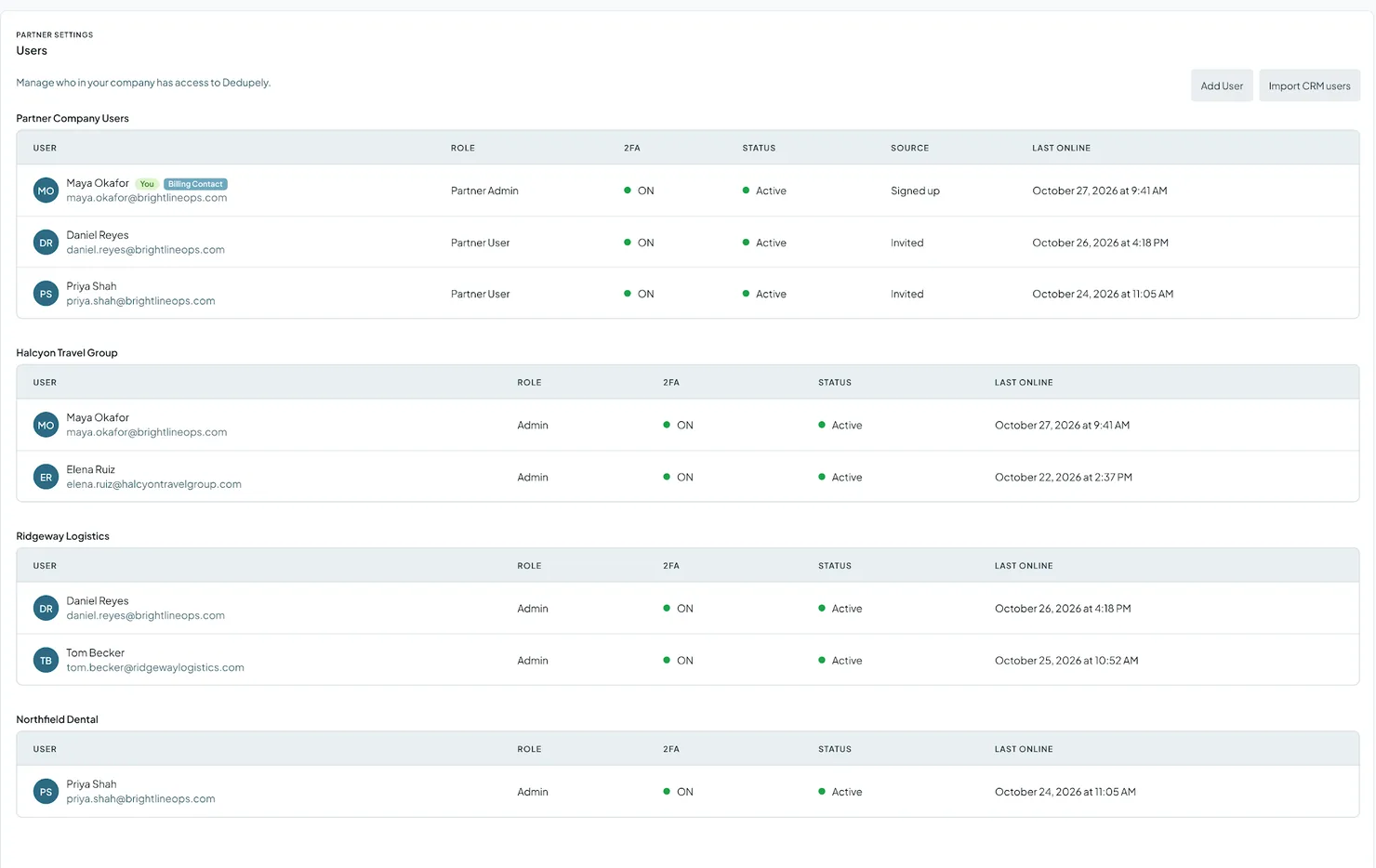
Security Policy and Audit Log are under Partner settings too. See Security Policy and Audit Log.
Partner API
The Partner API sends records from your own software, or from a client's CRM, to Dedupely's matching engine as JSON, and returns the matches. Nothing you send is stored. It uses the same Match Settings, Advanced Filters and confidence scoring as the dashboard.
- Build it into your software: if you sell a CRM or a data tool, offer deduplication in it without building a matching engine yourself.
- Use it in client work: run a client list through it as a step in your own workflow, before the data goes back to them.
To turn it on, click Contact support for API access on the Partner API page. Once it's on, you create and manage your API keys there.
FAQs about the partner dashboard
- Can my clients see the partner dashboard? No. Clients you invite only see their own account.
- Can I see every client's duplicates in one place? Yes. Each client's card shows Duplicates detected. To review and merge them, switch to that client's account.
- Can I give a client a login? Yes. Invite them to their account as a User or Admin.
- Can a User on my partner team change billing? No. Billing is managed by your partner team's Admins.
- Is the Partner API included? Contact support to turn it on for your account.
Next up
Users Invite users to a client's account and choose their role.Still stuck?
Our team helps on every plan and during the free trial, by chat, email or Zoom.
- Need help? Talk to support
- Questions about plans? Book a Zoom with sales
- Reading this with a model? Read this page as Markdown
- Feeding it the whole site? Read llms.txt




 Or sign up with Google

 HubSpot Marketplace











