How to Find Duplicates
Dedupely gives you full control over what a duplicate is, by setting up Duplicate Searches that fit the reality of your database.


You find duplicates in Dedupely with Duplicate Searches: you choose the fields to compare, how strictly to compare them, and which records to include, then run a scan. Nothing is merged until you decide to merge. Duplicate Searches are included in every Dedupely plan and the 7-day free trial.
What you can do
- Define what a duplicate is, and isn't, for your use case.
- Match duplicates even when names are misspelled, words are flipped, or one company uses several domains.
- Leave out irrelevant data, and reject records that aren't duplicates so they stop showing up.
- Get an email when a set number of duplicates is found.
How to find duplicates
Each object (e.g. Contacts, Companies) comes with preset Duplicate Searches, so you can start with one of those or create your own.
- Choose your fields. Select the fields Dedupely should compare, such as Email, First Name or Phone Number.
- Set a match option for each field. Click the arrow under each field name and choose Exact, Similar, Fuzzy, Similar Words (Any Order) or Domain Root. See Match Options.
- Add filters (optional). Narrow the scan to the records you care about. See Filters.
- Click Scan. Dedupely groups the duplicate records into matches.
- Adjust and scan again. Change match options or fields until the results show the duplicates you want.

Click Scan again after every change, so your results reflect your latest settings.
How to test different settings
Added
Finding the right settings can take a little testing. None of this merges anything:
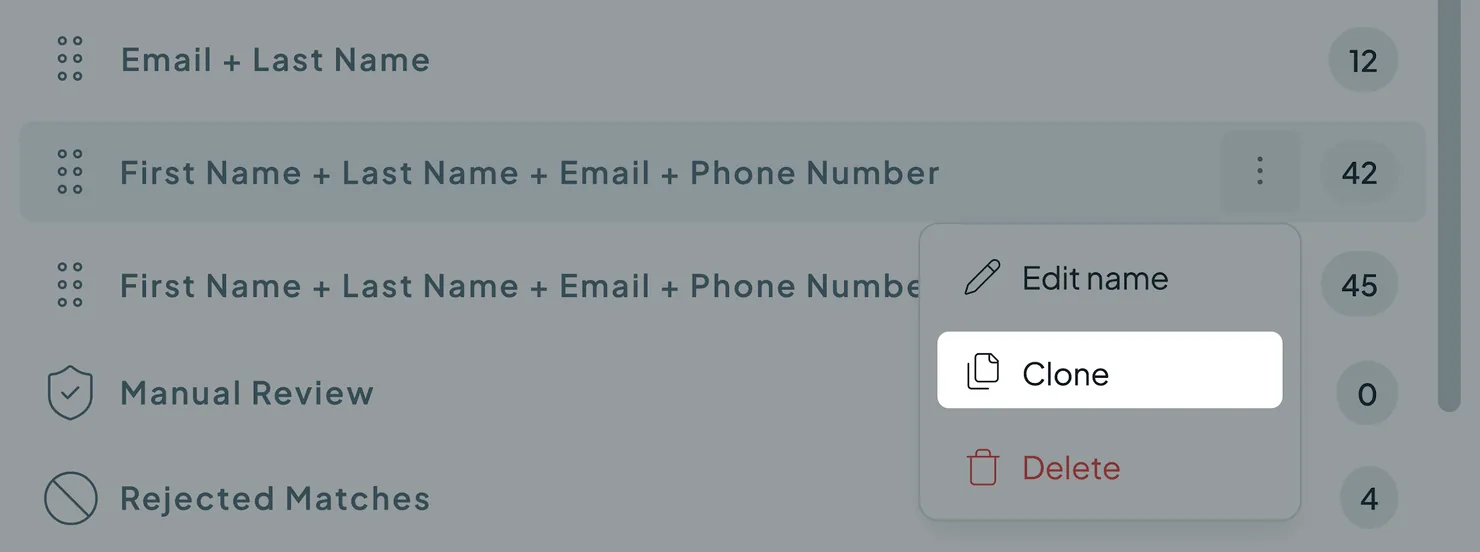
- Clone and test. Clone a Duplicate Search and change its match options to see how the results change.
- Try different filters. Add or remove filters in the clone and compare.
- Keep the winner. Once you find the right setup, keep that search and delete the test clones.
What happens next
- Your Duplicate Search is saved. Re-run it any time with one click.
- Review your results. Open View Match Details on a match to see its records side by side, then merge, reject, or send it to Manual Review. See How to Merge Duplicates.
- Get notified about new duplicates. Turn on Auto Match to get an email when unreviewed matches reach a number you set.
Troubleshooting
My search finds no duplicates. The fields you're matching on might be empty for many records, or your settings might be too strict. Try matching on fewer fields, or switch to Similar or Fuzzy.
My search finds records that aren't duplicates. Your settings might be too loose. Add another field to match on, switch a field to Exact, or add a filter.
My results didn't change after I edited the search. Results only update when you scan. Click Scan again.
A match I expected is missing. It might have been rejected or excluded. Check the Rejected Matches and Excluded tabs at the top of your Duplicate Search. See Rejected Matches and Excluded Matches.
FAQs about finding duplicates
- Do I need to build a new Duplicate Search every time I scan? No. Your Duplicate Searches stay saved in your account, and you can re-run any of them with one click.
- Do results update automatically when I change a search? No. After editing fields, match options or filters, click Scan again.
- Can I scan spreadsheets the same way as CRM records? Yes. Matching works the same way. The only difference is that you scan the whole uploaded file instead of a CRM object.
- What's the difference between Similar and Fuzzy? Similar catches small typos, flipped words and slight variations. Fuzzy uses a broader, sound-based algorithm to catch heavier spelling differences, like "Sean" and "Shawn".
- Does finding duplicates change anything in my CRM? No. Scanning only shows potential duplicates in Dedupely. Records only change when you merge.
Next up
Duplicate Searches (Prev. Search Pads) Build, clone and organize your Duplicate Searches, one for each type of duplicate.Changelog
Still stuck?
Our team helps on every plan and during the free trial, by chat, email or Zoom.
- Need help? Talk to support
- Questions about plans? Book a Zoom with sales
- Reading this with a model? Read this page as Markdown
- Feeding it the whole site? Read llms.txt




 Or sign up with Google
 Salesforce AppExchange











