Filters
Narrow your Duplicate Searches to the exact records you want to review.


Filters include or exclude records based on any field in your database, so a Duplicate Search only shows the duplicates you care about, like only active customers or only one region. Filters never change your CRM data. They're included in every Dedupely plan and the 7-day free trial.
How to create a filter
Added
- In your Duplicate Search, click Filters at the top. The Advanced Filters window opens.
- Click + Add condition, then choose the field under Select field. To start over, click Discard condition.
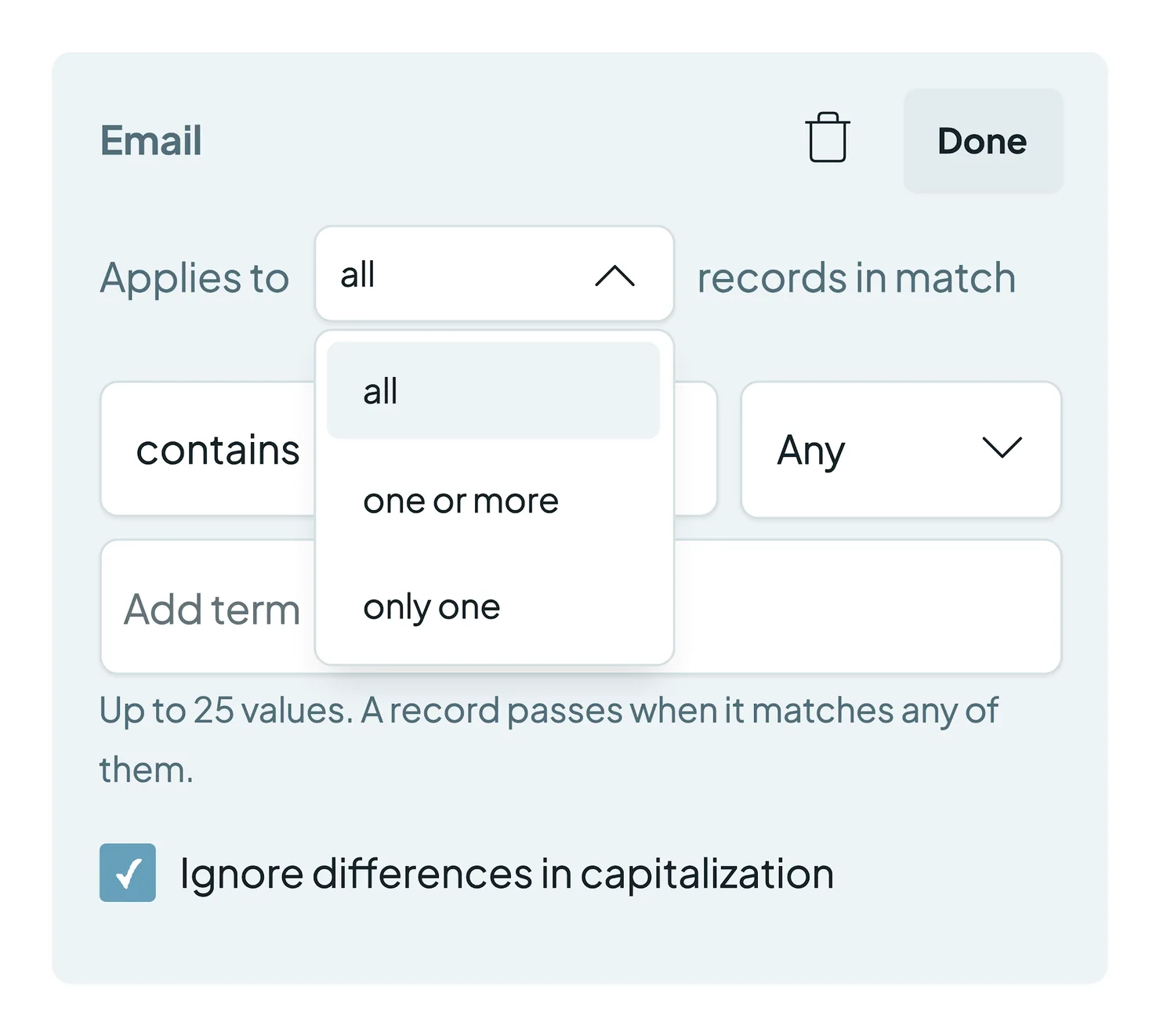
- Choose what the filter Applies to (see below): all, one or more or only one records in the match.
- Choose an operator (see the list below).
- Add your terms, up to 25 per filter. Next to the operator, choose Any (a record passes when it matches any of the terms) or All (a record passes only when it matches all of them).
- (Optional) Check Ignore differences in capitalization to ignore upper and lower case.
- Click Done, then click Scan to update your results.
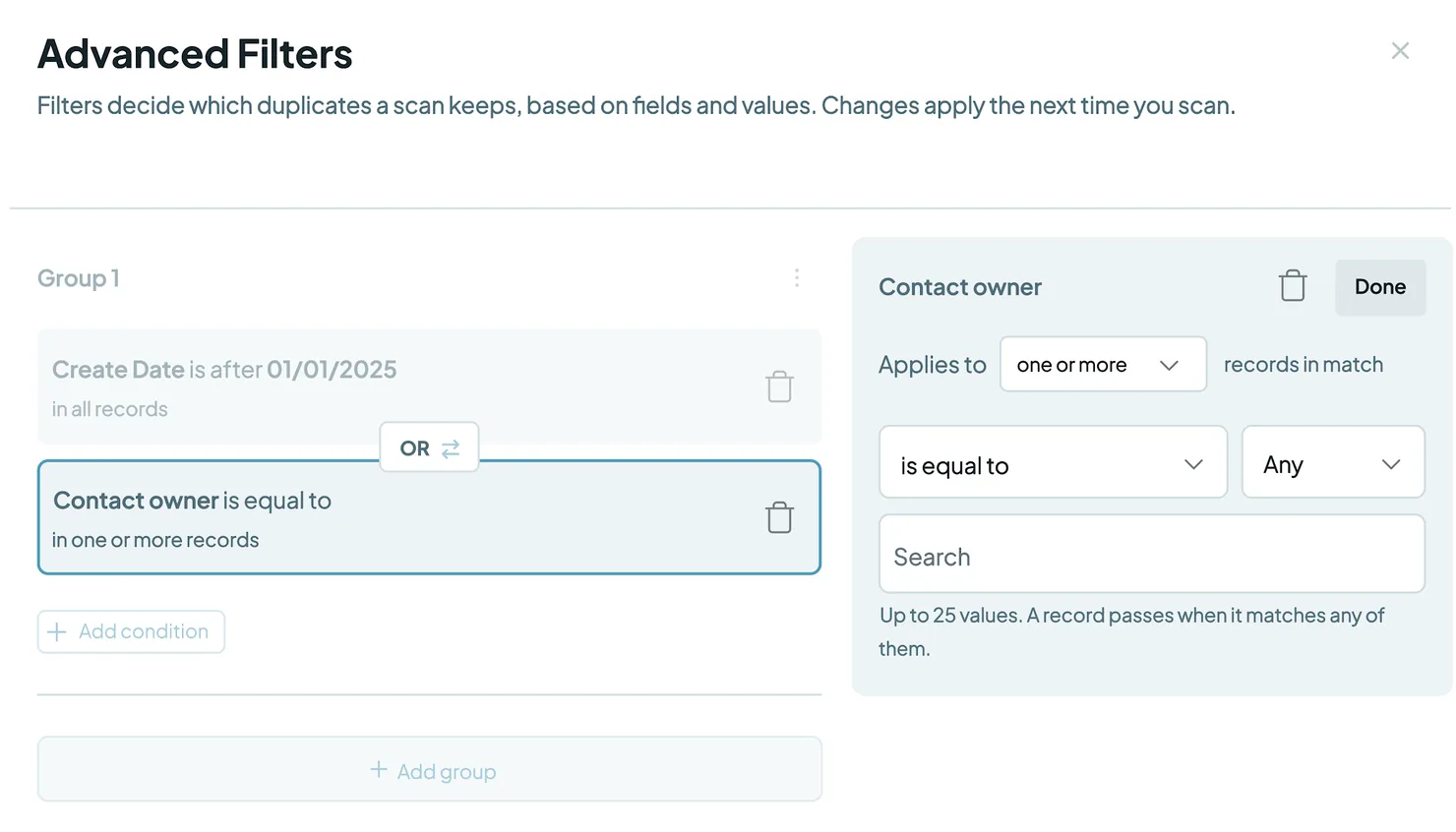
Example: to only see matches where at least one record is a customer, choose the field Customer Status, Applies to: one or more, Operator: is equal to, term: Customer.
Tip: with a negative operator, choose All. For example, Email · does not start with · info@, sales@, support@ · All keeps out every record that starts with any of those inboxes.
"Applies to" options
Duplicate Searches group records into matches, so you choose how the filter applies to the whole match:
- all: every record in the match must meet the filter.
- one or more: at least one record in the match must meet the filter.
- only one: exactly one record in the match must meet the filter, and the others must not.
Available operators
Added
Text and number fields
- is equal to / is not equal to
- contains / does not contain
- starts with / does not start with
- ends with / does not end with
- sounds like / does not sound like
- is the same length as / is longer than / is shorter than
- is blank / is not blank
- is unique across match
Date fields
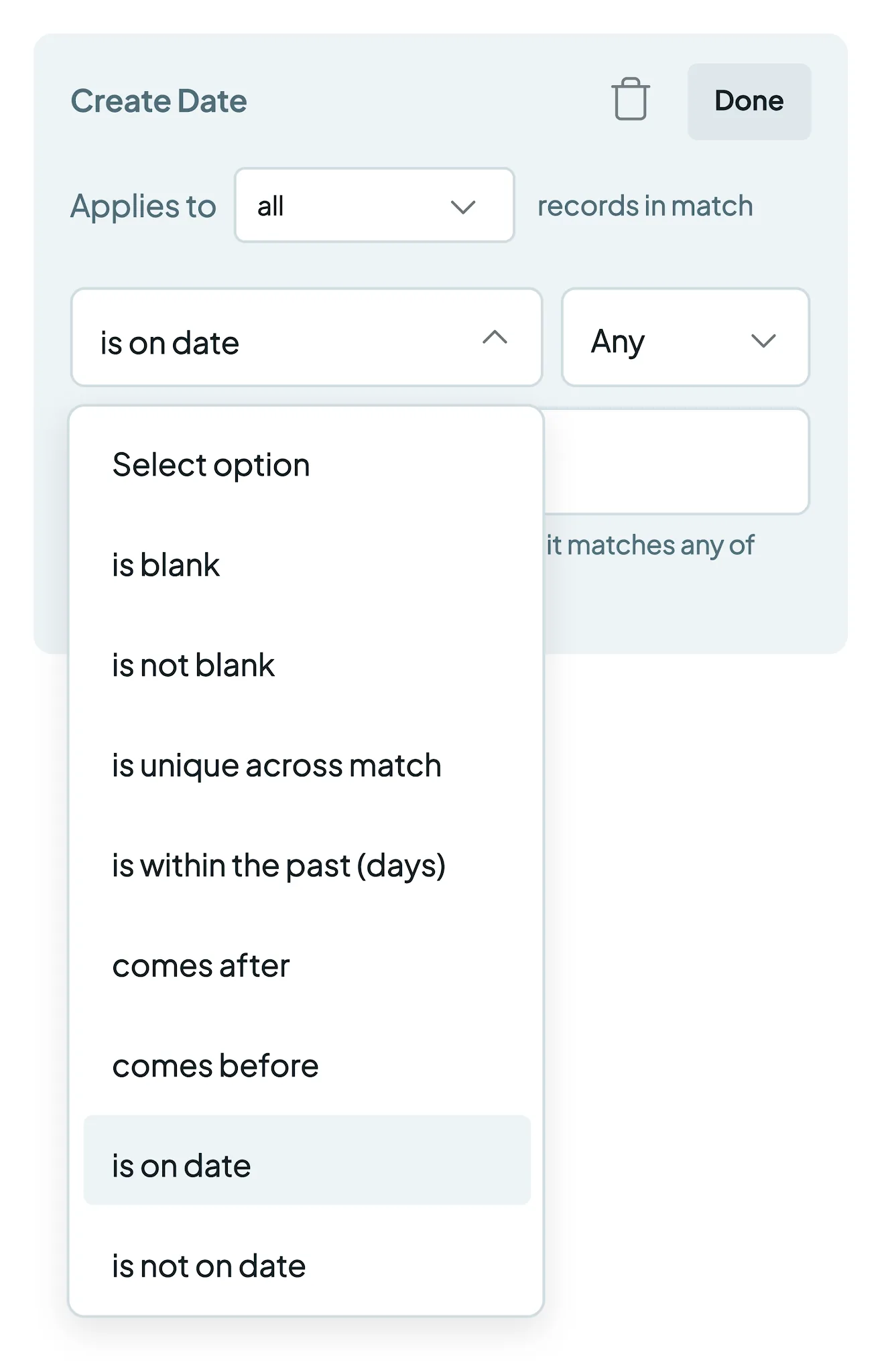
- is within the past (days): e.g. records created in the last 7 days
- comes after / comes before: pick a date in the calendar
- is on date / is not on date
- is blank / is not blank
- is unique across match
A filter can't use is blank or is not blank on a field the search matches on. Records without a value in a matched field are never matched, so the condition would find nothing.
AND/OR logic and filter groups
Combine several conditions in a group with + Add condition, or organize them into separate sets with + Add group.
- Conditions and groups are joined with AND by default, so all conditions must be met.
- Click the AND badge between two conditions or groups to switch to OR, so only one condition must be met. Click again to switch back.
Filter suggestions
Added
Dedupely points out filters that can't do what they say, like a field that must be both blank and not blank, or a condition that removes nothing. The Filters button shows an orange count of open suggestions. Open Filters to see each one beside its condition, then apply its fix or click Ignore. A suggestion stays until you do.
Troubleshooting
A match disappeared after I added an "only one" filter. If two or more records in a match meet an "only one" filter, the whole match is hidden. Switch to one or more if that's not what you want.
My filter isn't catching values with different capitalization. Check Ignore differences in capitalization in the filter.
I get no results after adding several filters. Filters are joined with AND by default, so every condition must be met. Click the AND badge to switch to OR, or remove a filter.
My filter with "does not…" and several terms isn't excluding anything. Switch the term setting next to the operator from Any to All, so a record has to avoid every term.
My results didn't change after I added a filter. Results update when you scan. Click Scan again.
FAQs about filters
- Do filters change or delete records in my CRM? No. Filters only control which records show in your Duplicate Search results in Dedupely.
- Can I filter on custom CRM fields? Yes. Any custom field synced to Dedupely can be filtered.
- What's the difference between match options and filters? Match options decide what makes records duplicates (e.g. similar names). Filters decide which records are included (e.g. only active customers). See Match Options.
- How many terms can I add to one filter? Up to 25. Choose Any to pass records that match any term, or All to pass only records that match all of them.
- Can I filter by date? Yes. Date fields have their own operators, like is within the past (days), comes after and comes before.
Next up
Changelog
-
Filter suggestions
Advanced Filters point out conditions that can never match, such as a field that must be both blank and not blank, with an orange count on Filters. A suggestion stays until you dismiss it.
-
Every field in filters, match settings and custom merge
Filters, Match Settings and custom merge offer every field of the record type, ordered by relevance rather than alphabetically.
-
Conditions can require all of their values
A filter or Merge Rules condition with several values can require all of them instead of any one. Existing conditions keep matching any.
-
Blank conditions on matched fields
Filters no longer accept is blank or is not blank on a field the search matches on, because those conditions can never find a duplicate.
Still stuck?
Our team helps on every plan and during the free trial, by chat, email or Zoom.
- Need help? Talk to support
- Questions about plans? Book a Zoom with sales
- Reading this with a model? Read this page as Markdown
- Feeding it the whole site? Read llms.txt




 Or sign up with Google
 Pipedrive Marketplace