Duplicate Searches (Prev. Search Pads)
Build, run and manage your own duplicate matching logic for each CRM object.


A Duplicate Search is a saved set of match settings for one CRM object. Different duplicates need different rules: matching contacts by email needs strict criteria, while matching companies by name needs more flexible ones. Each Duplicate Search keeps its own rules, so you can run targeted scans without setting things up again every time. Duplicate Searches were previously called Search Pads, and are included in every Dedupely plan and the 7-day free trial.
What you can do with Duplicate Searches
- Start with presets. Every object comes with preset Duplicate Searches for common matches, so you can find duplicates right away.
- Build your own. Choose the field combinations and match options that fit your data.
- Clone to test. Try a small change, like one different match option, and compare the results with the original.
- Add context. Show extra fields in your results to help with reviews, even if they aren't used for matching.
- Keep things tidy. Rename Duplicate Searches to describe their purpose, and delete test ones.
How to create a Duplicate Search
Added
- Go to Duplicate Searches in the left menu, find the object (e.g. Contacts, Companies, Leads) and click +.
- Choose the fields to match on and click Save.
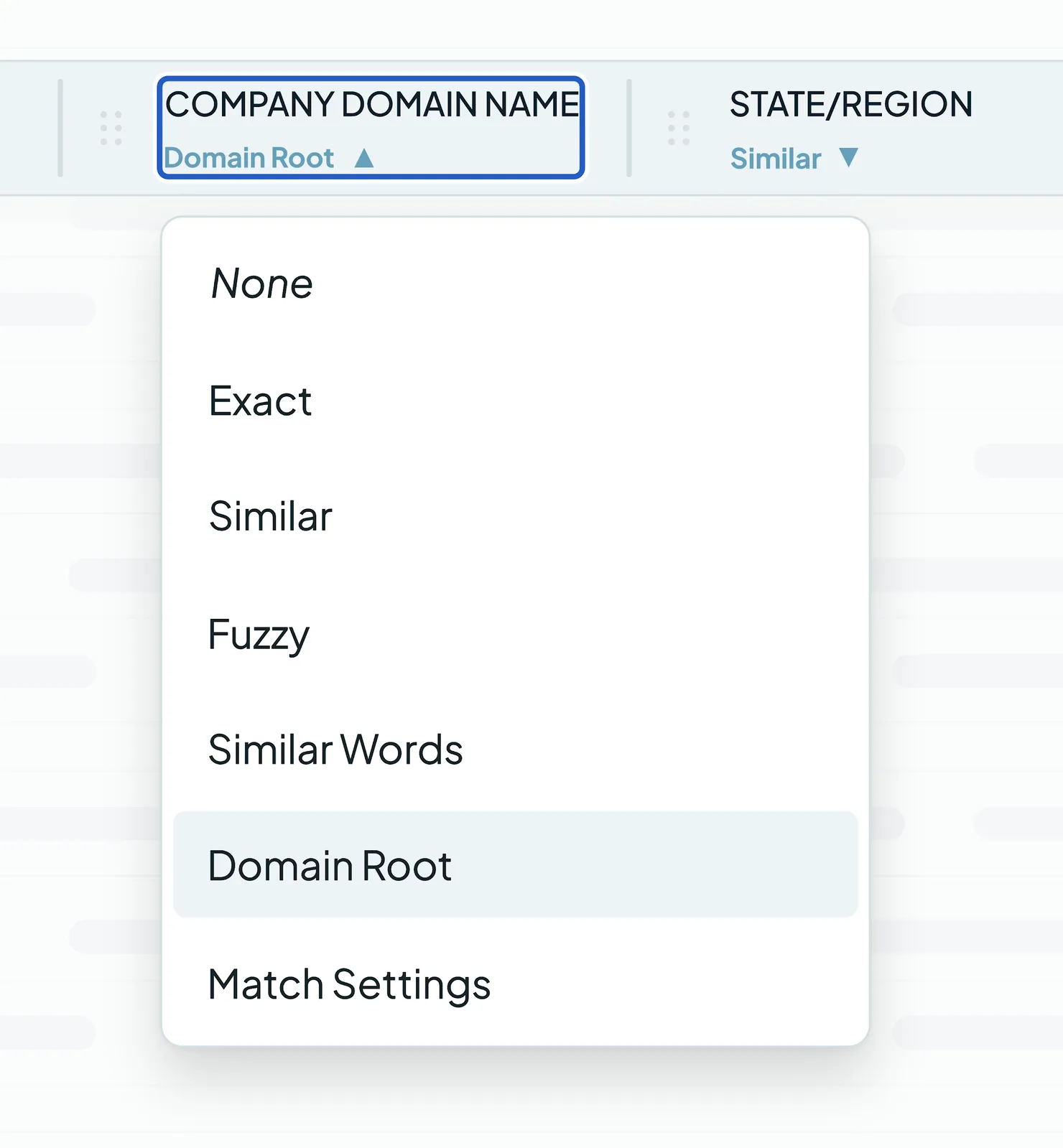
- Under each field, click the arrow and choose a match option. See Match Options.
- To rename it, click the three-dot menu next to the name and choose Edit name.
- (Optional) Add Filters to narrow the search to certain records.
- (Optional) Adjust Visible Fields to control which details appear in your results.
- Click Scan.
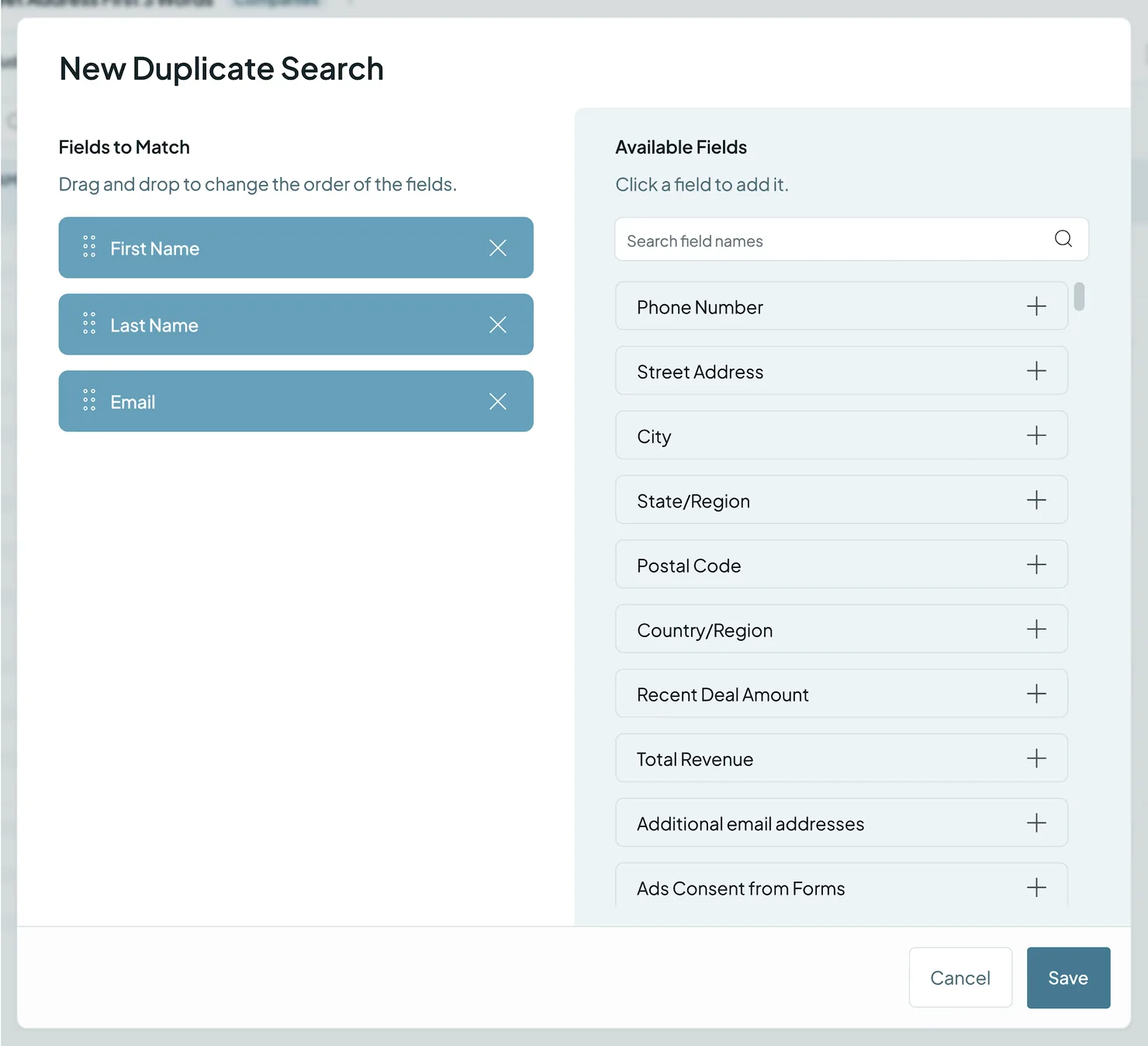
Scan again after any change, so your results reflect your latest settings.
The parts of a Duplicate Search
Each Duplicate Search has four tools in its toolbar:
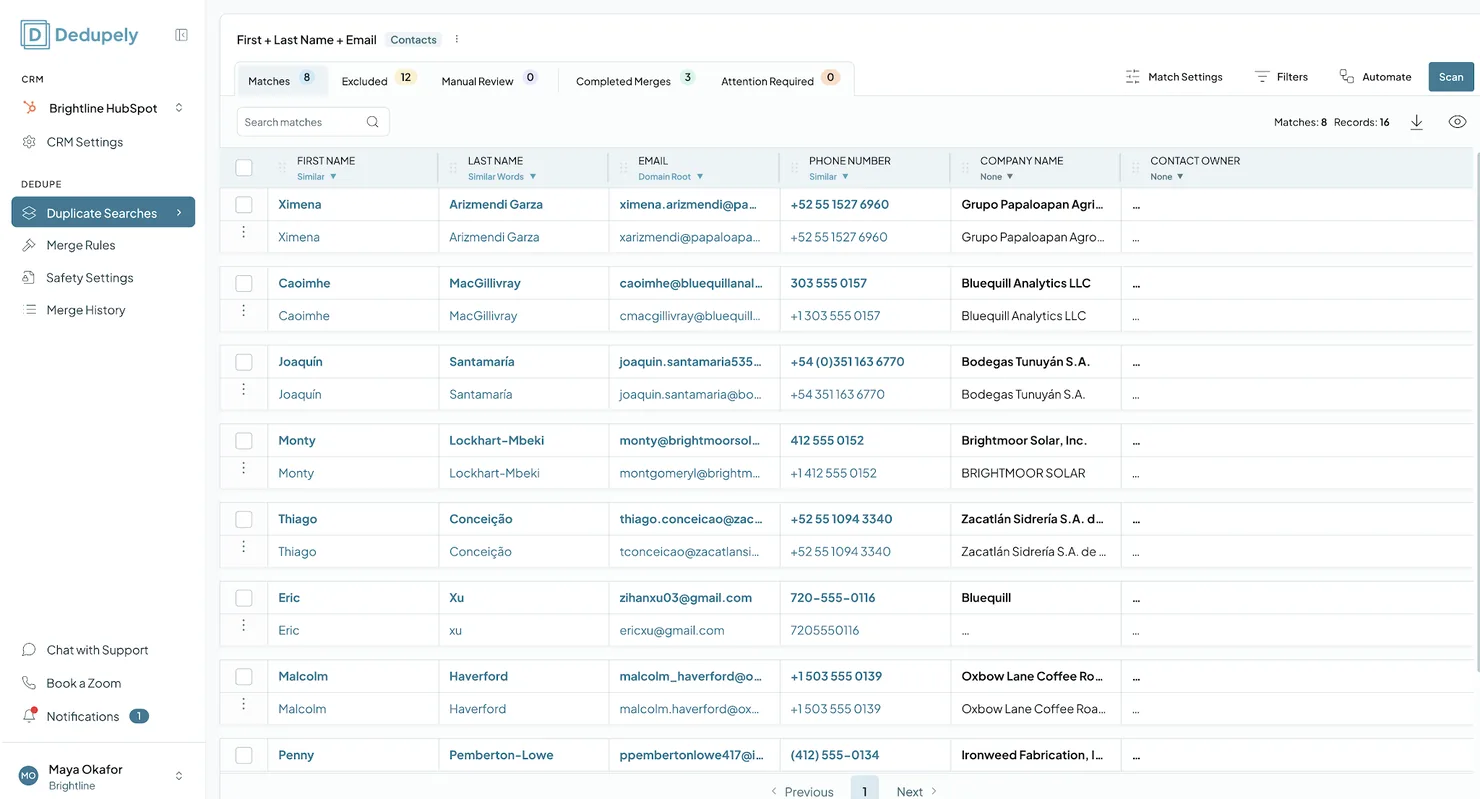
Match Settings
- Decide what makes a record a duplicate by giving each field a match option: Exact, Similar, Fuzzy, Similar Words (Any Order), Domain Root or None.
- Create several match groups in one Duplicate Search to combine different criteria, instead of creating separate searches.
- Cross-field matching, on by default, catches values swapped between the fields in your search (like “Ana / Lopez” and “Lopez / Ana”). Turn on typo allowance so small spelling differences don’t block a match.
Filters
Narrow down which records are matched by building filter groups on specific record criteria. See Filters.
Visible Fields
- Show or hide fields in your results, and drag them into the order you want.
- Extra visible fields give you full context during reviews without being part of the matching.
Automate
- Auto Match: checks for duplicates on a schedule and notifies you when your threshold is reached, so you can review and merge them. See Auto Match.
- Auto Merge: merges new duplicates automatically on a schedule, using this Duplicate Search's criteria.
Best practices
- Give each Duplicate Search a clear, descriptive name so your team knows what it covers.
- Use one Duplicate Search per type or source of duplicate.
- Combine match options with filters to target specific teams, regions or creation dates.
- Clone a Duplicate Search to test new criteria before changing one that's active.
What happens next
- Your Duplicate Search is saved and can be re-run any time.
- Review the results, then merge, reject or send matches to Manual Review. Nothing merges until you click Merge or turn on Auto Merge.
- Automate it once you've tested the results, with Auto Match or Auto Merge.
Troubleshooting
No duplicates found. Check that the fields you're matching on have data in your CRM. If you're matching on several strict fields, try fewer fields or a more flexible option like Similar or Fuzzy.
Too many unexpected results. Add fields to tighten the match, or check your Safety Settings so placeholder or low-quality data isn't creating false matches. See Merge Safety.
My results look out of date. Results update when you scan. Click Scan after any change.
FAQs about Duplicate Searches
- Can I get notified when a Duplicate Search finds a certain number of matches? Yes. Turn on Auto Match for that Duplicate Search and set the threshold.
- Can I turn on Auto Merge for just one Duplicate Search? Yes. Auto Merge is set per Duplicate Search.
- How many Duplicate Searches can I create? As many as you need. Keep one per type of duplicate, and delete test searches you no longer use.
- Why would I need more than one Duplicate Search? Each type of duplicate needs its own rules. For example, one Duplicate Search on Auto Merge can keep merging web form duplicates in the background, while another one waits for review.
- What were Search Pads? The previous name for Duplicate Searches. They work the same way.
Next up
Match Options Choose how strictly each field is compared: Exact, Similar, Fuzzy, Similar Words (Any Order) or Domain Root.Changelog
-
New Duplicate Searches start with fields
A new Duplicate Search opens with visible fields chosen for its CRM, such as first name, last name, email and phone, instead of an empty table.
Still stuck?
Our team helps on every plan and during the free trial, by chat, email or Zoom.
- Need help? Talk to support
- Questions about plans? Book a Zoom with sales
- Reading this with a model? Read this page as Markdown
- Feeding it the whole site? Read llms.txt




 Or sign up with Google

 HubSpot Marketplace











