Nimble CRM Deduplication Guide
Find duplicate contacts in Nimble CRM and merge them in bulk, on the fields you choose.


Dedupely connects to Nimble CRM to find and merge duplicate contacts in bulk, instead of selecting them five at a time by hand. It works with every Nimble CRM plan.
Nimble CRM terms: Nimble stores both people and companies as contacts, of two types: People and Companies. Where other articles in this knowledge base say "contacts" or "companies", both are contacts in Nimble.
Supported Nimble CRM objects
Added
You can dedupe both types of Nimble CRM contact:
- People
- Companies
Each type is deduped on its own: a person can't be merged into a company.
Common Nimble CRM duplicate issues
- The same contact from several sources. One saved from email, another from a social profile, a third from an import.
- Name variations read as different contacts. "Acme Inc" and "Acme Inc." become two records.
- Imports without a stable identifier. A spreadsheet without record IDs creates a fresh copy instead of updating the existing contact.
- Nothing scans for existing duplicates. A CSV import merges on email as it lands, but after that, nothing looks for duplicates.
How Nimble CRM's native merge works
Nimble CRM has no merge in its API. Merging only exists in Nimble CRM's interface, on two to five contacts you select by hand. Dedupely resolves duplicates by moving their data onto the contact you keep:
- Field values are added, not overwritten. The duplicate's extra emails, phone numbers and addresses join the ones already there, and blank fields are filled from the duplicate.
- Tags are combined from both records.
- Notes are copied across.
- Tasks, deals, events and message history can't be moved through Nimble CRM's API, so they're removed with the duplicate.
How to dedupe Nimble CRM records, step by step
- Dedupe your existing backlog first. Merge what's already there before you automate anything.
- Work one source at a time. Duplicates from an import behave differently from the ones email capture creates.
- Find where duplicates come from: email capture, social profiles or imports.
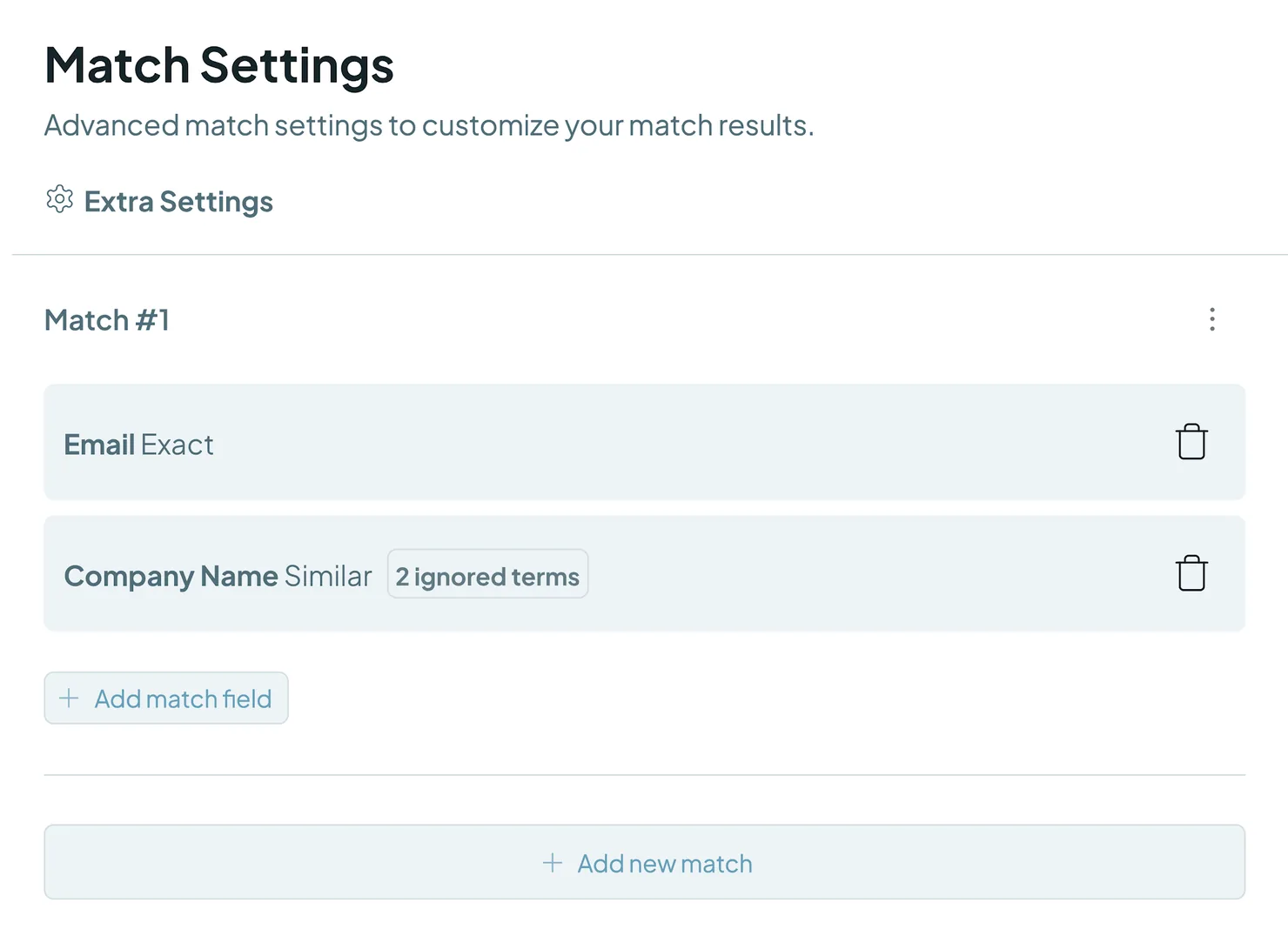
- Build one Duplicate Search per scenario. E.g. a strict search on Exact Email for obvious matches, and a looser one for cases that need review.
- Check a merge before you automate it. Merge a small batch and confirm in Merge History that the right values survived.
- Automate the strict searches. Turn on Auto Merge for the searches you've tested, and use Auto Match on the looser ones.
What happens next
After each merge in Nimble CRM:
- The surviving contact has the combined field values, tags and notes.
- The duplicate is deleted from Nimble CRM, along with its tasks, deals, events and message history.
- Every merge is logged. Merge History keeps the original values of both contacts, and you can export it as a CSV.
Most merges can be undone within 30 days from Merge History (see Undo a Merge), but treat every merge as permanent. For older merges, download your Merge History and use it to restore the original values in Nimble CRM.
Troubleshooting
Tasks, deals or events are missing after a merge. That's a Nimble CRM API limitation: they can't be moved to another contact, so they're removed with the duplicate. Check a duplicate's tasks and deals before merging if they matter.
New contacts take a while to show up in Dedupely. Nimble CRM has no webhooks, so Dedupely checks for new records on each sync instead of receiving them as they're created. They'll appear on the next sync.
"Acme Inc" and "Acme Inc." aren't matched. Add legal suffixes to Ignored Terms, or use Similar match on the name field. See Match Options.
The wrong values survived a merge. Check your Primary Record rule and add field-level rules in Merge Rules. Preview a few matches before your next bulk merge.
FAQs about Nimble CRM deduplication
- Do I need a specific Nimble CRM plan to use Dedupely? No. Dedupely works with every Nimble CRM plan.
- How is this different from merging in Nimble CRM? Nimble CRM merges two to five contacts you select by hand, and nothing finds them for you. Dedupely searches your whole account on the fields you choose and merges every record in a match at once.
- What happens to the duplicate contact? It's deleted from Nimble CRM. Its field values, tags and notes are moved onto the surviving contact first, and Merge History keeps the originals of both.
- Does anything get lost? Yes: tasks, deals, events and message history can't be moved through Nimble CRM's API, so they're removed with the duplicate.
- Can Dedupely dedupe anything other than contacts in Nimble CRM? No. Dedupely syncs and merges Nimble CRM's contacts, People and Companies, and nothing else.
- Can I control which values survive? Yes. Merge Rules decide field by field, and you can pick the primary contact by criteria like oldest, newest or most complete.
- Can I match on fields other than name and email? Yes. Any field Nimble CRM syncs can be matched with Exact, Similar, Fuzzy, Similar Words (Any Order) or Domain Root.
- Is anything merged automatically? No. Connecting and syncing never merges, edits or deletes a record. Merges only happen when you click Merge, or when you turn on Auto Merge for a search.
- Can I undo a merge? Yes, within 30 days for most merges, from Merge History. Undo is for records that weren't duplicates, so treat every merge as permanent. See Undo a Merge.
Next up
How to Find Duplicates Create your first Duplicate Search and choose what counts as a duplicate.Changelog
-
Nimble syncs People and Companies separately
Nimble People and Companies are separate record types again, each with its own default Duplicate Searches, so two colleagues at one employer are not reported as duplicate companies.
-
Nimble is available
Every account can connect Nimble and find and merge duplicate contacts.
Still stuck?
Our team helps on every plan and during the free trial, by chat, email or Zoom.
- Need help? Talk to support
- Questions about plans? Book a Zoom with sales
- Reading this with a model? Read this page as Markdown
- Feeding it the whole site? Read llms.txt




 Or sign up with Google
 HubSpot user











