How to Approach CRM Deduplication
A practical guide to planning your deduplication project, sorting duplicates by risk, and combining merge types for cleanup and ongoing automation.


What counts as a duplicate depends on your CRM structure, your team's workflows and your business needs. That's why we recommend running deduplication as a project in three phases, and sorting your duplicates by how sure you are before you merge anything.
The three phases
Phase 1: Clean legacy data
Merge your historical backlog to get a clean starting point in your CRM.
Phase 2: Clean current data
Find, review and merge the duplicates your team creates every day through sales activity, form fills and integrations.
Phase 3: Keep future data clean
Set up background automation (Auto Merge, Auto Match and spreadsheet pre-cleaning) to handle new duplicates as they come in.
How to categorize your duplicates
Before you create Duplicate Searches or set up Merge Rules, sort your duplicate types by how certain you are and how much risk a wrong merge carries. Dedupely doesn't force a fixed definition of a duplicate. Your team decides which matches are safe to merge and which need a closer look.
Obvious duplicates
Matches your team is very sure about, with little risk of false positives, such as exact name and email matches. What counts as "obvious" depends on your data. Once verified, these are safe for bulk merging and automation.
Conditional duplicates
Records that are probably duplicates, but need field-level rules to protect valid data. For example, you'd want to make sure placeholder data from dialers or integrations doesn't overwrite real contact details.
Complex duplicates
High-stakes or unclear matches where a wrong merge could affect billing, account ownership or ERP syncs. These need a person to check them in a review queue before merging.
Common Duplicate Searches for each category
Here are the most common Duplicate Search setups used across Dedupely accounts, as a starting point:
Obvious duplicates
- Exact contact match (double form submissions, event list imports): First Name: Exact · Last Name: Exact · Email: Exact
- Exact company match (duplicate lead list imports): Company Name: Exact · Company Domain Name: Domain Root
Conditional duplicates
- Integration call logs (calling apps): Phone Number: Similar (matches the last 7 digits) · Filter: blank First Name or Email
- Domain variations, a.k.a. "ghost companies": Company Domain Name: Domain Root · Company Name: Similar Words (Any Order), with Ignored Terms for legal suffixes like Inc., LLC or Ltd.
Complex duplicates
- Financial and ERP identifiers: custom Tax ID, Customer Account Number or ERP ID matches on records linked to billing or accounting systems.
- Regional account overlap: Similar Company Name + same City/State, with different Account Owners or active deals that need review across teams.
Learn more in Duplicate Searches, Match Options and Filters.
Dedupely merge types
- Custom Merge: compares records side by side so you can pick values field by field. Best for: testing your Merge Rules and checking edge cases.
- Bulk Merge: merges many or all of your matches at once. Best for: legacy data and large imports.
- Auto Merge: runs in the background on a schedule you set, with no manual work. Best for: duplicates that keep coming back.
- Auto Match: checks for new duplicates on your schedule and emails you when unreviewed matches reach a number you set. Best for: complex or high-stakes matches that need approval.
Learn more in Merging duplicates and Auto Match.
Example scenario
Here's how the three categories work for a team where Marketing owns the CRM's duplicates while Sales and Ops keep importing data. Adapt these steps to your own data sources and business rules.
Obvious duplicates: event imports and form submissions
Sales runs monthly events and Marketing runs monthly webinars, so spreadsheets and form entries come in all the time.
- Clean lists before importing. Run event spreadsheets through Dedupely's unlimited spreadsheet import first, so duplicates never reach your CRM. See Merge duplicates in spreadsheets.
- Clean up the backlog. Create a Duplicate Search on exact identifiers (e.g. Exact First Name + Exact Last Name + Exact Email).
- Set your Primary Record rule (e.g. the record with the most complete data).
- Preview. Open View Match Details and check the result in the Merge Preview column.
- Test. Do 1–2 single merges and check the results in your CRM, then select and bulk merge 2 pages.
- Bulk merge the remaining results.
- Automate it. Turn on Auto Merge for this search and set a schedule (e.g. every two weeks or monthly) that matches your import cycle.
Conditional duplicates: sales dialers and enrichment tools
Case A: Dialer call logs
Dialer integrations push call logs with only a phone number, leaving the name or email blank.
- Match on Phone Number using Similar match (compares the last 7 digits).
- Add a filter so at least one record in the match has a blank First Name or Email.
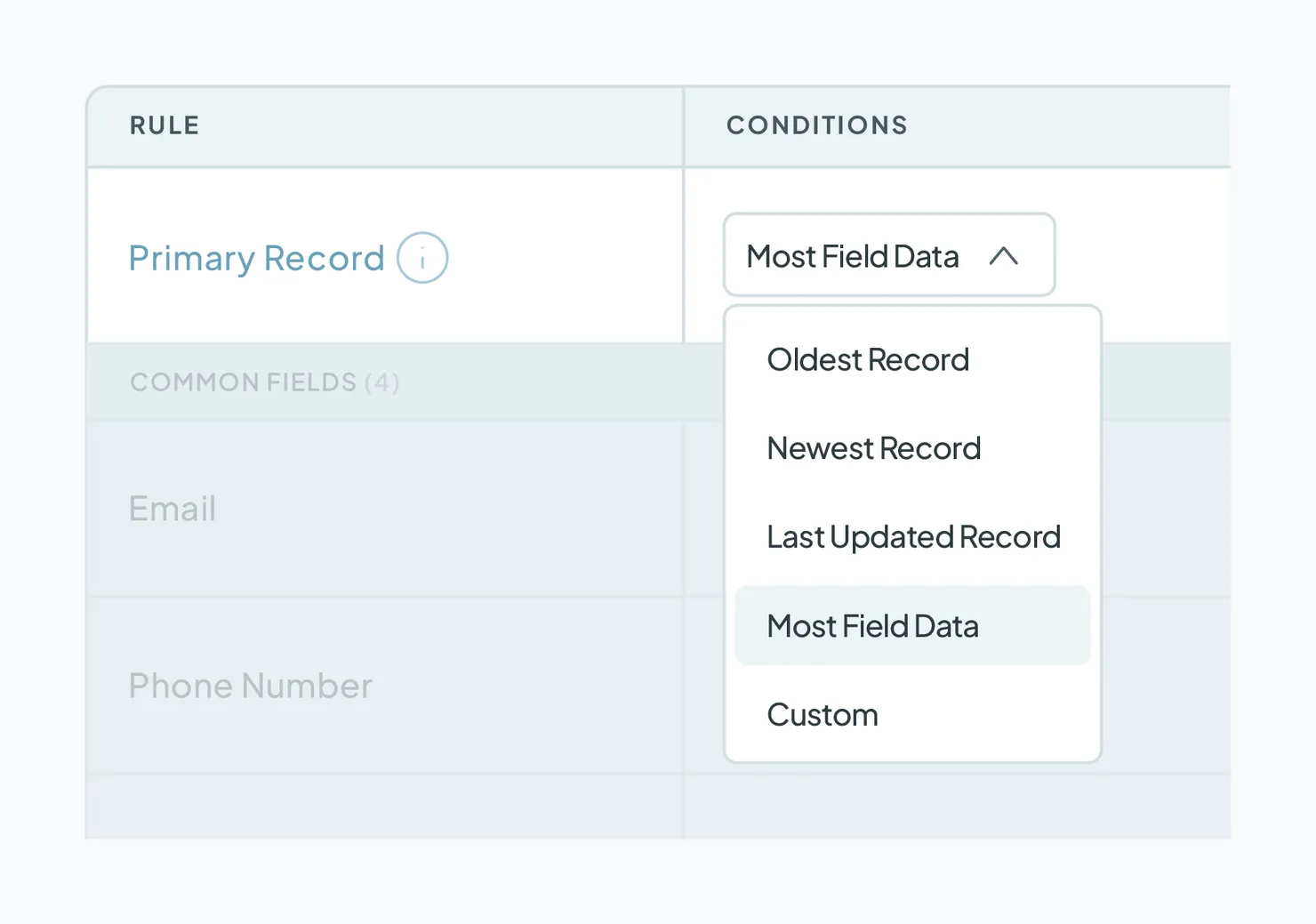
- Set your Merge Rules: Primary Record set to Most Field Data, so the real contact record wins. On Phone Number, choose Custom and add a Win Rule with When field Create Date and operator is newest, so the contact keeps the newest number.
- Turn on Auto Merge on a daily schedule, so call logs are merged before reps start their morning outreach.
Case B: Company enrichment ("ghost companies")
CRMs often create duplicate companies when domains vary (e.g. acme.com vs. acme.co.uk).
- Match companies using Domain Root (ignores www and endings like .com or .co.uk).
- Match the company name with Similar Words (Any Order), and set Ignored Terms to skip legal suffixes (Inc., LLC, Ltd.).
- Set the Primary Record rule to keep the oldest record.
- Preview the result to check that your matching and Merge Rules give the outcome you want.
- Bulk merge your legacy data.
- Turn on Auto Merge on a daily schedule.
Complex duplicates: Ops and ERP data
Operations syncs financial data, billing IDs and contract details from Salesforce or an ERP, where merging the wrong account is high risk.
- Create a Duplicate Search on unique identifier fields (e.g. Tax ID or ERP Customer Number).
- Turn on Auto Match instead of Auto Merge, and set a notification threshold (e.g. notify when 10 matches build up).
- When notified, open the results and handle each match:
- Manual Review: puts the match in a queue for a team lead or account owner to approve. See Manual Review.
- Merge: merges right away, once you've checked which values survive.
- Reject: dismisses the match if it isn't a duplicate. It stays out of every future search for that object. See Rejected Matches.
What happens next
Turn the plan into action, one phase at a time:
- Map your duplicate types and sort each one into obvious, conditional or complex.
- Start with your obvious duplicates (Phase 1). Create one Duplicate Search, test with 1–2 single merges, then bulk merge. See Finding Duplicates.
- Add Merge Rules before merging conditional duplicates (Phase 2). See Merge Rules.
- Automate (Phase 3). Use Auto Merge for searches you've tested and Auto Match for anything high-stakes.
Every merge is recorded, so you can always check what was merged and when in Merge History.
Troubleshooting
My Duplicate Search finds records that aren't real duplicates. Your match settings might be too loose for this category. Switch fields to Exact match, add another field to match on, or add a filter.
My Duplicate Search finds fewer duplicates than I expected. Your match settings may be too strict. Try Similar or Fuzzy match on name fields, or Domain Root on domains. See Match Options.
The wrong record was kept as the primary. Check your Primary Record rule in Merge Rules, and always preview a few matches before bulk merging. If needed, create custom merge rules at a field-level for granular control on the outcome.
Auto Merge is merging records I wanted to review first. Turn off Auto Merge on that search and switch it to Auto Match, so you get notified instead. Check what was merged in Merge History.
FAQs about planning a CRM deduplication project
- Should I merge all my duplicates at once? No. Test with 1–2 single merges and a couple of bulk-merged pages first, check the results in your CRM, then merge the rest.
- Who decides what counts as a duplicate? Your team does. Dedupely doesn't enforce a fixed definition; you set it with your Duplicate Searches, their match settings and Filters.
- What's the difference between Auto Merge and Auto Match? Auto Merge merges automatically on a schedule. Auto Match only notifies you when duplicates build up, so a person decides what to merge.
- Can I stop duplicates before they reach my CRM? Yes. Clean spreadsheets in Dedupely before importing them. Spreadsheet imports are unlimited and don't count toward your plan's limit.
- Which phase should I start with? Phase 1, with your obvious duplicates. It's the lowest risk and gives you a clean starting point for everything else.
Next up
HubSpot Deduplication Guide How to apply this plan in HubSpot. Using another CRM? See the guides for [Pipedrive](/knowledge-base/pipedrive-deduplication-guide), [Salesforce](/knowledge-base/salesforce-deduplication-guide), [Close](/knowledge-base/close-crm-deduplication-guide), [Nimble](/knowledge-base/nimble-crm-deduplication-guide) and [Google Contacts](/knowledge-base/google-contacts-deduplication-guide).Still stuck?
Our team helps on every plan and during the free trial, by chat, email or Zoom.
- Need help? Talk to support
- Questions about plans? Book a Zoom with sales
- Reading this with a model? Read this page as Markdown
- Feeding it the whole site? Read llms.txt




 Or sign up with Google