Duplicate Searches (Prev. Search Pads)
Updated
Build, run, and manage custom duplicate matching logic for your CRM objects.


Duplicate Searches are included in all Dedupely plans and the 7-day free trial.
Different types of duplicates require different matching strategies. Finding contact duplicates by email requires strict criteria, while finding company duplicates by name requires more flexible rules.
Duplicate Searches separate different matching logics into individual, saved workspaces so you can run targeted scans without reconfiguring your settings every time.
Clone existing Duplicate Searches when testing minor variations. Keeping a baseline Duplicate Search intact while testing a tweak in a cloned one makes it easy to compare duplicate results without losing your original setup.
When logging into Dedupely for the first time, each object includes preset Duplicate Searches out of the box. These presets cover common search combinations so you can start finding duplicates immediately without initial setup.
What you can do with Duplicate Searches
- Use preset searches and run pre-configured scans right away to find immediate duplicates.
- Build custom Duplicate Searches to select specific field combinations and match options tailored to your CRM data.
- Clone Duplicate Searches to test subtle rule variations, such as changing a single match option, and compare results.
- Add/remove visible fields to display additional/less record details in your search results for context during manual reviews, even if those fields aren't used for matching.
- Rename and delete your Duplicate Searches to reflect their specific purpose.
- Delete experimental Duplicate Searches to keep your workspace clean.
How to create and configure a Duplicate Search
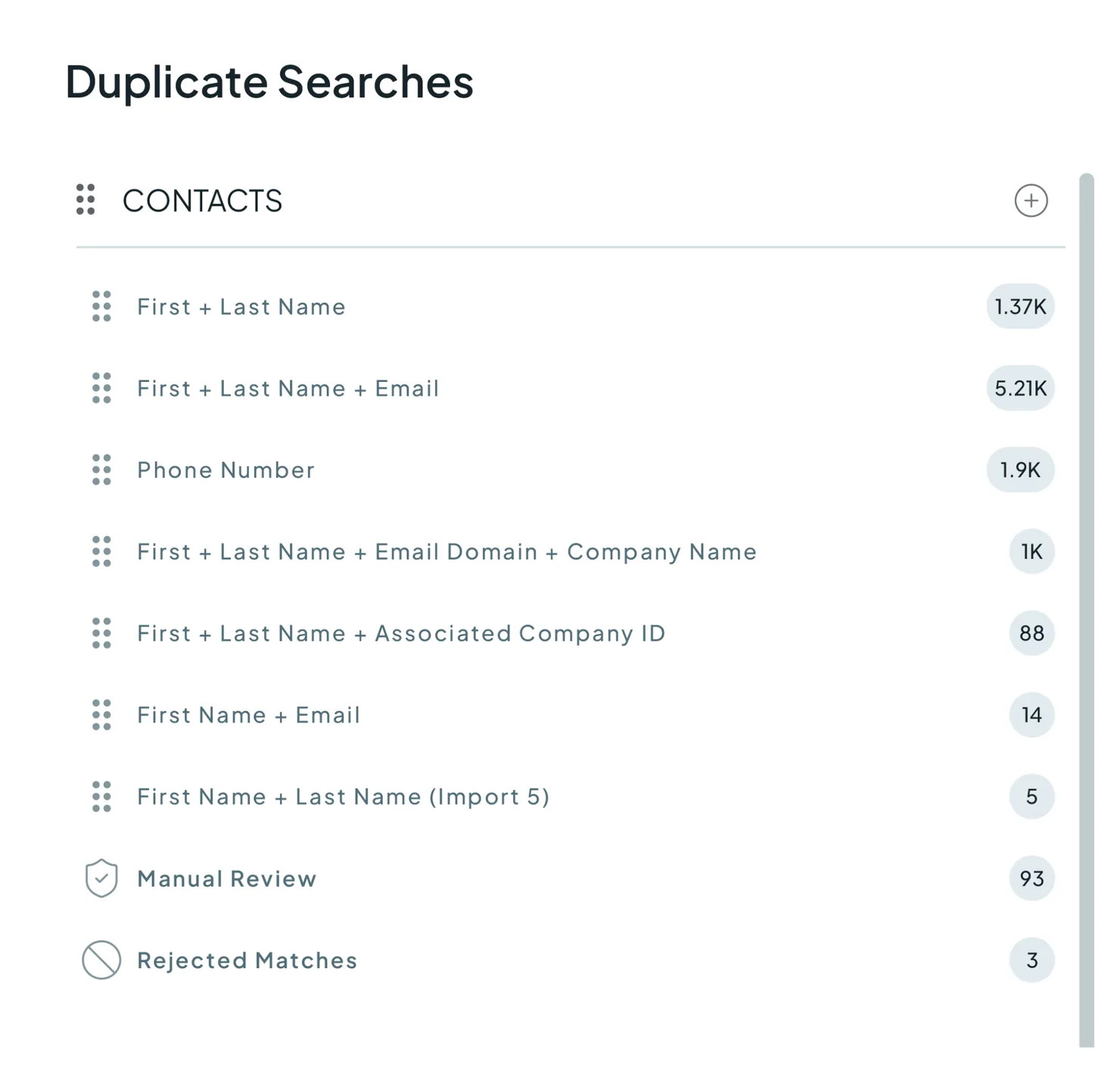
- Go to "Duplicate Searches" on the left side vertical menu, and locate the object you want to work with (e.g., Contacts, Companies, Leads), and click the “+” button.
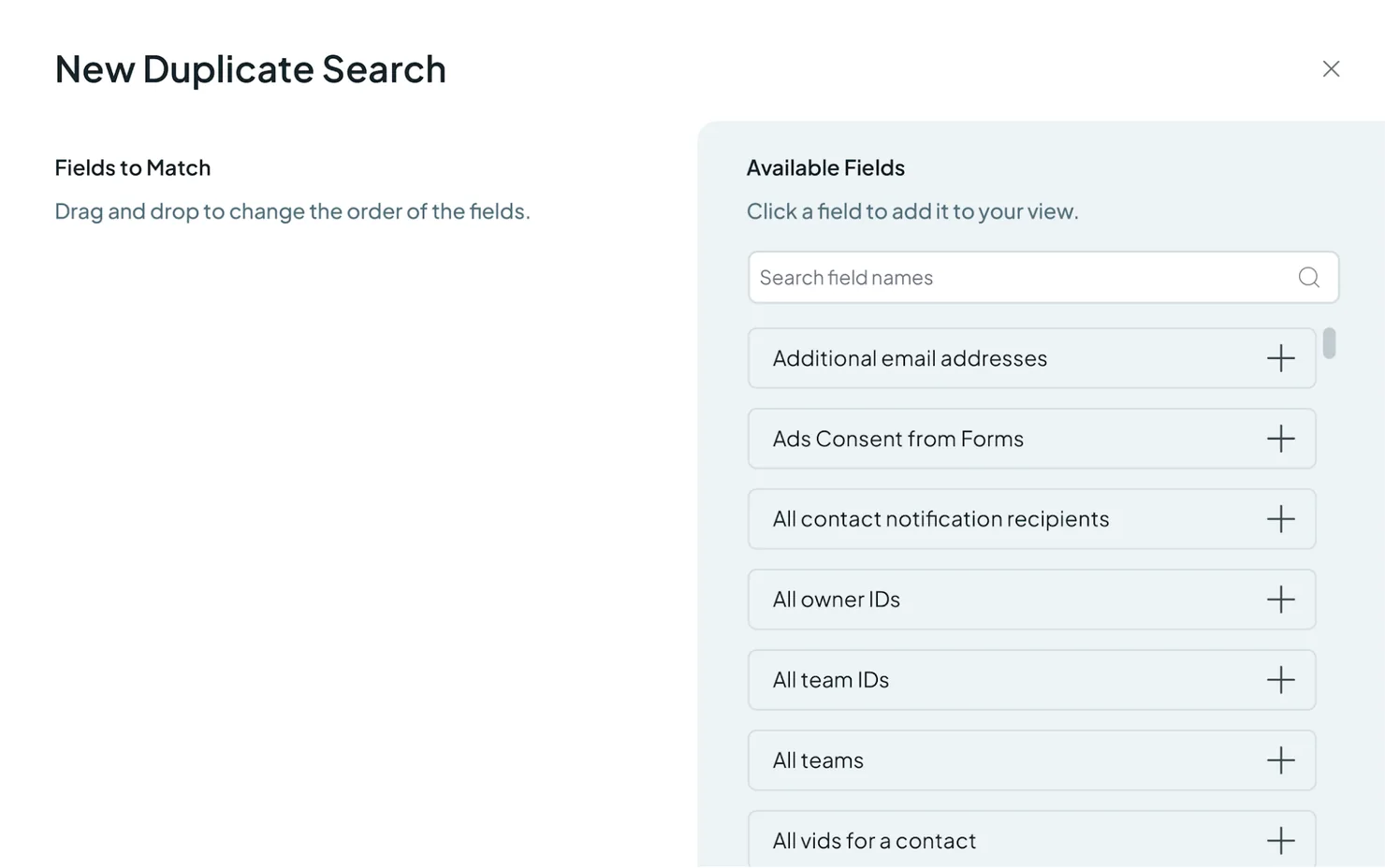
- Choose the fields you want to view on the Duplicate Search and click “Save.”
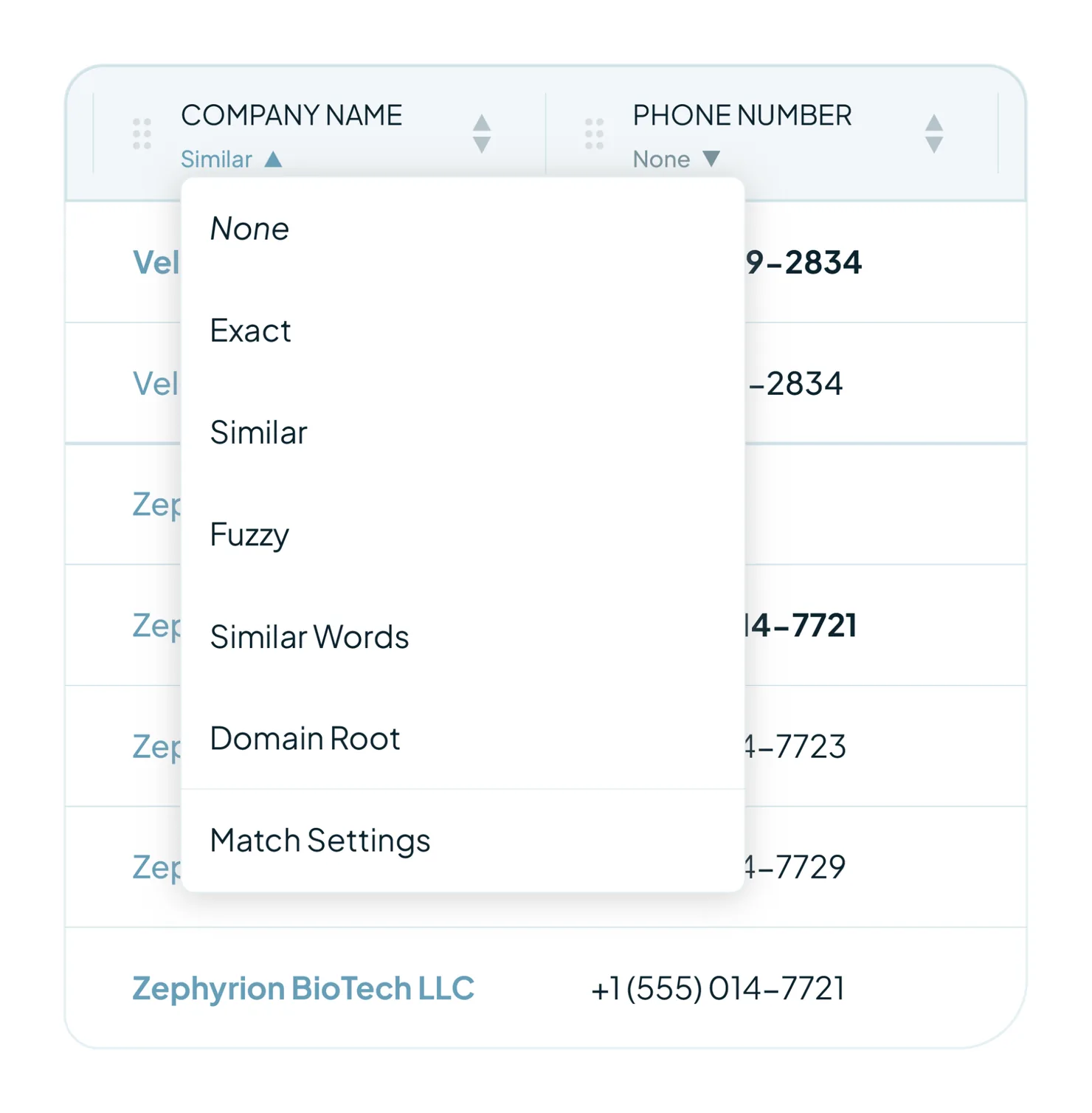
- Under each field, click the arrow pointing down and assign a Match Option to each field.
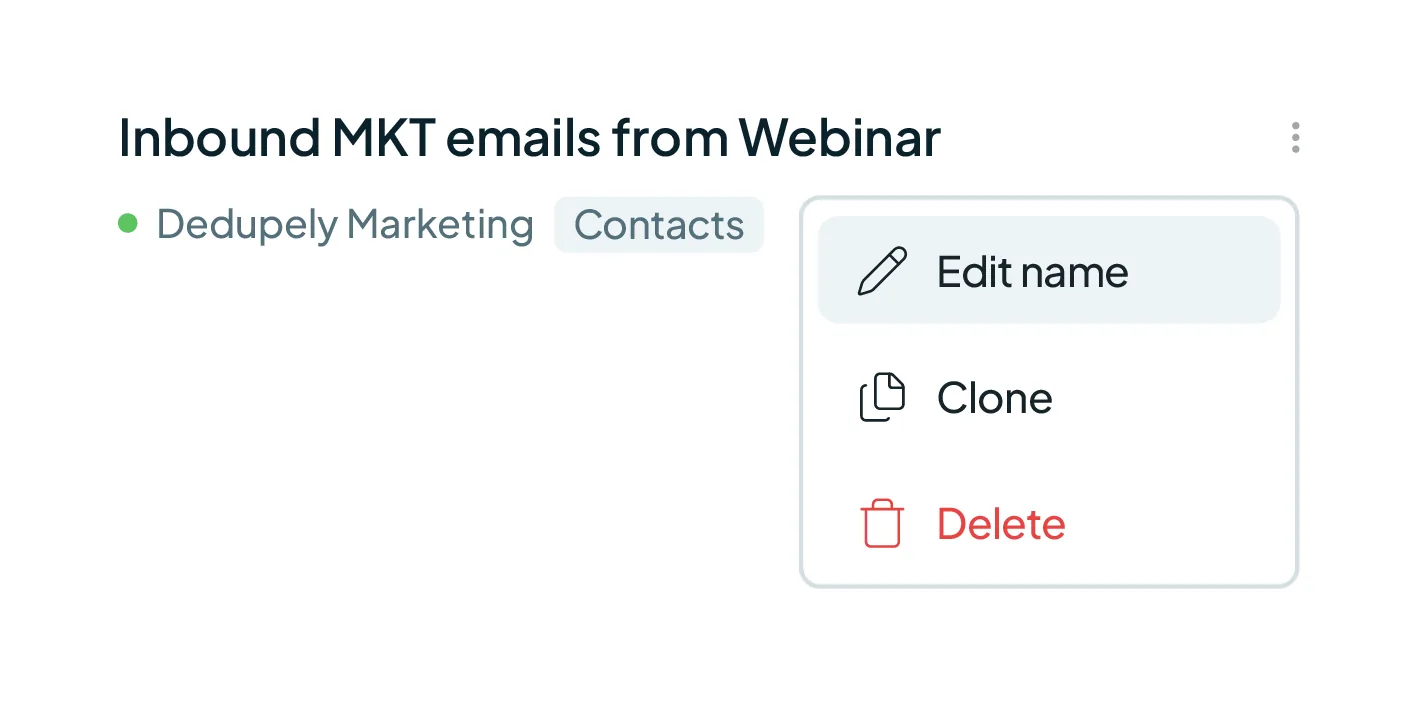
- To customize the name after saving, click the three-dot menu next to the Duplicate Search name at the top and click on "Edit name."
- (Optional) Apply Filters to narrow your search to specific record segments.
- (Optional) Adjust Visible Fields to control which record details appear on your search results.
- Click "Scan"
Re-run your scan after making any updates or edits to a Duplicate Search. Re-scanning refreshes your results and reflects your latest configuration changes.
Core components of a Duplicate Search

Each Duplicate Search has dedicated Dedupely tools to control how duplicates are matched:
Match Settings
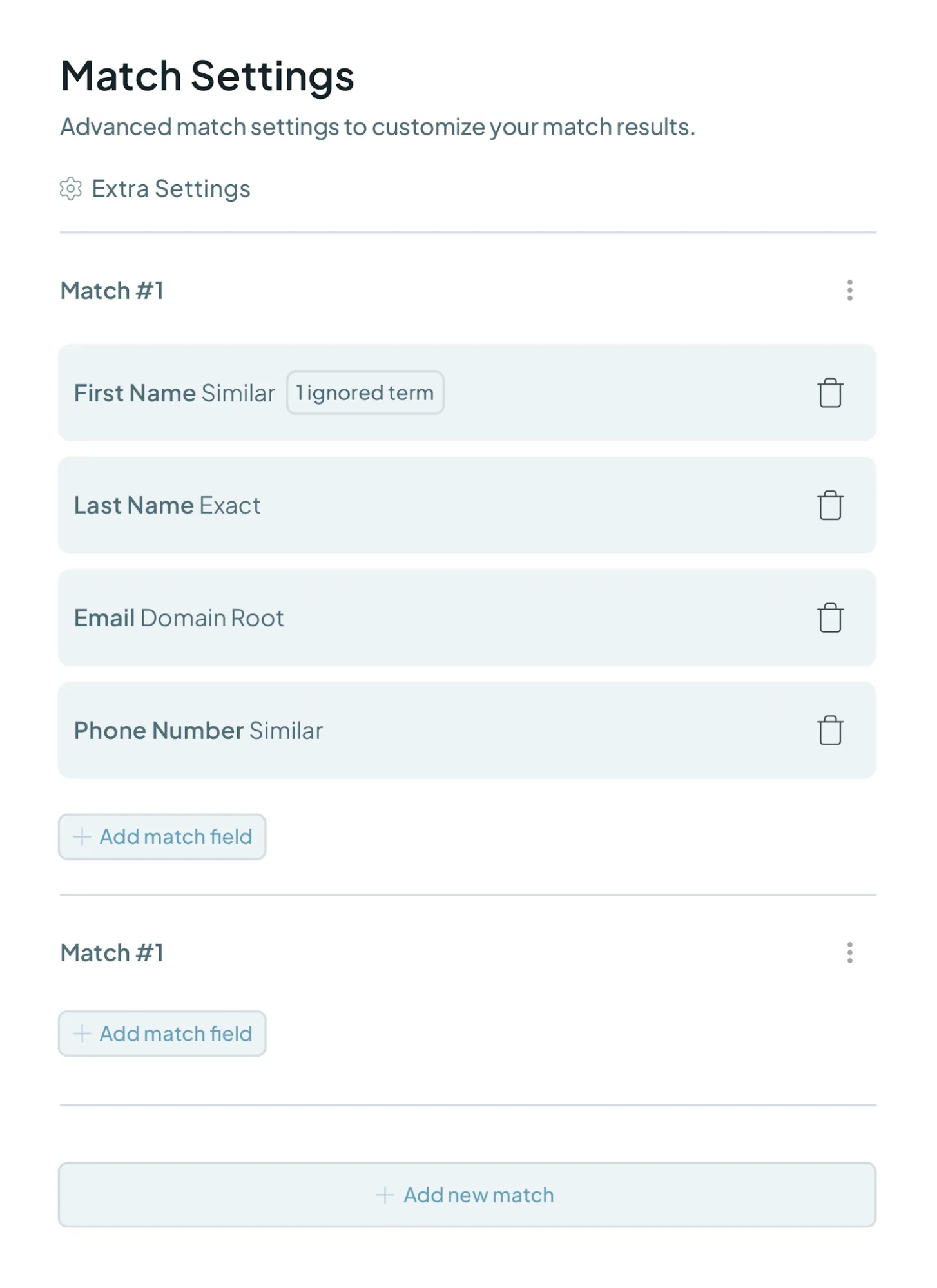
- Decide what makes it a duplicate.
- Assign individual matching options to each field: Exact, Similar, Fuzzy, Similar Words, Domain Root, or None.
- Create multiple match groups within the same Duplicate Search to combine different criteria variations into a single search, making it easier to run multiple automations without creating multiple Duplicate Searches.
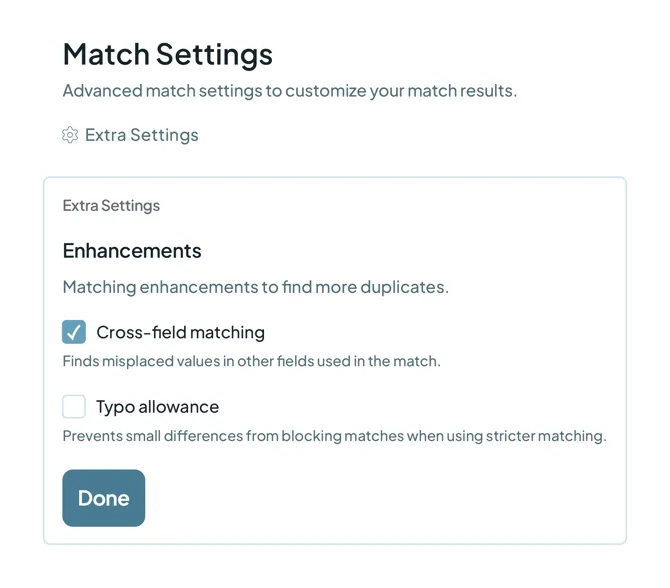
- Enable cross-field matching to detect misplaced values across different fields or typo allowance to prevent small spelling differences from blocking legitimate matches.
Filters
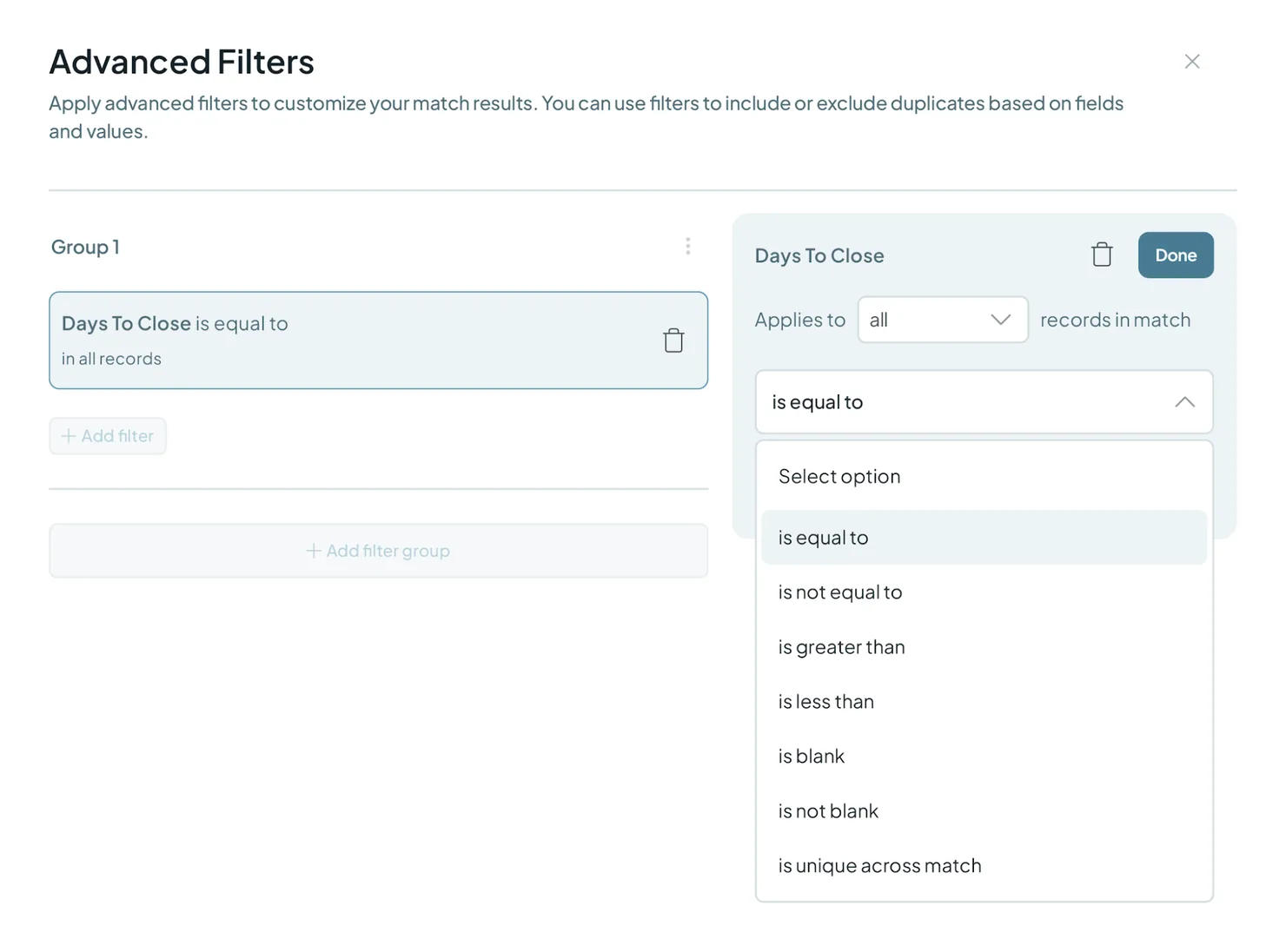
Narrow down what you match by building filter groups based on specific record criteria.
Visible fields
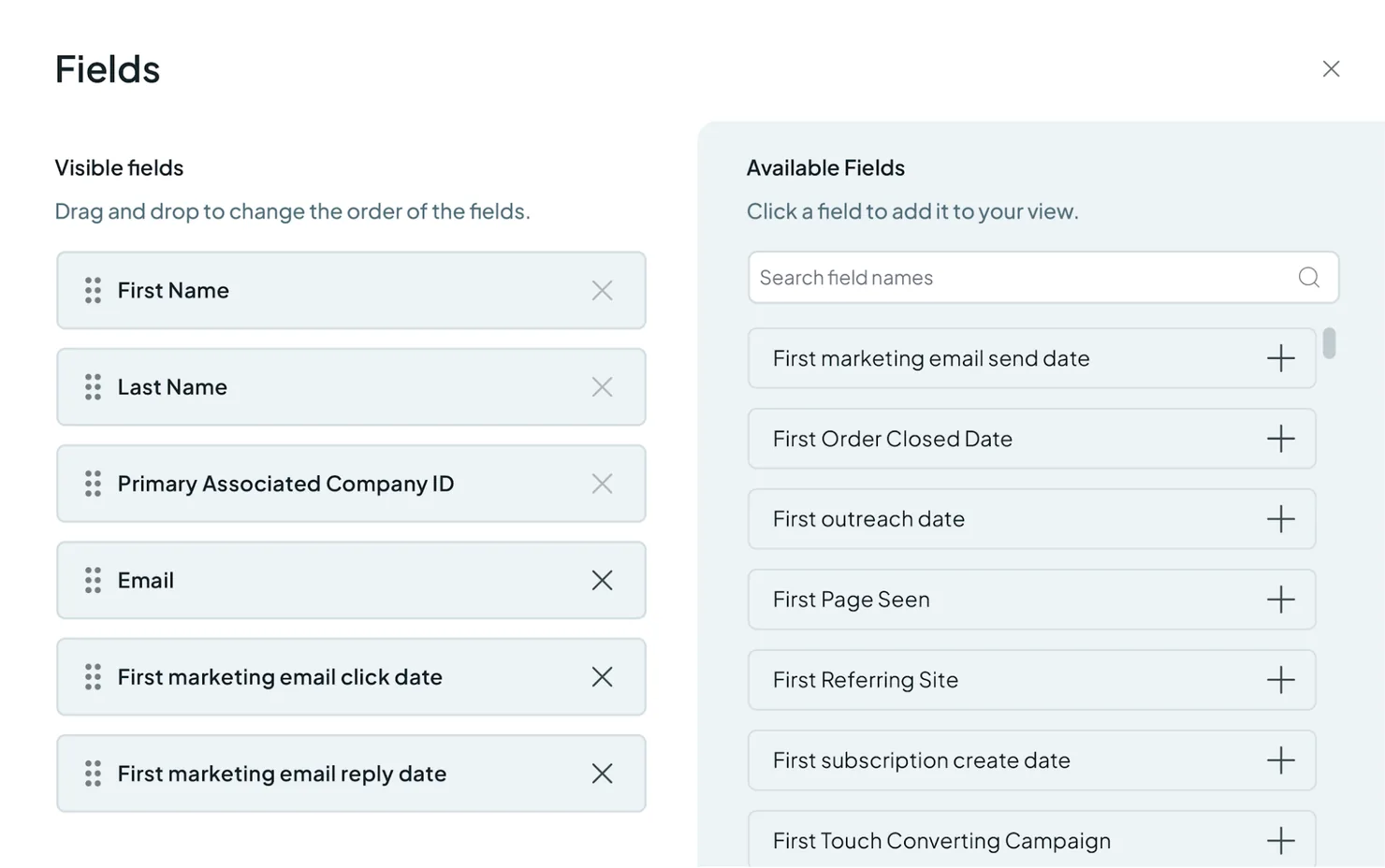
- Show or hide specific record fields on your searches and drag and drop them to customize display order.
- Adding visible fields provides full record context during manual reviews without requiring those to be part of the matching rules.
Automate
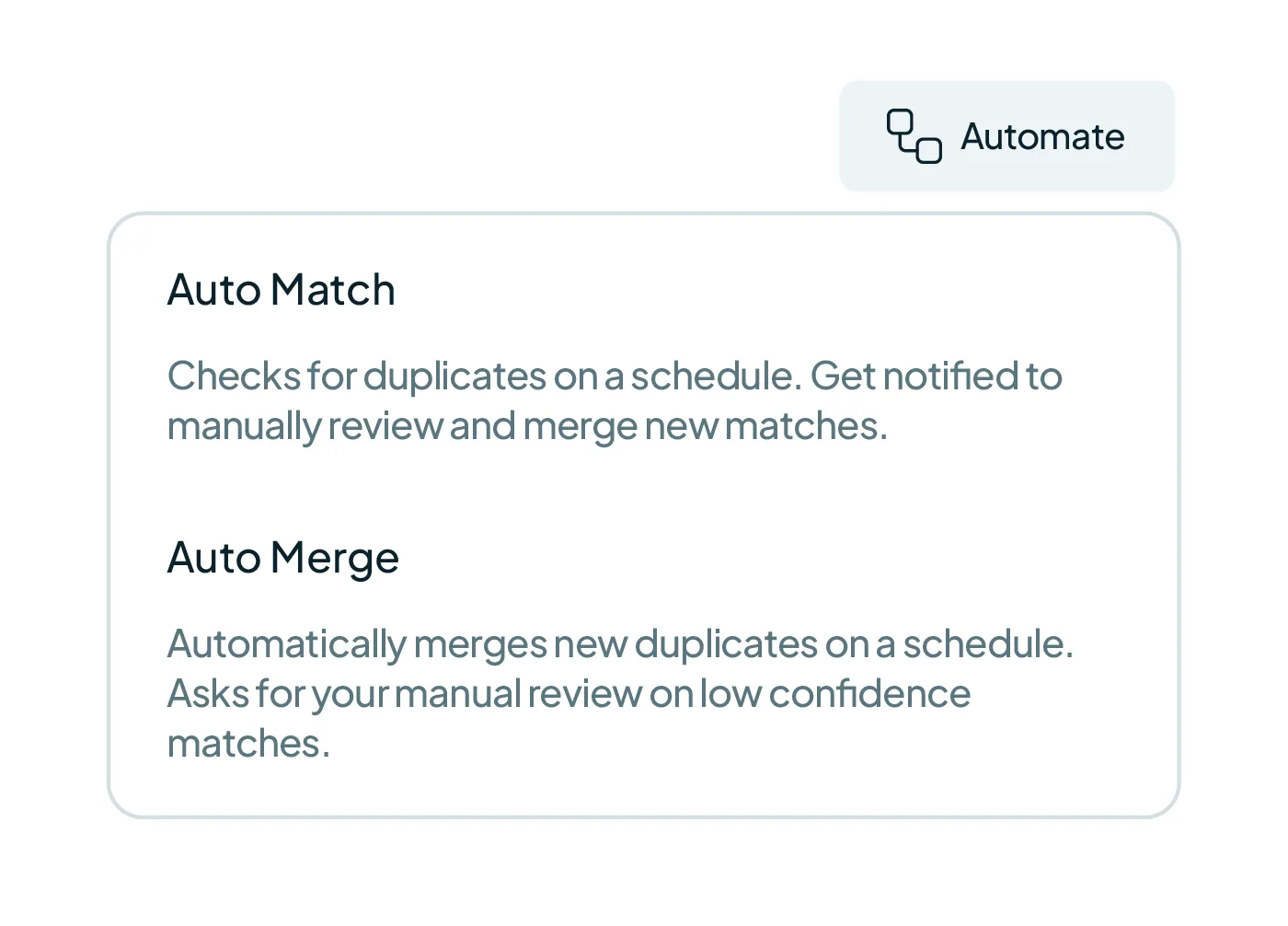
- Auto Match: Checks for duplicates on a schedule and sends notifications when match thresholds are met, so you can review and merge them.
- Auto Merge: Merges new duplicates automatically on a scheduled basis, using your Duplicate Search criteria.
Best practices for Duplicate Searches
- Use clear naming conventions or descriptive names so team members easily understand their scope.
- Use one Duplicate Search per duplicate type or source to manage each entry point effectively.
- Combine Match Options with Filters to target specific departments, regions, creation dates, etc.
- Clone a Duplicate Search to test new matching criteria before modifying active searches.
Troubleshooting common search issues
- No duplicates found: Verify that the fields selected for matching contain data across your CRM records. If matching on multiple strict fields at the same time, try reducing the number of required matching fields or switching to a more flexible Match Option like Similar or Fuzzy.
- Too many unexpected results: Add match fields to tighten the criteria, or check your Safety Settings to ensure low-quality or placeholder data isn't creating artificial matches.
FAQs about Duplicate Searches
- Can I get a notification with the Duplicate Search matches X sets? Yes, enable Auto Match on the Duplicate Search and set the specific match threshold count for notifications.
- Can I choose only one Duplicate Search to run Auto Merge on? Yes. Auto Merge settings are specific to one Duplicate Search, exclusively.
- How many Duplicate Searches can I create? You can create up to 50 Duplicate Searches across your account to target different types of duplicates.
- Why would I need more than one Duplicate Search? Setting up dedicated Duplicate Searches for each type of duplicate in your CRM ensures targeted deduplication. For example, keeping a Duplicate Search on Auto Merge for contact submissions continuously merges incoming web form duplicates in the background.
Mentioned in this article: Match Options, Filters, Auto Match, Merging duplicates, and Merge Safety.
Still stuck?
- Need help? Talk to support
- Questions about plans? Book a Zoom with sales
- Reading this with a model? Read this page as Markdown
- Feeding it the whole site? Read llms.txt


 Or sign up with Google
 HubSpot Marketplace











