

TL;DR
- Dedupe the client's old CRM before the move, so each customer migrates as one record.
- Clean every export or spreadsheet you'll import before it reaches the new CRM.
- Dedupe the new CRM again once its forms and integrations are running.
- Keep a record of every merge, with original values and record IDs, for the client.
- Dedupely cleans the old CRM, the export files and the new CRM, with every merge recorded.
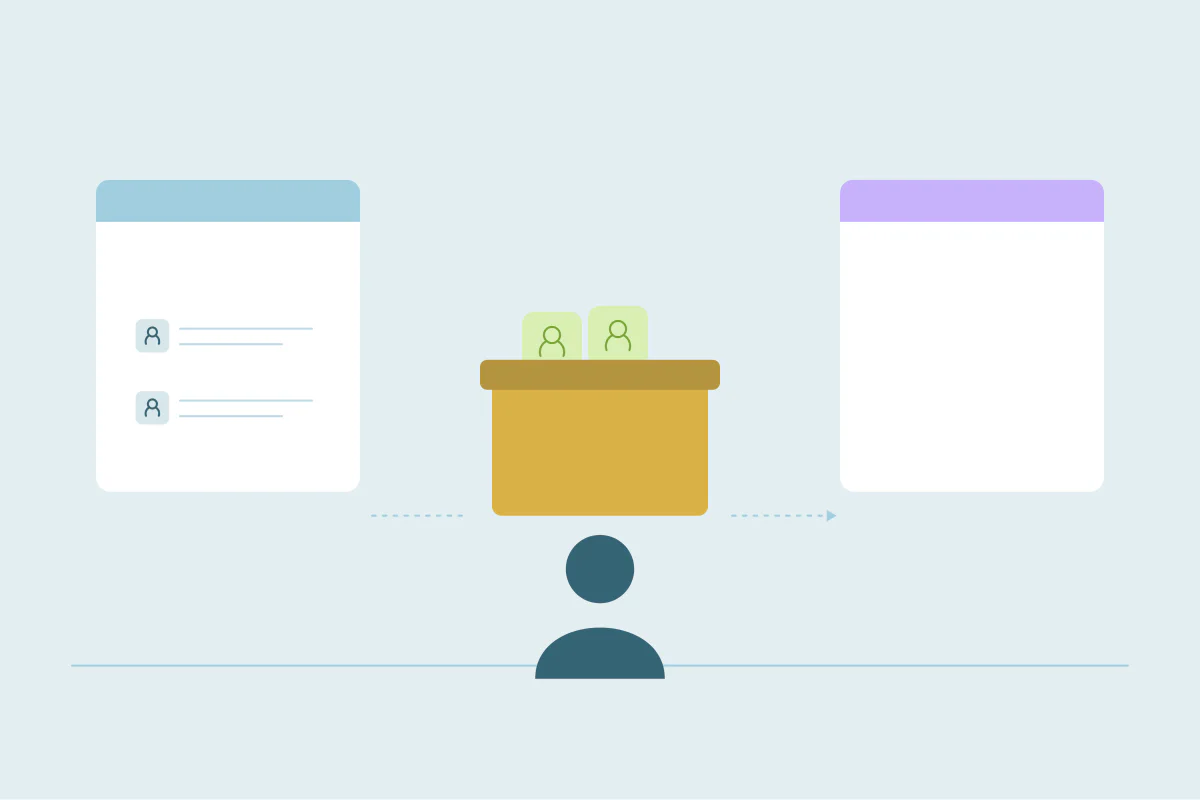
To clean a client's CRM before you migrate it, dedupe the old CRM first and clean every file you'll import. Then migrate, and dedupe the new CRM once its integrations are running.
When you run the migration, the duplicates become your problem too. Whatever you move, the client sees in the new CRM on day one, and it looks like your work. Cleaning on both sides of the move is what lets the new CRM start clean.
In this post, you'll see the order that works for client migrations and what to do at each stage. You'll also see what to keep as a record for the client, and what to hand over at the end.
Why the order matters when you run the migration
A migration brings the old CRM's duplicates with it, and can add new ones on the way. Our post on deduplicating before, during and after a CRM migration covers why that happens. This post is about running it for a client, in four stages.
| Stage | What you do | Why it comes here |
|---|---|---|
| 1. Old CRM | Connect it and merge its duplicates | Each customer's history moves as one record |
| 2. Export files | Clean every spreadsheet you'll import | Files bring their own duplicates, separate from the CRM |
| 3. Migration | Move the data with the new CRM's import tools or a migration service | The records you move are already clean |
| 4. New CRM | Set up integrations, connect the new CRM and dedupe it | Catches what the move and the integrations create |
Each stage works within one system at a time. Dedupely matches records within one CRM or one spreadsheet workspace, so the old CRM and the new one are each cleaned on their own.
Stage 1: dedupe the old CRM first
Cleaning the old CRM comes first because nothing new depends on those records yet. Merging there brings each customer's activities, deals and notes together, so their history migrates as one record.
- Connect the old CRM. Turn on only the objects you'll migrate.
- Start with the obvious duplicates. Exact email for contacts, and domain with name for companies, are good first searches.
- Decide what survives. Set Merge Rules for which record survives and which values win, so the right owner and stage travel.
- Test, then bulk merge. Merge a few sets, check them in the old CRM, then merge the rest.
Some records don't need to move at all. Test records and long-inactive contacts are one less thing to match, and the client decides what stays behind. What counts as a duplicate is case by case too, so agree on the definitions with the client before the first merge.
Watch the record limit during the move
While both CRMs are connected, their records count toward the same plan. In a partner account, you can give a migrating client more of your record limit for a while. Once the old CRM is no longer needed, download its Merge History CSV, then turn off its objects so its records stop counting.
Keep the old CRM's merge record
Download the Merge History CSV before you remove the old CRM. It lists every merged record with its original values and its original record ID.
That file answers questions the client will ask long after the move. Someone looks up a customer by an old ID from a spreadsheet or an invoice, or asks where a phone number went. The original values and IDs are in the CSV, even once the old system is gone.
It's also your safety net. Most merges can be undone for 30 days from Merge History, but treat every merge as permanent. The CSV is how you restore values if something merged wrongly.
Removing a CRM and losing its connection work differently. "Remove CRM" in Dedupely permanently deletes that CRM's data, including its Merge History, about 24 hours later. It can't be undone, so your CSV is then the only record of those merges.
If the connection just stops working, like when access is revoked on the CRM side, the CRM stays in Dedupely marked as disconnected. Its Merge History can still be viewed and exported there.
Stage 2: clean the export files
Many migrations run on spreadsheets. You export from the old CRM, adjust the columns and import into the new one. Clients often add their own files, like event lists or a rep's personal contacts, that never lived in the old CRM.
Clean each file before it's imported. In a Dedupely spreadsheet workspace, you can find duplicates in a file, set rules for which value wins and download the clean records. Spreadsheets don't count toward the record limit, and merges there never change a CRM.
- Combine files with the same headers. Several files can be cleaned together when their column names match exactly.
- Keep the old record ID as a column. Mapping it into a field in the new CRM links each record back to its source.
- Check against the new CRM after import. A file is matched within its own workspace, so duplicates between the file and existing records show up once you scan the new CRM.
For clients with lists coming from many places, see deduping a list before you import it.
Stage 3: migrate without adding new duplicates
The move itself happens in the new CRM's import tools or a migration service. A few habits keep it from creating duplicates of its own.
- Map the field that identifies each record, like email or domain, so rows update instead of creating new records.
- Import a test batch first, and look for duplicates before loading the rest.
- Import companies before people, and people before deals.
- List every form, sync and integration that writes to either CRM during the cutover.
Stage 4: dedupe the new CRM
Finish setting up the new CRM before you dedupe it. Forms, objects, fields and every integration that creates or syncs records should be running first. If you dedupe earlier, an integration can bring records back or add new ones.
Then connect the new CRM and turn on its objects. The first sync takes minutes for a smaller database and hours for the largest ones.
- Look for customers who came from two sources. After an acquisition or a merge of two CRMs, shared customers only become duplicates once both lists land in one place.
- Decide which data wins. When both sources had a record, a rule like keeping the oldest record keeps the longest history.
- Test, then bulk merge. Merge a few sets, check them in the new CRM, then merge the rest.
- Automate what you're sure of. Once a search is tested, its duplicates can merge automatically on a schedule.
Where the client stands after go-live shapes what comes next. Our post on handling a client's duplicates at every CRM stage covers clients mid-migration and after an acquisition.
What to hand over to the client
A migration ends with a handover, and the client lives with every merge after you leave. Give them what they need to answer questions without you.
| Item | Why the client needs it |
|---|---|
| Merge History CSV from the old CRM | Original values and record IDs from before the move |
| Merge History CSV from the new CRM | Original values from the cleanup after go-live |
| Record counts per object, before and after | Shows what the cleanup changed in each CRM |
| The definitions and rules you agreed | Explains why records merged and which values won |
| Searches still running automatically | Shows what keeps the new CRM clean, and what to check |
How to present before-and-after numbers is covered in CRM deduplication for consultants and agencies.
How Dedupely helps you run a clean client migration
With Dedupely, you connect the client's old CRM, merge its duplicates and clean every export file in a spreadsheet workspace before the move. After go-live, you connect the new CRM, merge what the move and the integrations created, and merge tested searches automatically on a schedule. Merge History keeps every merged record's original values and IDs, and the Dedupely partner program keeps each client's CRMs in one account.
Clean on both sides of the move
A client migration has two clean points: the old CRM before the move and the new CRM after it. The export files in between need their own pass, since they bring duplicates the CRM never had.
Keep the merge record from each side, and the client can trace any record back to where it started. That's what makes the new CRM feel like a fresh start.
Frequently asked questions
Should I dedupe a client's CRM before or after migrating it?
Both: dedupe the old CRM before the move, so each customer's history migrates as one record. Then dedupe the new CRM once its forms and integrations are running, to catch what the import and the integrations created. Clean any spreadsheets you'll import in between, since they bring their own duplicates.
How do I find customers that exist in both the old and the new CRM?
Find them in the new CRM, after the move. Dedupely matches records within one CRM or spreadsheet workspace, so dedupe the old CRM on its own first. Customers that existed in both places become duplicates once they land in the new CRM, and that's where you merge them.
How do I keep the original record IDs after a CRM migration?
Map the old CRM's record ID into a field in the new CRM during the import. Download the Merge History CSV before you remove the old CRM. That file lists every merged record's original values and original record ID, so you can trace records back later.
Do both CRMs count toward the Dedupely record limit during a migration?
Yes, records from every connected CRM add up toward the same limit, while spreadsheets don't count. In a partner account, you can give a migrating client more of your limit for a while. Turn off the old CRM's objects once you no longer need them.
When should I dedupe the new CRM after a migration?
After its forms, fields and integrations are set up and running. Integrations create records of their own, and some can bring merged records back. If you dedupe before they're live, you'll likely need a second pass, so wait until the new CRM's setup is finished.




 Or sign up with Google