

TL;DR
- To merge more than two HubSpot records, merge in steps, use Data Hub or a tool.
- By default, each HubSpot merge creates a new record ID for the merged record.
- Data Hub Professional and Enterprise add bulk merging of HubSpot's duplicate suggestions.
- Choose the surviving record and winning values before merging a set of three or more.
- Dedupely merges every record in a HubSpot match in one action, on every synced object.
To merge more than two records in HubSpot, merge in steps, bulk merge with Data Hub, or use a tool that merges whole sets. HubSpot's own merge combines two records, so a contact with three records takes two merges.
That's fine for the odd pair. It gets slow when one person signed up through three forms, or one deal was created by two reps and an integration.
In this post, you'll see how HubSpot's merge works and what changes when a set has three or more records. You'll also see what each plan offers and the options for merging larger sets.
How HubSpot's merge works
HubSpot merges two records of the same object into one. You choose the primary record, and the other one merges into it. This works for contacts, companies, deals, tickets and custom objects.
- The primary's property values come first, and the other record fills empty properties.
- Associated records and timeline activities from both records appear on the merged record.
- By default, the merged record gets a new record ID, and the old IDs are kept in a property.
- Merges can't be undone.
As of October 2026, from HubSpot's Knowledge Base: Merge records.
HubSpot's API follows the same pattern. Its merge endpoint takes one primary record ID and one record to merge into it. As of October 2026, from HubSpot's developer docs: Merge two contacts.
What changes when a set has three or more records
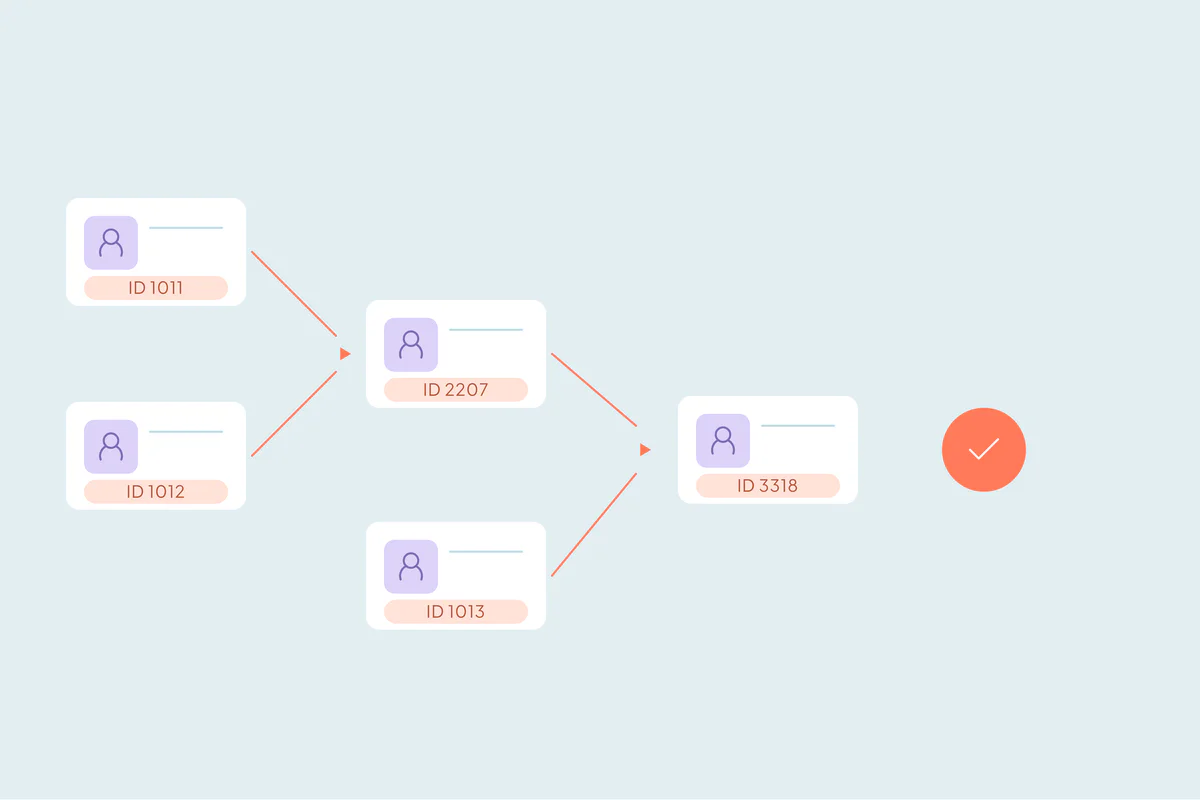
With two records, one merge does the job. With more, every merge after the first one builds on the result of the last.
- Each record after the first takes a merge. Three records take two merges, and five take four.
- Each merge creates a new record ID by default. A set of five ends with an ID that none of the original records had.
- Each merge removes both records from active workflows by default, so a record mid-sequence stops there.
- The order decides the values. The primary's values win at each step, so picking a different primary halfway changes the result.
- Each merge counts toward HubSpot's limits. Records in 250 or more merges combined can't be merged again.
As of October 2026, from HubSpot's Knowledge Base: Merge records. Portals in HubSpot's opt-in Primary ID Preservation beta keep the primary's ID, and only the other record leaves its workflows.
Before merging a large set, check which tools outside HubSpot store its record IDs. Our post on what happens to workflows and record IDs when you merge covers what to look for.
What each HubSpot plan offers for merging
HubSpot's tools for finding and merging duplicates depend on the plan. Here's how they compare, as of October 2026.
| What you get | Free and Starter | Professional or Enterprise | Data Hub Professional or Enterprise |
|---|---|---|---|
| Merge two records by hand | Yes | Yes | Yes |
| Duplicate suggestions for contacts and companies | No | Yes, as pairs | Yes |
| Bulk merge of suggestions | No | No | Yes |
| Custom duplicate rules | No | No | Yes, up to two per object |
As of October 2026, from HubSpot's Knowledge Base: Review and manage duplicate records and Merge records.
With Data Hub, custom rules can group more than two records. When you bulk merge, HubSpot merges all selected records into the one picked by a criterion you choose. Options include the record created first or the one with the most recent engagement. Our guide to HubSpot deduplication on free vs. paid plans covers each tier.
Your options for merging three or more records
Merge in steps by hand
Pick the record that should survive and merge each of the others into it, one at a time. Keep the same primary in every step and choose values the same way each time. This works for a few sets, on any plan.
Bulk merge with Data Hub
On Data Hub Professional or Enterprise, you can bulk merge HubSpot's suggestions and the groups your custom rules find. It covers contacts and companies, and the surviving record is chosen by one criterion for the whole selection.
Script it through the API
A developer can group duplicates and call the merge endpoint once for each extra record. The script has to choose the primary and handle failed merges, like a record that hits an association limit.
Use a deduplication tool
Tools built for HubSpot can merge a full set in one action, including deals, tickets and custom objects. Check how they choose the surviving record, whether you can set values field by field, and whether you can preview each merge.
For companies at scale, including HubSpot's association and past-merge limits, see how to merge thousands of companies in HubSpot.
What to decide before merging larger sets
- Which record survives. The oldest, the most recently active or the most complete are common choices.
- Which values win. Owner, lifecycle stage and email matter most, so agree on them with the teams that use them.
- Whether the set is one customer. Large sets can mix a person with a shared inbox or a family member. Open them first.
- Which workflows matter. Note the sequences the records are in, and plan to re-enroll the merged record.
Test on a few sets, open the merged records in HubSpot, then merge the rest.
How Dedupely merges three or more HubSpot records at once
In Dedupely, every record in a HubSpot match merges in one action, for contacts, companies, deals, leads, tickets and custom objects. You choose the surviving record and winning values with rules, or keep the default, where the oldest record survives, and preview each merge first. By default, matches with more than 20 records are held back for you to review.
Decide once, whatever the size of the set
HubSpot's two-record merge works well for pairs. Beyond that, each extra record means another merge, another record ID and another chance to pick a different primary.
Whichever route you use, decide the surviving record and the winning values for the whole set before the first merge. Then three records or thirty end the same way.
Frequently asked questions
Can you merge three contacts at once in HubSpot?
Not with HubSpot's standard merge, which combines two records at a time, as of October 2026. You merge two, then merge the third into the result. With Data Hub Professional or Enterprise, custom duplicate rules can group records, and a bulk merge combines the selected records into one.
How do you choose which record survives when merging several HubSpot records?
In a standard merge, you pick the primary each time, and its values come first. In a Data Hub bulk merge, you choose one criterion for the whole selection, as of October 2026. The options are most recent engagement, oldest engagement, created first, created last and most recently updated.
Does merging several records change the HubSpot record ID?
Yes, by default every merge creates a new record ID, so a set merged in several steps gets a new ID each time. The original IDs are kept in the "Merged [record] IDs" property. Portals in HubSpot's Primary ID Preservation beta keep the primary record's ID instead.
Can I merge deals or tickets with more than two records in HubSpot?
Yes, but in steps. HubSpot's merge works for deals, tickets and custom objects, two records at a time. Duplicate suggestions only cover contacts and companies, so you find duplicate deals and tickets yourself. Pick the record that should survive first and merge each of the others into it.
Can HubSpot's API merge more than two records in one call?
No. As of October 2026, HubSpot's merge endpoint takes one primary record ID and one record to merge into it. To merge a set of five, a script calls it four times, keeping the same primary. Each call is a separate merge, with a new record ID by default.





 Or sign up with Google

 Salesforce AppExchange