


TL;DR
- A partner account keeps each client as a separate company with its own settings.
- One plan covers every client, sized by all clients' synced records combined.
- Partners can split the plan's record limit across clients, client by client.
- Partner staff and each client's users are managed in separate lists with separate roles.
- Dedupely shows every client's CRMs, records and duplicates on one partner Home page.
Once you clean CRMs for more than a couple of clients, keeping track gets harder than the cleanup itself. Which client is close to its record limit, who works on which account, and which client has new duplicates this week?
A Dedupely partner account puts every client in one place while keeping each one separate. You see all of them from one Home page, share one plan between them and manage your team and theirs from one settings area.
In this post, you'll see how a partner account is structured and what the Home page shows. You'll also see how to split your record limit, manage users across clients, move between clients and keep each client's settings apart.
How a partner account is structured
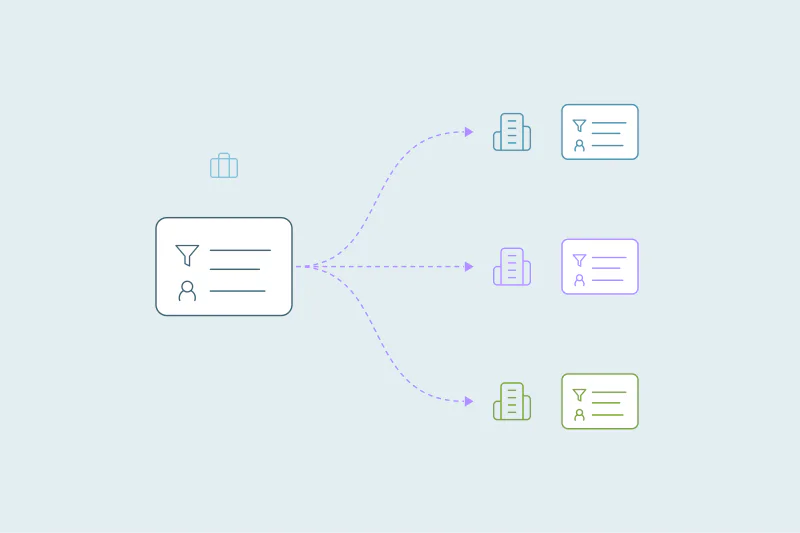
A partner account has two levels. Your partner company sits at the top, with your plan, your billing and your own team. Each client sits below it as its own company, with its own connected CRMs and settings.
Each client is independent. Its duplicate searches, Merge Rules, Safety Settings, automation and Merge History belong to that client alone. Dedupely never matches one client's records with another's.
That independence also means there's no template to push to every client. Each client builds its own searches and rules, which fits the way client data differs from one CRM to the next.
What the partner Home page shows
Partner accounts have a Partner section in the left menu, and its Home page is where you start each day. It has three parts.
| Part of Home | What it shows |
|---|---|
| Getting started | The first steps: add your clients, then your team, security policies and company information |
| Your plan | Plan name, next billing date and what the plan includes. It also shows your record limit and total usage across clients |
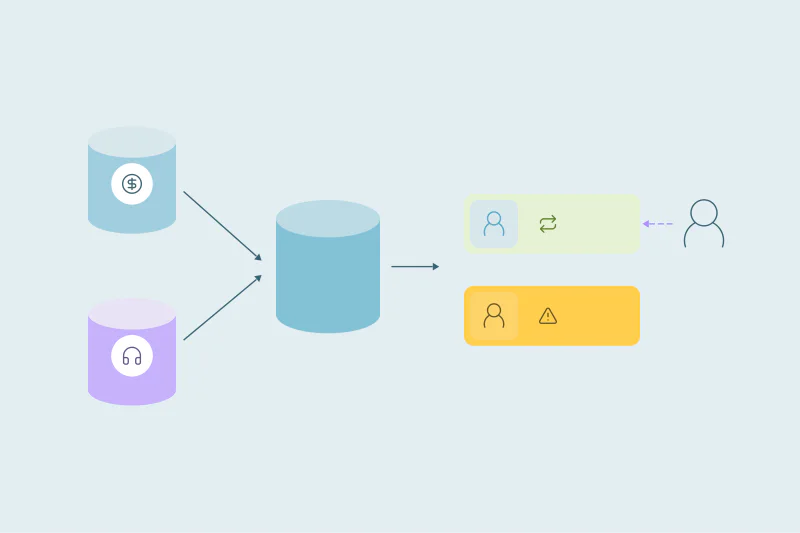
| One card per client | The client's connected CRMs, objects syncing, total records, duplicates detected and usage against its limit |
The client cards are the quickest way to see where attention is needed. A jump in duplicates detected often points to a new import or form. A client close to its limit may need more room before you connect more objects.
One plan for every client
A partner account has one plan. Its size is set by the synced records across all your clients' CRMs combined, and spreadsheets don't count toward it.
When a new client pushes the total past your plan's limit, Dedupely never upgrades you or charges you for going over. Partner pricing, including the partner discount, is explained on the Dedupely partner page.
No email warns you before a limit is reached. If your account's total goes over your plan's limit, you can keep working with up to 10% extra records for 10 days. After that, your partner account and all your clients become read-only until you upgrade or get back under the limit. You can still see everything and pay, but you can't make changes. A failed payment works the same way after a 3-day grace period.
Splitting the record limit across clients
Each client card has an Edit Record Limit option. With it, you decide how much of your plan's record limit each client can use.
The limit window shows your total limit, what your other clients already use, this client's current usage and what's still available. You set the client's limit from there.
- Give room to active projects: a client in the middle of a migration may need more records for a while.
- Cap smaller clients: a fixed limit keeps one client from using space another one needs.
- Revisit after each project: once a one-off cleanup ends, the space can go to the next client.
When a client goes over the limit you set for it, merging pauses for that client only. It resumes when you raise the limit or the client's record count drops back under it. Syncing and scanning keep running, and your other clients aren't affected.
Only the objects you turn on in each CRM count. Syncing only the objects you're cleaning keeps each client's usage, and your total, lower.
Managing your team and your clients' users
Users live in Partner Settings, in the profile menu. The list is split in two.
| Group | Roles | What you see |
|---|---|---|
| Your partner company | Admin or User | 2FA, status, source, last online and who the Billing Contact is |
| Each client company | Admin or User, listed per client | The same details, separately for each client |
You can add users one by one or import them from a CRM. Your whole team can work in the account, with no per-user fees, and a client's staff see only their own client.
New Duplicate Alerts reach every user who has them on, at most once a day. If you belong to several clients, you get one email covering all of them.
A login for your clients is optional. If a client wants to be involved, you can add them as an Admin or a User. They work inside your partner account and see only their own company.
Moving between clients
You switch between clients from the dropdown at the top right. Everything you see after switching, from duplicate searches to Merge History, belongs to that client.
Because each client's settings are separate, it helps to keep the way you work the same across them. Use the same order of steps and the same naming for searches, so anyone on your team can pick up any client. Our post on scaling deduplication across clients has more on working this way.
Keeping each client's settings apart
Each client keeps its own setup, and so does each CRM a client connects. That includes:
- Duplicate searches, Merge Rules and Safety Settings.
- Auto Match and Auto Merge, set per search.
- Merge History, which records every merge for that client's report.
- Users, Security Policy and Audit Log.
The plan, billing and the overall record limit are shared. For clients with more than one CRM, our post on managing duplicates across more than one CRM covers how to handle each one.
How Dedupely keeps your client work in one place
With a Dedupely partner account, every client's CRMs, records and duplicates show on one Home page. You split one plan's record limit across clients. Your team and each client's users are managed in one place, while each client keeps its own searches, rules and merge records. To start, apply on the partner page.
Many clients, one view
Managing many client CRMs comes down to seeing them all at once without mixing them up. The partner Home page gives you the overview, and each client keeps its own settings underneath.
The record limit, the users and the plan are where client work tends to get messy. Split the limit on purpose, keep your team and each client's users apart and check the client cards often. The account then stays easy to run as it grows.
Frequently asked questions
Can I manage several clients in one Dedupely account?
Yes, with a partner account. Each client is its own company, with its own connected CRMs, searches, Merge Rules and Merge History. You see every client on the partner Home page, switch between them from the top-right dropdown and manage everyone's users from Partner Settings.
How is a Dedupely partner plan sized?
By the synced records across all your clients' CRMs combined, not counting spreadsheets. If a new client pushes the total past your limit, Dedupely never upgrades your plan or charges you for going over. Partner pricing includes the partner discount.
Can I set a record limit for each client?
Yes, each client card on the partner Home page has an Edit Record Limit option. It shows your total limit, what other clients use, the client's usage and what's available. You set that client's share of the limit from there.
Can I set default duplicate searches for every client?
Each client builds its own searches and Merge Rules, because every client's settings are independent. That fits how client data differs, since a search that works in one CRM may not suit the next. Using the same order of steps and the same search names across clients keeps the work consistent.
What roles do partner users have?
Your own team members are Admins or Users in your partner company. Each client's users are listed separately, with the Admin or User role in that client. Your whole team can work in the account, with no per-user fees, and a client's staff see only their own client.


 Or sign up with Google

 HubSpot Marketplace