


TL;DR
- A new integration can copy CRM duplicates into every tool it connects to.
- Syncs that match records one to one may not know which duplicate to pick.
- Clean the objects and fields the integration reads before the first sync.
- After launch, watch the records the integration creates during its first weeks.
- Dedupely helps you merge duplicates before a launch and find new ones after go-live.
A new integration usually arrives with a launch date. A sync to another CRM, a billing system, a data warehouse or an AI assistant is ready to connect. The CRM is often the last thing anyone checks.
That's where duplicates cause trouble. Once records start moving, each duplicate travels with them, and fixing it means fixing it in two places.
In this post, you'll see what happens when a sync meets duplicates and what to clean before the first sync. You'll also see how to plan merges around record IDs and what to watch once the integration is live.
Why duplicates matter more once records start moving
Inside one CRM, a duplicate splits a customer's history. Once an integration carries it across, the split exists in two systems, and each one builds on it.
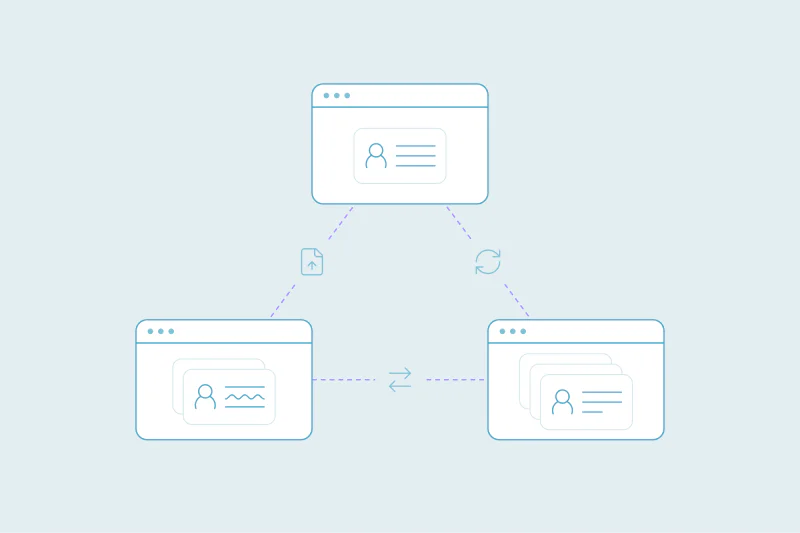
A merge later has to reach both sides. If it happens in only one, the other system can keep the old record or lose its link to the new one. Our post on deduplication across connected tools covers where to clean each kind of data.
What happens when a sync meets duplicates
The sync picks one record
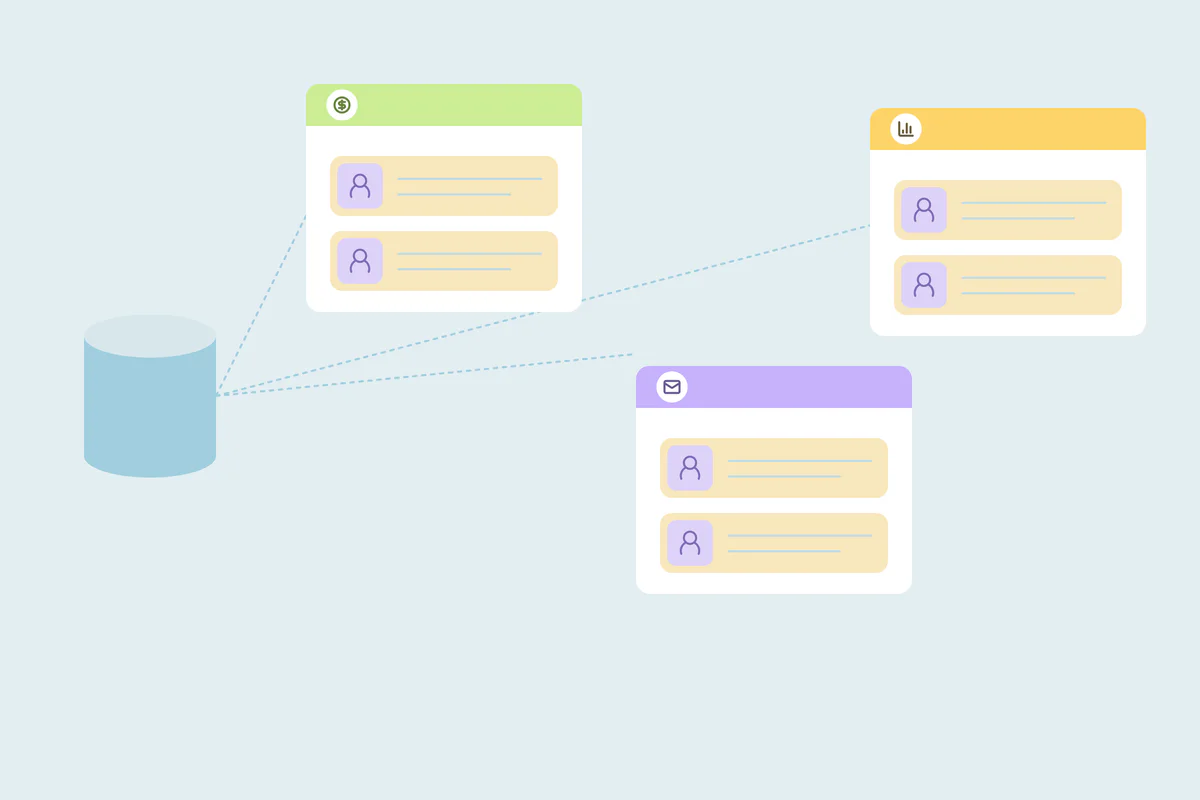
Many syncs match records one to one, using a key field such as email or an ID. When two records share that key, the sync has to choose.
HubSpot documents this for Salesforce leads and contacts sharing an email. On the first match it uses the first record Salesforce returns, without a guaranteed order. Later it can sync with the most recently updated Salesforce record. Those competing records can overwrite the HubSpot contact repeatedly, which is a reason to resolve the duplicates before launch.
Duplicates get copied to the other side
Syncs that create records carry each duplicate across. A customer who exists twice in the CRM can end up twice in billing and twice in the email tool. Reports built on the warehouse then count them twice too.
Some launches stop until records are unique
Some integrations need one record per customer before they can run at all. Others run, but the people who depend on them notice the errors first.
AI tools read and write records too
AI assistants and enrichment bots answer from the records they find and can create new ones. We cover that in how duplicate records break the AI tools in your CRM.
What to clean before the first sync
Before a launch, focus on what the integration reads, writes and matches on. The rest of the CRM can follow on its own schedule.
Find the field the integration matches on
Ask the vendor or check the setup: which field decides that two records are the same? Then check that it's filled in and shared by one record only. Records with a blank key field are as risky as duplicates.
Merge the obvious duplicates first
Start with exact matches on that key field, such as the same email or the same domain. Then review near matches on the objects the integration uses.
What counts as a duplicate is case by case. A billing system may need two company records for two legal entities that sales sees as one account.
Decide which value wins in synced fields
The fields an integration pushes deserve the most care in a merge. Owner, lifecycle stage, subscription status and billing details travel to the other system, so the winning value matters twice.
| Integration | What to check before launch |
|---|---|
| CRM-to-CRM sync | Duplicates on both sides, and the field that links them |
| Email or marketing tool | Contacts sharing an email, and subscription status on each |
| Billing or finance system | Companies and billing contacts, and IDs the other system will store |
| Data warehouse | Record IDs, since reports will join on them |
| AI assistant or enrichment tool | Contacts and companies it reads, and the field it uses to find them |
Plan merges around record IDs
Many integrations store the CRM's record ID. In some CRMs, a merge changes that ID. HubSpot, for example, creates a new record ID for the merged record by default.
Merging before the first sync means the integration stores the surviving IDs from the start. Merging after launch can leave the other system pointing at an old ID.
After launch, watch what the integration creates
Even a clean launch can create duplicates later. An integration that can't find a record under a slightly different email may create a new one.
For the first weeks, look at new records by source and check whether the integration is adding people or companies you already had. If it is, fix the mapping or the key field. Our post on recurring duplicates from CRM integrations covers what to do when they keep coming back.
Migrations work the same way on a larger scale, which our guide on deduplicating before, during and after a CRM migration covers.
How Dedupely gets your CRM ready for a new integration
Before launch, use Dedupely to find confirmed duplicates in the supported objects your integration reads. Set surviving values and preview a small batch. For a configured, supported synced HubSpot–Salesforce pair, check the paired-merge setup before merging on both sides. After launch, review the records the integration creates and verify how it follows merged IDs.
Clean once, before records start moving
An integration spreads the duplicates already in your CRM. Each one becomes a problem in two systems, and some launches can't start until it's fixed.
Cleaning what the integration reads before the first sync keeps that work small. Watching the first weeks after launch catches what the integration adds on its own.
References: HubSpot: Resolve duplicate Salesforce records syncing with HubSpot.
Frequently asked questions
Should you clean CRM data before integrating a new tool?
Yes, at least the objects and fields the integration reads and matches on. Duplicates get copied to the new tool, and a sync may link the wrong record when two share a key field. Cleaning first also means the integration stores the surviving record IDs from the start.
Why does my integration create duplicate records?
Often because it can't find an existing record. If the key field it matches on is blank, formatted differently or spelled differently, the integration creates a new record. Check which field it uses, fix the mapping and look at new records by source during the first weeks.
What happens to duplicates when two CRMs sync?
The sync may link only one of them. In the HubSpot and Salesforce integration, for example, HubSpot syncs with the first matching record Salesforce returns, in no particular order. The other duplicate stays unlinked, and merging on only one side can break the link between the two systems.
Does merging records change their ID?
In some CRMs, yes. By default, HubSpot creates a new record ID for the merged record, which can leave an integration pointing to an old ID. Merge before the first sync where you can, and check which connected tools store record IDs before a large merge.
How do you test an integration for duplicates?
Run a test sync on a small set of records, ideally in a sandbox. Include people and companies that already exist in the CRM, and check whether the integration matches them or creates new records. Fix the key field or mapping before the full launch.


 Or sign up with Google
 Pipedrive Marketplace











