Dedupely Intelligence




TL;DR
- Decide first whether the list goes in as leads or contacts.
- The import wizard matches on name, email or Salesforce ID, and you choose add, update or both.
- Find which rows already exist as a lead, contact or account.
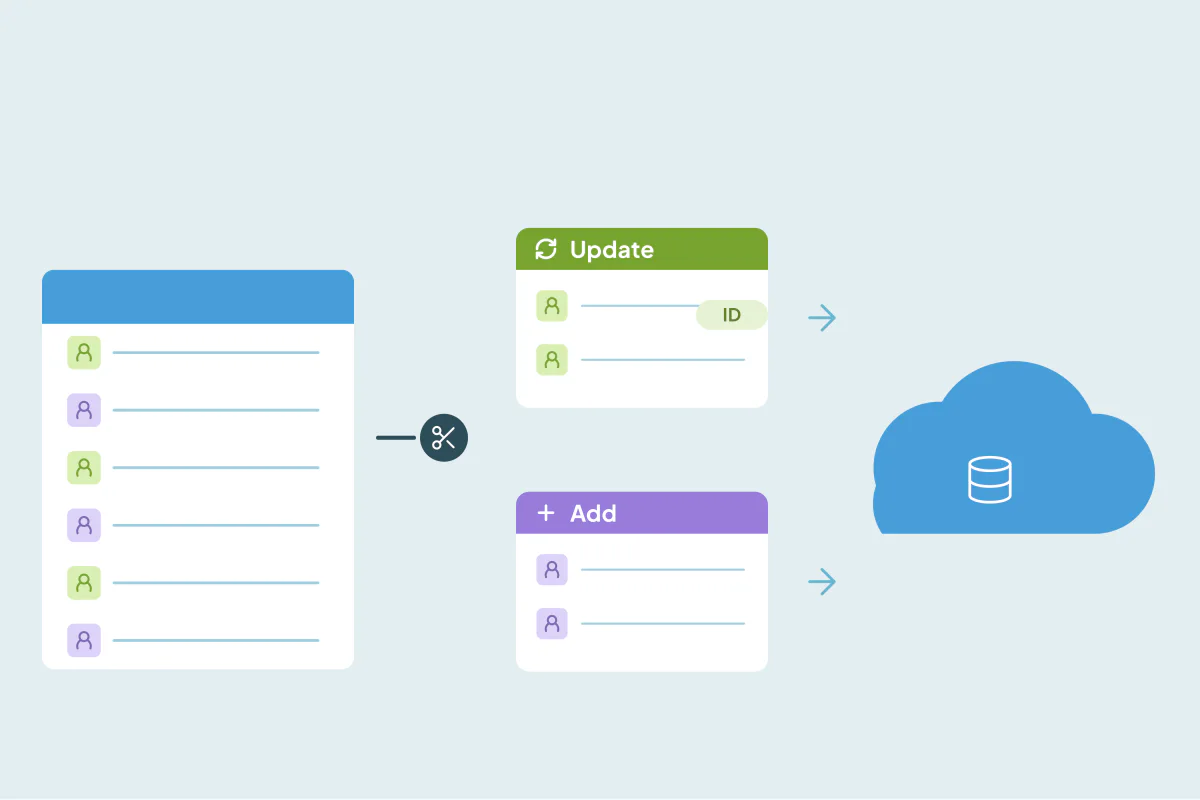
- Split the file into rows to update and rows to add.
- Dedupely compares the list with your Salesforce exports and returns a clean CSV.
The cleanest Salesforce imports start with two decisions: which object the list goes into, and which rows already exist. Decide whether the people are leads or contacts, find the rows that match a lead, contact or account you already have, and split the file into one set to update and one set to add. Then the import wizard only creates records for people who are new. Dedupely can compare the list with your Salesforce exports and mark which rows already exist.
This guide follows that order, from choosing the object to the test import.
Decide: leads or contacts?
The import wizard matches rows against the object you import into. A list imported as leads is checked against leads, not against your contacts.
| Import the list as | When |
|---|---|
| Leads | Most people are new and haven't been qualified, like an event or webinar list |
| Contacts and accounts | The people belong to companies you already sell to, like a customer's new team |
| Both, in two files | The list mixes new prospects and people at existing accounts |
If your team converts leads into contacts, someone on the list may already be a contact even though they're not a lead. That's why the next step checks every object.
Find the rows that already exist
Export your leads, contacts and accounts, and compare each with the new file:
- Leads and contacts by email: the strongest match.
- Leads and contacts by first name, last name and company: catches people with another email.
- Accounts by website or account name: catches companies written differently, like "Acme" and "Acme Holdings".
Mark each row as new, existing lead, existing contact or existing account.
Check your duplicate rules
If your org has active duplicate rules, they also run during imports. Salesforce doesn't show an alert there: a row that a duplicate rule flags isn't saved, even when the rule is set to allow with an alert. Before you import, check which duplicate rules are active for leads, contacts and accounts, and after the import, review the rows that didn't load. They're often people you already have.
Split the file in two
Once every row is marked, make two files:
- An update file with the rows that match an existing record, with each record's Salesforce ID from your export. Import it with "Update existing records", matched by Salesforce ID, which is the most precise match the wizard has.
- An add file with the new rows only. Import it with "Add new records".
Splitting keeps the wizard from guessing. Updates go to the record you chose, and new records are only created for new people.
Clean the add file
The rows in the add file become new records, so they're worth a last pass:
- One row per person: merge the rows for people listed twice.
- One spelling per account: write each company the way it should appear in Salesforce.
- Lowercase emails, and one format for phone numbers and countries.
- Required fields filled, like last name and company for leads.
Run a test import
Import 25 rows from each file first. Check that the update rows changed the right records and that the add rows created leads or contacts on the right accounts. Then import the rest.
How Dedupely sorts a Salesforce import into updates and new rows
In Dedupely, you can upload the new list together with your Salesforce exports of leads, contacts and accounts into the same spreadsheet, so the rows are matched across all of them. Match on email first, then on first and last name with company to catch a second address. When a new row is merged with a row from your export, Merge Rules decide which value wins in each column, so the merged row can keep the Salesforce ID from the export and the new details from the list. Export the result as a CSV and split it into your update and add files. A spreadsheet can have up to 1 million rows and 50 columns, so keep the exports to the columns you need.
Know what exists before the wizard runs
Salesforce imports create duplicates when the wizard has to guess. Choosing the right object, finding the rows that already exist across leads, contacts and accounts, and splitting the file into updates and new records takes the guessing out. A small test import from each file confirms it before the full list goes in.
Frequently asked questions
How do I clean a spreadsheet before importing it into Salesforce?
Decide between leads and contacts, compare the file with your leads, contacts and accounts, and split it into rows to update and rows to add. Then run a small test import.
Does the Salesforce import wizard check for duplicates?
It matches rows on name, email or Salesforce ID within the object you import into. If your org has active duplicate rules, they also run during the import, and rows they flag aren't saved.
Should I import a list as leads or contacts?
Leads for new, unqualified people. Contacts and accounts for people at companies you already work with.
Why did my lead import create duplicates of existing contacts?
The wizard checks the object you import into. People who are already contacts aren't matched when the list is imported as leads.
What's the most reliable way to update existing records?
Import them with their Salesforce ID and match by Salesforce ID, in a separate file from the new records.




 Or sign up with Google