


TL;DR
- Nimble imports merge contacts on email, or on first and last name without an email match.
- Contacts from email accounts, social profiles, phones and spreadsheets can create duplicates in Nimble.
- Nimble merges up to five duplicate contacts at a time, with values you choose.
- Nimble's help pages don't describe undoing a merge, so export contacts before a cleanup.
- Dedupely finds duplicate Nimble contacts and merges every record in a match at once.
Nimble is built around contacts. People arrive from your inbox, your social accounts, your phone and the spreadsheets your team imports. That makes it easy to fill the CRM, and just as easy to end up with the same person twice.
Nimble catches some duplicates on its own, mostly during imports. The rest you find and merge by hand, a few contacts at a time.
In this post, you'll see how duplicate contacts form in Nimble, what Nimble matches on automatically and how a manual merge works. You'll also see where native merging stops and how to merge safely.
How duplicate contacts form in Nimble
Causes differ from one account to the next. These are the entry points to watch, based on how Nimble's help center describes adding contacts.
Imports from several sources
Nimble imports contacts from CSV files, vCards, email accounts and social accounts. When several team members import the same sources, the same people arrive more than once.
Nimble's own guidance is to import only the contacts you need, instead of a whole inbox or social network.
Google and Outlook contact syncs
You can sync Google or Microsoft 365 contacts once, or set a weekly sync that brings in new contacts automatically. Each sync is another path into the same database, next to your imports and manual entries.
The browser extension and the mobile app
Nimble's Prospector extension builds a profile for people you see in your inbox or on social sites, and lets you add them. If a contact already exists under a slightly different name, a second one can form.
Contacts imported from the mobile app are merged on phone number and name. A person saved on your phone without a matching name can still arrive as a new contact.
Contacts added by hand
Anyone can create a person with "Add Person." Typos, nicknames and a personal email instead of a work one all create records that won't match the existing contact.
What Nimble matches on automatically
Nimble merges some duplicates as contacts come in. The rules depend on the entry point, as of October 2026.
| Entry point | What Nimble matches on | Options |
|---|---|---|
| CSV import, people | Email, or first and last name when no email matches | Merge on email only, or on LinkedIn URL only |
| CSV import, companies | Domain URL or email, then name when neither matches | Merge on domain URL, or on LinkedIn URL only |
| Mobile app import | Phone number and name | None described |
| Google or Outlook sync | Google or Microsoft ID, then email, then first and last name | Sync once or weekly |
| Prospector extension | May recognize an existing contact with the same name | You can still create a new person |
Sources, as of October 2026: Nimble's support center, How to merge duplicate contacts, Periodically sync your Google and Outlook contacts and Nimble Prospector app for Google Chrome.
What the name fallback means
Matching on first and last name catches people who were imported without an email. It can also merge two different people who share a name, like two contacts called Maria Lopez at different companies.
What counts as a duplicate is case by case: what one team considers a duplicate, another may not. If your contacts include many common names, the email-only import option is the safer choice. Then merge the name matches yourself after checking them.
What it means for people with two emails
A person with a work email in one source and a personal email in another won't match on email. If their names are written differently too, they stay two contacts. Our post on matching personal and work emails covers how to connect them.
How a manual merge works in Nimble
For duplicates that get past the import rules, Nimble has two ways to merge by hand. Here's what its help center describes, as of October 2026.
From the contacts list
You select two to five duplicate contacts and merge them. Before merging, you choose the contact owner, the privacy options and which field values stay. A "show conflict only" option lets you see just the fields where the records disagree.
A contact and a company can't be merged together. If the merge option stays inactive, check that you've selected only people.
From a contact record
Inside a contact, "Find/Merge Duplicates" looks for duplicates of that one person. You pick the ones to merge and can change which contact is primary before merging.
What happens after the merge
On the Business plan, Nimble's Change Log records each merge, with its date and time. The contact removed by the merge goes to the trash bin, where it can be deleted permanently.
Removed contacts are deleted automatically after 60 days by default, and they count toward your contact quota until then. Nimble's help pages describe restoring a deleted contact, but not undoing a merge.
Sources, as of October 2026: Nimble's support center, Nimble's Change Log feature and Contacts trash bin overview.
Where native merging stops
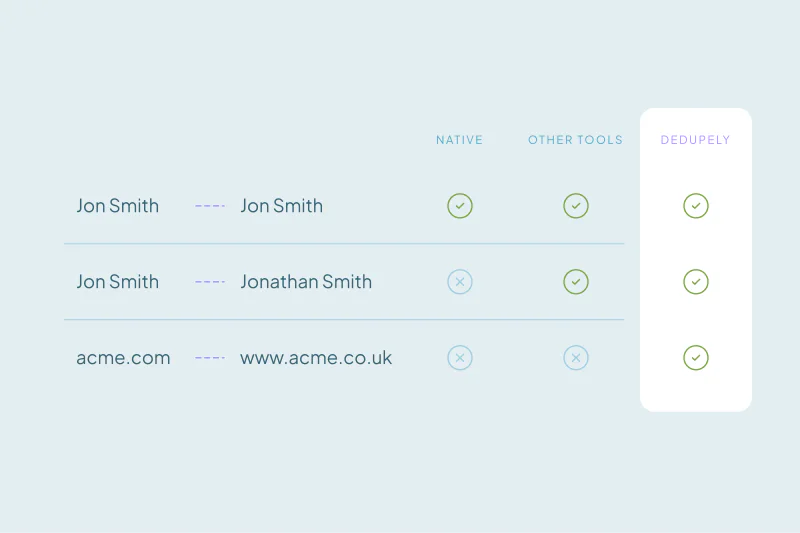
For a small contact list, Nimble's tools are often enough. Native tools in other CRMs have similar limits, as our comparison of native deduplication and deduplication tools shows. In Nimble, these are the ones to watch.
- Five contacts per merge. A person who exists eight times takes at least two merges.
- One person at a time. "Find/Merge Duplicates" works from a single contact. Nimble's help pages don't describe a view of every duplicate in the database.
- Fixed match fields on import. Imports match on email, name, LinkedIn URL or phone. You can't combine fields, like name with company.
- No documented undo. Once merged, the safest way back is an export you kept beforehand.
These limits tend to show as the list grows, or when duplicates come from many sources at once.
How to merge Nimble duplicates safely
These principles apply whether you merge in Nimble or with another tool.
Start with the obvious duplicates
Exact matches on email are the least likely to be wrong. Merge those first, then move on to harder cases, like the same name with a different email.
Check the near matches before merging
Same-name matches need a second field that agrees, such as company, phone or city. Our guide on which fields to match on covers useful combinations.
Agree on owner and privacy first
A Nimble merge asks you to pick the contact owner and privacy settings. Decide the rule before a cleanup, such as keeping the owner who last worked the contact. Then every merge follows the same logic.
Fix the sources you control
Agree on who imports which sources, and choose the import option that fits your data. If Nimble also syncs with Google Contacts, clean duplicates there too. Our post on merging duplicate Google Contacts covers that side.
How Dedupely merges duplicate Nimble contacts
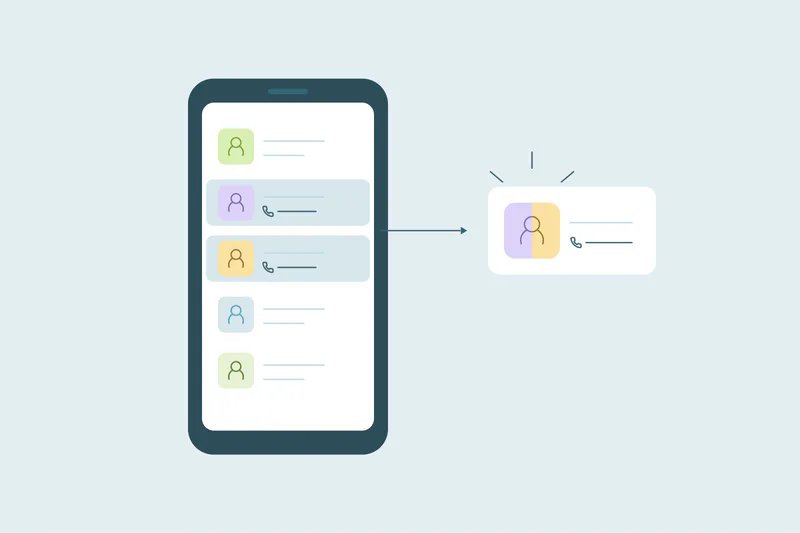
Dedupely connects to your Nimble contacts, where you build duplicate searches on the fields you choose, like name, email, phone or company. It merges every record in a match at once, adding field values instead of overwriting them and keeping tags and notes. You can preview each merge and reject false matches before anything changes in Nimble.
Keep one record for every person in Nimble
Nimble makes it easy to bring people in from everywhere you work, and every source is a chance for a second record. Its import rules catch duplicates that share an email, a name or a phone number. Manual merges handle the rest, a few contacts at a time.
A clean Nimble account comes from a few decisions made up front. Decide which import option fits your data, who owns a merged contact and which matches need a second look. With those in place, merging becomes routine instead of a cleanup project.
Frequently asked questions
How do I merge duplicate contacts in Nimble?
Select two to five duplicate contacts in the contacts list and merge them, or open a contact and use "Find/Merge Duplicates." Before merging, you choose the contact owner, privacy options and which field values stay. A contact and a company can't be merged together in Nimble.
How many contacts can you merge at once in Nimble?
Up to five. Nimble's help center says you can merge up to five duplicate contacts at a time from the contacts list. If one person exists more than five times, you merge them in several rounds, choosing the values to keep each time.
Does Nimble remove duplicates automatically?
Partly. CSV imports merge people on email, or on first and last name when no email matches, with email-only and LinkedIn-only options. Google and Outlook syncs match on account ID, then email, then name. Duplicates already in your account have to be merged by hand.
Can you undo a merge in Nimble?
Nimble's help pages don't describe undoing a merge. The contact removed by a merge goes to the trash bin, and the Change Log records the merge on the Business plan. Export your contacts before a large cleanup, so you keep the original values of every record.
Why does Nimble create duplicate contacts?
Contacts arrive from many sources: CSV imports, email and social accounts, Google or Outlook syncs, the mobile app and the browser extension. When the same person comes in with a different email or a differently written name, Nimble can't connect the two. A second contact forms.



 Or sign up with Google
 HubSpot Marketplace











