


TL;DR
- Event and purchased lists often include people who are already in your CRM.
- Lists from several sources often overlap, so one person can appear in more than one file.
- Messy formats, like missing emails or merged name columns, stop imports from finding existing records.
- Clean each list against itself before import, and check it against your CRM after.
- Dedupely finds duplicates in list files before import and in your CRM after it.
The event is over, and you have a spreadsheet of badge scans. Marketing bought a list of prospects in a new region. A sponsor sent its attendee export.
Everyone wants these people in the CRM by Monday, and lists like these are an easy way to bring duplicates in. Many of the people are already in your CRM, the files overlap, and the formats rarely match yours.
In this post, you'll see why these lists create duplicates and what to decide before you import one. You'll also see when to check them, before and after import.
Why event and purchased lists bring duplicates
The same people are already in your CRM
Your best prospects tend to show up everywhere. The person who visits your booth may have downloaded a guide last month and talked to a rep last year.
A purchased list for your market will also include companies and people you already know. Import it as is, and each of them can arrive as a second record.
Lists from several sources overlap
One event can produce several files: registrations, badge scans, session check-ins and a sponsor's export. A purchased list can overlap with the one you bought last year.
The same person appears in two or three of these files, often with slight differences. Import them one after another, and each file can add its own record.
The formats don't match yours
Every source has its own layout. Full names sit in one column, and phone numbers come with or without country codes. Some rows have a personal email, or none at all.
Each of these can stop an import from recognizing a record that already exists.
Lists often go in without a review
Lists usually arrive with a deadline. Reps want to follow up while the event is fresh, so the file often goes straight in. Without a review, every problem above can turn into duplicates.
Some event data never becomes a file
Event apps and badge scanners can sync leads straight into the CRM. There's no spreadsheet to clean first, so each scan creates or updates a record as it arrives.
If a scanned person has a different email from the one in your CRM, the sync can create a second record. For these sources, the check happens in the CRM, soon after the event.
Decide what counts as a duplicate for this list
Before cleaning, agree on what makes two rows, or a row and a record, the same person. That's case by case. What one team considers a duplicate, another may not.
A few examples come up with lists:
- Work and personal email: the same name and company with a gmail.com address may be one person, or a namesake.
- Colleagues at one company: two people at the same company are different people, even with the same domain.
- Shared registrations: an assistant who registers several people from info@ creates rows that share an email but belong to different people.
Start with the obvious duplicates, usually exact matches on email. Then look at name with company for the rows without one.
Clean the list against itself before import
Cleaning a file before import is easier than cleaning a CRM. Nothing depends on the rows yet, and no workflows, owners or sequences run on them.
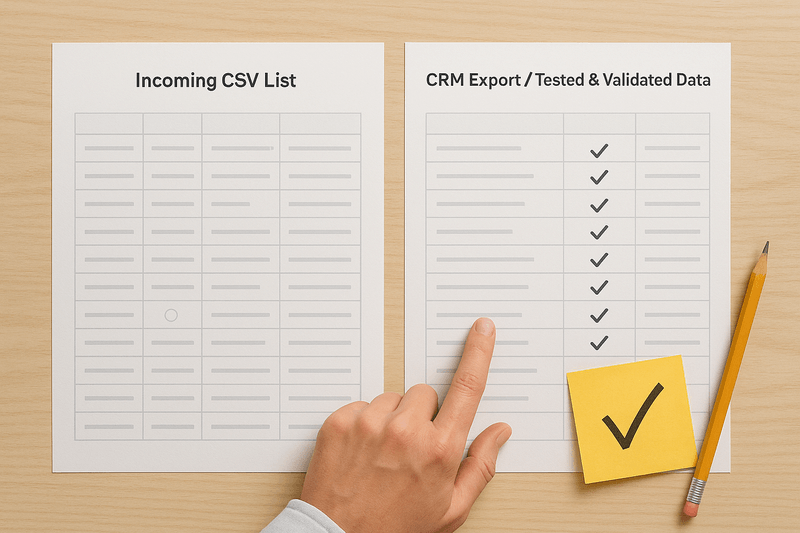
Find the duplicates inside the file first. If you combined several files, like registrations and badge scans, this is where much of the overlap shows up.
Keep one row per person, and decide which row wins for each field. A badge scan may have the better phone number, and the registration the better job title. Fix the formats too, so names, phones and countries look like the rest of your data.
Decide which values the list may change
A list shouldn't overwrite what your team knows. Owner, lifecycle stage and email opt-out deserve the most care. Purchased data can also be older than what's in your CRM.
A common choice is to let the list fill empty fields but not replace existing values. Your team may choose differently for fields like job title, where the event data is newer.
Import on the field that identifies each record
Many CRMs use a field like email to decide whether an imported row updates an existing record or creates a new one. Rows without that field often become new records.
HubSpot, for example, matches imported contacts by email and companies by domain. Contacts without an email or another identifying value are imported as new records.
As of October 2026, from HubSpot's knowledge base: Deduplication of records.
That's why rows with no email are where list duplicates tend to come from. Decide before import what happens to them, or send them for review before they go in.
Check against your CRM after the import
Once the list is in, your CRM is where it meets the records you already have. Search the records from the new list against existing contacts and companies, by email first, then name with company.
Do it soon after import, before reps start calling and owners get assigned. Merging a duplicate is easier while nobody has worked the new record yet.
If you import lists often, duplicates from each one add to the next. A quick check after every import keeps them small. For duplicates from sources that run all the time, see how to manage recurring duplicates from CRM integrations.
What to decide for every list
| Stage | What to decide |
|---|---|
| Before cleaning | What counts as a duplicate for this list, and which fields you'll match on |
| The file itself | Which row wins for each person, including overlap between combined files |
| Field values | Which fields the list may fill or change, and which it must never overwrite |
| Import | What happens to rows without the field that identifies each record |
| After import | When to search the new records against your CRM, before reps work them |
How to clean event and purchased lists with Dedupely
You can upload a list to Dedupely and find and merge the duplicates inside it. You set rules for which value wins and preview each merge. Then you download the clean records and import them, and your connected CRM is where you merge duplicates against existing records.
Treat every list as a cleanup job
Event and purchased lists bring people you already know, files that overlap and formats that don't match yours. Imported without a review, each of those can become a duplicate in your CRM.
Cleaning the list against itself, with clear choices about which values it may change, keeps many of them out. A search in your CRM soon after import catches the rest, before anyone works the new records.
Frequently asked questions
Why do imported lists create duplicate contacts?
Imported lists often include people already in your CRM, and several lists can overlap with each other. Rows without an email, or with a different email, often become new records. Formats like full names in one column or missing country codes also stop an import from recognizing existing contacts.
How do you remove duplicates from a list before importing it into a CRM?
Find duplicates inside the file first, starting with exact email matches, then name with company. Keep one row per person and choose which values win for each field. Fix formats so they match your CRM, and decide what happens to rows without an email before you import.
How do you check a new list against existing CRM contacts?
Import the cleaned list, then search the new records against your existing contacts and companies in the CRM. Use email first, then name with company for records without an email. Do it soon after import, before reps start working the new records, so merging is still simple.
Can an imported list overwrite existing CRM data?
Yes, if it updates existing records, it can replace values your team relies on. Decide before import which fields the list may change. A common approach is to let it fill empty fields while protecting owner, lifecycle stage and email opt-out.
Do badge scanners and event apps create duplicates?
They can: when an event app or badge scanner syncs leads straight into your CRM, there's no file to clean first. A person scanned with a different email from the one in your CRM can arrive as a second record. Search the new records soon after the event.



 Or sign up with Google