

TL;DR
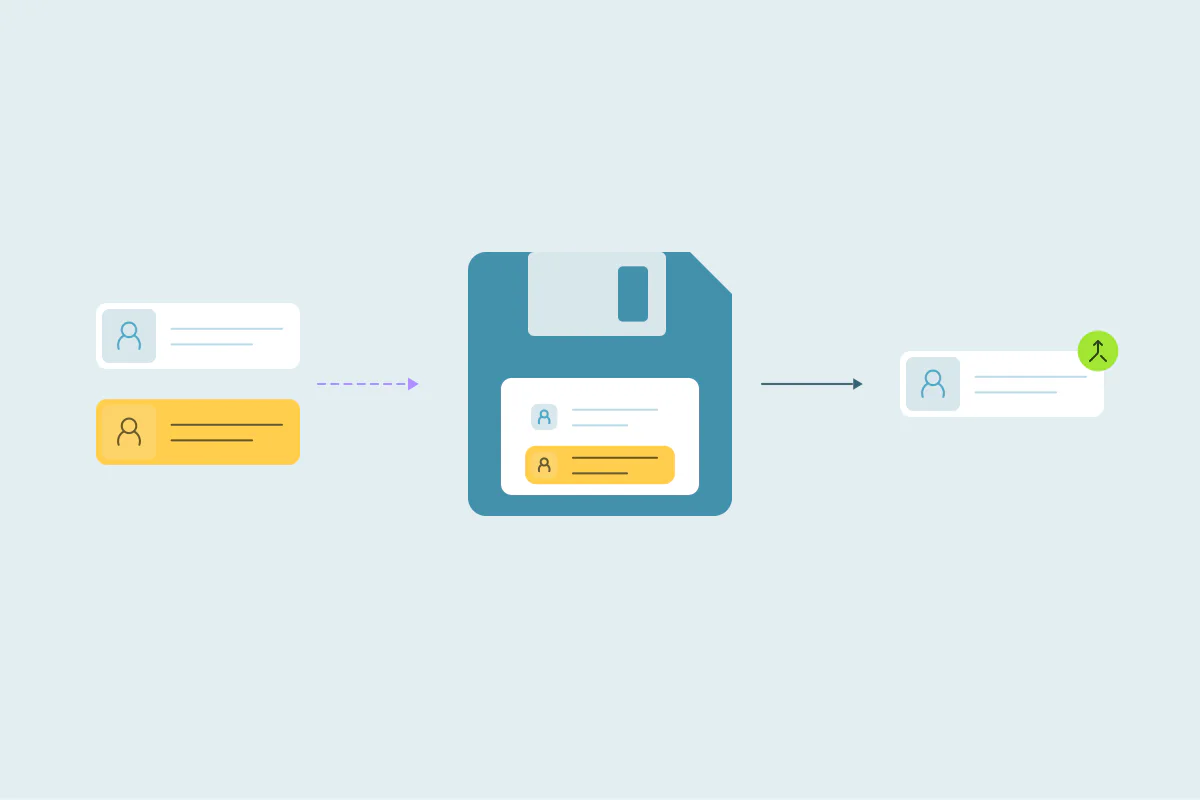
- Merges in many CRMs can't be undone, so a backup keeps the original values.
- Backing up before a merge is optional, and how much to keep varies by team.
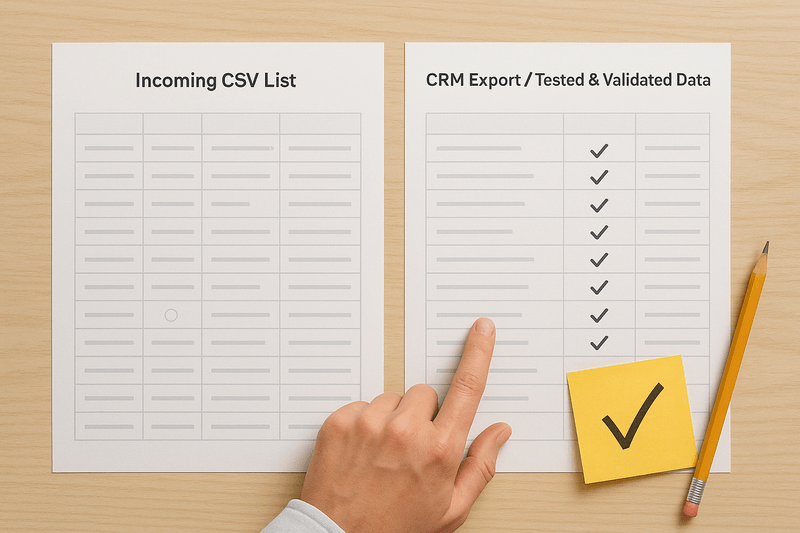
- Backup options range from a full CRM export to only the records in the merge.
- A useful backup keeps record IDs and the fields a merge can overwrite, like owner.
- Dedupely previews each merge and exports every merged record's original values as a CSV.
A large merge is the moment a cleanup gets real. Thousands of duplicate sets are about to become single records, and in many CRMs there's no button to reverse it.
That's why the question comes up before many big merges: should we back up first, and what exactly should we keep? There's no single answer. Some teams export everything, some export only the records they're about to merge, and some rely on the merge history they already have.
In this post, you'll see what a merge can change, three ways to back up and what each one covers. You'll also see which fields matter most and how to recover if a merge doesn't turn out as planned.
Why back up before a large merge
A merge combines two or more records into one and removes the others. Some CRMs say plainly that merged records can't be separated again.
HubSpot's knowledge base states that it's not possible to unmerge records. Pipedrive's help center says items merged with its Merge Duplicates feature can't be un-merged.
Salesforce works differently: the losing record goes to the Recycle Bin, where it can be restored for 15 days. After that, it's permanently deleted.
As of October 2026, from HubSpot's knowledge base: Merge records, Pipedrive's support center: Merge duplicates, and Salesforce Help: Recover merged Salesforce contacts and Manage the Recycle Bin.
What a merge can change
A merge decides which value survives in each field. If the rule picks the wrong one, the other value is gone from the record.
- Field values: an owner, a lifecycle stage or a phone number from the losing record is replaced.
- Record IDs: the surviving record may keep one ID, or the CRM may create a new one. In HubSpot, a merge creates a new record ID by default.
- Associations and activities: in many CRMs, linked deals, companies, notes and calls move to the surviving record.
Anything outside the CRM that stores record IDs, like a spreadsheet, a report or an integration, can lose track of the merged records.
A backup is optional
Not every team backs up before merging, and that's a valid choice. Teams that have tested their merge rules on a small group often feel confident enough to go ahead.
Others back up whatever they think is necessary. It depends on how many records are involved, how sure the team is about the matches and how much depends on the data.
Three ways to back up before a merge
Backups usually fall into one of three sizes. Pick the one that matches how much risk you see in the merge.
A full export of the CRM
A full export keeps every object, not only the ones you're merging. It's the widest safety net, and the heaviest to store and search later.
Some CRMs offer a scheduled full export. Salesforce's Data Export Service delivers your data as a set of CSV files, weekly or monthly depending on the edition.
As of October 2026, from Salesforce Trailhead: Export your data.
An export of the objects you'll merge
If you're merging contacts, export all contacts. This keeps the whole object as it was, including records that aren't in any duplicate set.
In HubSpot, for example, an export can include all properties on the records and their associations. CSV handles wide exports best, since the XLS and XLSX formats cap the number of columns.
As of October 2026, from HubSpot's knowledge base: Export records.
Only the records in the merge
The smallest backup covers only the records that are about to merge. It's quick to make and easy to search when someone asks what a record looked like before.
The trade-off is coverage. If a merge touches associated records you didn't export, those values aren't in your file.
| Backup option | What it covers | When it fits | Trade-off |
|---|---|---|---|
| Full export | Every object in the CRM | A first large cleanup, a cleanup before a CRM migration, or data many teams depend on | Large files that take longer to search |
| Objects you'll merge | Every record in those objects | Merging one or two objects in bulk | Leaves out related objects |
| Records in the merge | Only the records in the duplicate sets | Smaller merges with tested rules | Doesn't cover associated records |
| No separate backup | Whatever your merge history keeps | Teams confident in their rules and history | Recovery depends on that history |
What to keep in the backup
Whatever the size, a backup is only useful if it holds the values you'd need to rebuild a record. Focus on the fields a merge can overwrite and the ones that link records together.
Record IDs
The CRM's record ID is your link between the backup and the CRM. Without it, matching a row in the export to a record after the merge means guessing by name or email.
Keep the IDs of associated records too, such as the company ID on each contact. They show which records were linked before the merge.
Fields a merge can overwrite
Start with the fields that decide who handles a record and whether you may contact it: owner, lifecycle stage, lead status and email opt-out. If a merge keeps the wrong owner, the account moves to another rep. If it drops an opt-out, someone who unsubscribed can start getting emails again.
Also keep the fields that identify each record, like email for contacts or domain for companies, and the created date. Together they help you rebuild a record if you need to.
How to recover if a merge goes wrong
When a merge can't be undone, recovery means rebuilding. You recreate the records that shouldn't have merged from the original values, then fix the record that survived.
Recreate, then re-merge where needed
Use the backup to recreate each record with its original values. If some of those records were real duplicates, merge them again with corrected rules.
Move associations back by hand where needed. That's the slowest part, which is why associated IDs belong in the backup.
Lower the chance you'll need the backup
The best recovery is the one you don't need. Test your rules for which value wins on a small group of sets that represent your edge cases. Preview the result before merging the rest.
Start with the obvious duplicates, usually exact matches on email or domain. Keep less certain matches for review, since what counts as a duplicate is case by case. Two records one team would merge, another team keeps apart.
How Dedupely keeps a record of every large merge
Merges happen directly in your CRM, and most CRMs can't undo them, so that file is your recovery path: restore the values or recreate the records from it, then reject any false match so it doesn't come back. In Dedupely, you preview each merge before it runs. Every merge is recorded with the original records and the winning values, and you can export that history as a CSV. Most merges can be undone for 30 days from Merge History, but treat every merge as permanent. Past that, the file is your recovery path: restore the values or recreate the records from it, then reject any false match so it doesn't come back. See how to undo a merge.
Back up as much as your merge needs
How much to back up before a large merge is each team's decision. Some teams export the whole CRM or one object. Others keep only the records in the merge, or rely on their merge history.
Whatever size you choose, keep the record IDs and the fields a merge can overwrite. With those values saved and your rules tested on a small group first, a large merge becomes a step you can recover from.
Frequently asked questions
Should I back up my CRM before merging duplicates?
It's optional, and it depends on your risk. Many CRM merges can't be undone, so a backup keeps the original values if something goes wrong. Teams with tested rules may skip it; others export the whole CRM, one object or only the records in the merge.
Can you undo a merge in a CRM?
Usually not: many CRMs state in their help pages that merged records can't be unmerged. Others keep the losing record only for a limited time. To recover, recreate the records from a backup or a merge history export, then merge the real duplicates again with corrected rules.
What should a CRM backup include before a merge?
Record IDs first, since they link each row in the backup to a record in the CRM. Then the fields a merge can overwrite, like owner, lifecycle stage and email opt-out. Also keep the field that identifies each record, like email or domain, and the IDs of associated records.
How do I export my CRM data as a backup?
Many CRMs let you export records to a CSV file by object or list, and some offer scheduled full exports. Choose CSV for wide exports and include all fields, beyond the ones in your view. Check that record IDs are in the file.
How do I restore records after a bad merge?
Recreate the records that shouldn't have merged, using the original values from your backup. Fix the surviving record's fields, move associations back where needed, and re-merge any records that were real duplicates. If you're certain two records aren't duplicates, reject that match so it doesn't come back.



 Or sign up with Google


 Pipedrive user