



TL;DR
- Puedes deduplicar HubSpot y Salesforce mientras se sincronizan si cada fusión abarca ambos CRM.
- Fusionar empresas en HubSpot no fusiona las cuentas vinculadas en Salesforce.
- Un duplicado que queda activo en el otro CRM puede volver en la siguiente sync.
- Las fusiones de HubSpot no se pueden deshacer, y la Papelera de reciclaje de Salesforce guarda 15 días los registros absorbidos.
- Dedupely limpia HubSpot y Salesforce, fusionando en ambos CRM en una sola acción los duplicados sincronizados.
Sí, puedes deduplicar HubSpot y Salesforce mientras la integración sigue sincronizando. La condición es que cada fusión ocurra en los dos CRM a la vez. Una fusión en un solo lado deja activo el registro correspondiente en el otro, y la siguiente sincronización puede traer de vuelta el duplicado.
Por eso limpiar una pareja sincronizada suele acabar en trabajo manual. Alguien fusiona en HubSpot, arregla Salesforce a mano y algunos duplicados se cuelan por el camino.
En este artículo verás qué hace cada CRM cuando fusionas en un lado y por qué vuelven los registros fusionados. También verás qué buscar en una herramienta para varios CRM y qué dejar resuelto antes de fusionar.
Qué pasa cuando fusionas solo en un lado
La integración mantiene sincronizados un registro de HubSpot y uno de Salesforce. Una fusión cambia un lado de ese par, y las páginas de ayuda de cada CRM describen qué pasa con el otro lado.
| Dónde fusionas | Qué pasa con el registro sincronizado |
|---|---|
| Contactos en HubSpot | Solo el contacto principal sigue sincronizándose. El registro de Salesforce vinculado al contacto secundario deja de sincronizarse con HubSpot. |
| Companies en HubSpot | Las cuentas de Salesforce no se fusionan. La empresa que se conserva sigue sincronizándose con su cuenta vinculada. Con la versión antigua de la integración, las empresas no se pueden fusionar. |
| Leads o contactos en Salesforce | Si la eliminación está activada, se elimina el contacto de HubSpot vinculado al registro secundario. Si el principal no es el registro que se sincroniza con HubSpot, el contacto de HubSpot deja de sincronizarse hasta que lo vuelvas a sincronizar. |
A partir de octubre de 2026, de la base de conocimiento de HubSpot: Fusionar registros, Sincroniza empresas entre HubSpot y Salesforce y Resuelve los registros duplicados de Salesforce que se sincronizan con HubSpot.
En varios de estos casos, un CRM acaba con un registro que el otro ya no empareja. Ese registro sigue activo. Según tus ajustes de sync, la siguiente sync puede volver a crear el duplicado o sobrescribir los valores que conservaste en la fusión.
Por qué los registros fusionados vuelven tras una sincronización
Cuando un duplicado vuelve tras una fusión, la causa suele estar al otro lado de la sincronización. Estas situaciones son frecuentes.
- Un registro sobrante en el otro CRM: el duplicado se fusionó en un CRM, mientras su pareja en el otro sigue activa.
- Dos registros de Salesforce con un mismo correo: Salesforce permite dos leads o contactos con la misma dirección de correo, y HubSpot no. HubSpot sincroniza con el que se actualizó más recientemente en Salesforce.
- Comparación de empresas que solo se aplica a registros nuevos: la sincronización de empresas empareja las empresas por los valores de los campos mapeados. Esa comparación solo se aplica a las empresas y cuentas creadas después de activar la sync.
- Ajustes de eliminación: eliminar una empresa en HubSpot no elimina su cuenta de Salesforce. En la otra dirección, tú eliges si una cuenta de Salesforce eliminada elimina su empresa en HubSpot.
A partir de octubre de 2026, de la base de conocimiento de HubSpot: Resuelve los registros duplicados de Salesforce que se sincronizan con HubSpot y Sincroniza empresas entre HubSpot y Salesforce.
Qué cuenta como duplicado también depende de cada caso. Una empresa matriz y una filial pueden compartir dominio y seguir siendo dos cuentas que tu equipo quiere mantener.
Soluciones habituales y dónde se quedan cortas
Los equipos que limpian un par sincronizado sin fusionar en ambos lados suelen usar uno de estos enfoques. Cada uno ayuda con parte del problema.
| Alternativa | Qué resuelve | Lo que deja abierto |
|---|---|---|
| Fusionar en un CRM y arreglar el otro a mano | Sirve para un puñado de registros | Lento a escala, y se escapan algunos pares |
| Pausar la sincronización mientras limpias | Evita que los registros se muevan durante la limpieza | Los registros sobrantes siguen ahí cuando se reanuda la sincronización |
| Cambiar la configuración o los permisos de la integración | Puede frenar la creación de algunos duplicados nuevos | Los duplicados existentes siguen en ambos CRM |
| Campos personalizados o código para controlar un registro maestro | Se adapta a tu configuración exacta | Alguien tiene que crearlo y mantenerlo |
| Limpia ambas bases de datos en hojas de cálculo | Muestra ambos conjuntos de datos uno al lado del otro | Los archivos se quedan desfasados en cuanto cambia cualquiera de los CRM |
Cada uno de estos cubre un lado de la sincronización, o un momento concreto. Lo que mantiene unido el par es una fusión que cambia ambos registros a la vez.
¿Una herramienta puede deduplicar más de un CRM?
Sí. Las herramientas de deduplicación pueden conectar varios CRM y, cuando dos de ellos se sincronizan, una herramienta puede fusionar un duplicado en ambos a la vez. Son dos tareas distintas, así que conviene saber cuál necesitas.
Limpiar cada CRM por separado
Cuando distintos equipos, regiones o marcas tienen cada uno un CRM, cada uno acumula sus propios duplicados. Un cliente en dos CRM no siempre es un duplicado, porque depende de para qué sirve cada sistema. Nuestro artículo sobre gestión de duplicados en más de un CRM explica cómo decidir.
Fusionar un par sincronizado en ambos CRM
Cuando HubSpot y Salesforce se sincronizan, el mismo cliente existe en ambos a propósito. Una fusión ahí tiene que cambiar los dos registros, o el vínculo entre ellos se rompe. Las sincronizaciones son una de las varias vías por las que llegan duplicados a un CRM, junto con las importaciones e integraciones que trata deduplicación entre herramientas conectadas.
Qué preguntar antes de elegir una herramienta
- ¿Detecta la sincronización y fusiona los registros correspondientes en ambos CRM en una sola acción?
- ¿Qué pasa con un registro sincronizado cuando solo uno de los dos CRM está conectado?
- ¿Se conservan en ambos CRM los contactos, negocios y actividad vinculados a un registro?
- ¿Necesita campos personalizados o cambios de workflow para funcionar con la sincronización?
- ¿Queda registrada cada fusión, con los valores originales disponibles para exportar?
Qué dejar decidido antes de fusionar registros sincronizados
Una fusión entre dos CRM cambia datos de los que dependen dos equipos. Unas pocas decisiones de antemano la hacen predecible.
Define qué valor prevalece
Acordad el valor ganador de los campos que importan a ambos CRM, como el propietario, la etapa del ciclo de vida y la dirección. Ventas puede gestionar algunos campos en Salesforce y marketing otros en HubSpot.
Empiece por los duplicados evidentes
Empieza por coincidencias exactas en el campo que identifica cada registro, como el correo para contactos o el dominio para empresas. Deja sucursales, filiales y bandejas compartidas para revisión, porque puede que tu equipo las quiera separadas.
Conserva los valores originales
La base de conocimiento de HubSpot dice que los registros no se pueden separar. Por defecto, el registro fusionado recibe un Record ID nuevo, y ambos registros salen de sus workflows activos. Solo los portales en la beta opcional Primary ID Preservation for Merged Records de HubSpot conservan el ID del principal, y ahí el principal sigue inscrito. En Salesforce, el registro fusionado va a la Papelera de reciclaje, donde los elementos eliminados se quedan 15 días. Restaurarlo desde ahí no cambia el registro maestro.
A partir de octubre de 2026, de la base de conocimiento de HubSpot: Fusionar registros. Según la ayuda de Salesforce: Recuperar Contacts de Salesforce fusionados y Gestionar la Papelera de reciclaje en Lightning Experience.
Guarda un registro de los valores originales antes de fusionar, con el ID de cada registro en ambos CRM. Nuestras guías de Deduplicación en HubSpot y Deduplicación en Salesforce explican cómo fusiona cada CRM por su cuenta.
Revisa los permisos en ambos CRM
Quien hace la fusión necesita permiso para fusionar registros en HubSpot y en Salesforce. Una fusión que funciona en un CRM y falla en el otro te deja con la misma pareja rota con la que empezaste.
Cómo fusiona Dedupely los duplicados sincronizados de HubSpot y Salesforce
Dedupely detecta una HubSpot–Salesforce Integration activa. Cuando vinculas los dos CRM en CRM Settings, fusiona los registros equivalentes en ambos CRM en una sola acción. No hay campos personalizados ni cambios de workflow que configurar, y la siguiente sync no vuelve a crear el duplicado fusionado.
Las fusiones no se pueden deshacer, porque se hacen directamente en tu CRM y la mayoría de los CRM tampoco pueden deshacerlas. Si el otro CRM no está conectado, la fusión se bloquea. Dedupely detiene cualquier cosa que pudiera romper la sincronización, salvo que le indiques que siga adelante. Cada fusión está en Merge History, y su CSV guarda los datos originales y los ID de registro. Las fusiones hechas en ambos CRM a la vez no se pueden deshacer, ni tampoco las fusiones de empresas en un portal sincronizado. Nuestra guía sobre fusionar con una HubSpot-Salesforce Integration activa explica la configuración. Nuestro apartado sobre la sincronización HubSpot–Salesforce cubre el resto. Consulta cómo deshacer una fusión.
Fusiona tus duplicados sincronizados de HubSpot y Salesforce
Una fusión, dos CRM
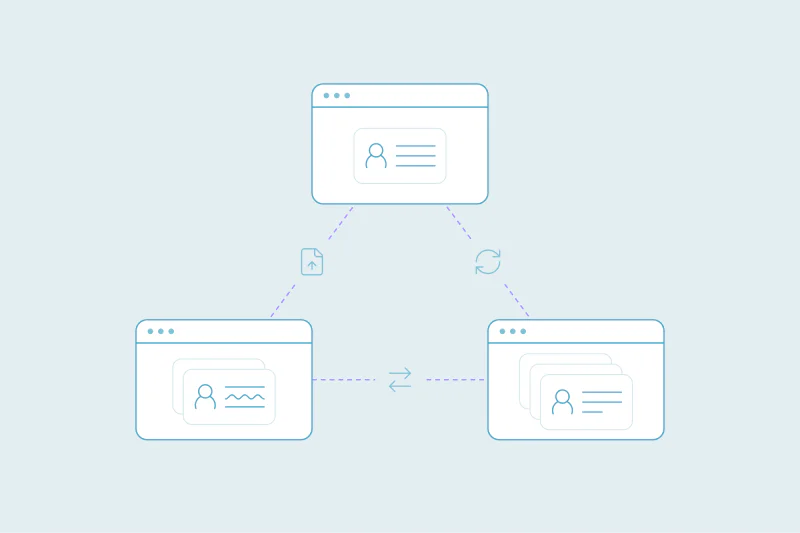
La integración HubSpot–Salesforce mantiene sincronizados dos registros, así que un duplicado vive en ambos CRM. Una fusión en un lado solo cambia la mitad de esa pareja. El registro que queda atrás sigue activo y, según tus ajustes, el duplicado puede volver con la siguiente sincronización.
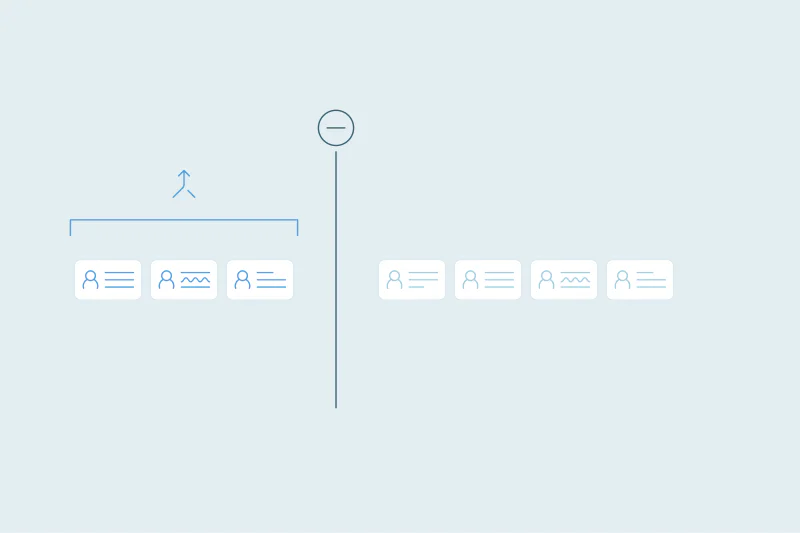
Deduplicar con la sync activada se reduce a fusionar ambos lados a la vez. Decide qué valores ganan, empieza por las coincidencias evidentes y conserva los valores originales, ya que las fusiones en cualquiera de los dos CRM son difíciles de revertir. Así cada cliente acaba como un registro en HubSpot y otro en Salesforce, todavía vinculados.
Preguntas frecuentes
¿Se pueden fusionar duplicados con la integración HubSpot-Salesforce activa?
Sí, siempre que la fusión abarque ambos CRM. Una fusión en un solo CRM deja activo el registro equivalente en el otro, y la siguiente sync puede traer de vuelta el duplicado. Si fusionas en Salesforce, la base de conocimiento de HubSpot aconseja conservar como principal el registro que se está sincronizando.
¿Por qué vuelven los registros fusionados tras una sincronización HubSpot-Salesforce?
El duplicado suele seguir activo en el otro CRM. Fusionar en HubSpot no fusiona los registros vinculados en Salesforce, así que el registro sobrante puede volver con la sync. Dos leads o contactos de Salesforce con el mismo correo, que Salesforce permite y HubSpot no, también pueden mantener vivo un duplicado.
¿Fusionar empresas en HubSpot fusiona las cuentas en Salesforce?
No, según la base de conocimiento de HubSpot: las fusiones de empresas en HubSpot no fusionan registros en Salesforce, y la otra cuenta de Salesforce se queda donde está. La empresa superviviente de HubSpot sigue sincronizándose con su cuenta vinculada. En la versión antigua de la integración, las empresas no se pueden fusionar en HubSpot.
¿Se puede deshacer una fusión en HubSpot o Salesforce?
La base de conocimiento de HubSpot dice que los registros no se pueden separar, y por defecto el registro fusionado recibe un nuevo Record ID. En Salesforce, el registro absorbido queda en la Papelera de reciclaje 15 días y puede restaurarse. Restaurarlo no afecta al registro maestro. Guarda antes los valores originales y los ID de registro de ambos CRM.
¿Conviene pausar la sincronización HubSpot–Salesforce para eliminar duplicados?
Pausar evita que los registros se muevan mientras trabajas, pero no fusiona nada en el otro CRM. Cuando se reanuda la sincronización, los registros que dejaste siguen activos y pueden traer de vuelta los duplicados. Fusionar a la vez los registros correspondientes en ambos CRM mantiene la pareja vinculada sin pausar.



 O regístrate con Google
 Pipedrive Marketplace











