









How can we help you?
Connecting your CRM
1. Create an account
Start by creating a Dedupely account. Sign up with your email and set a password to access your dashboard.
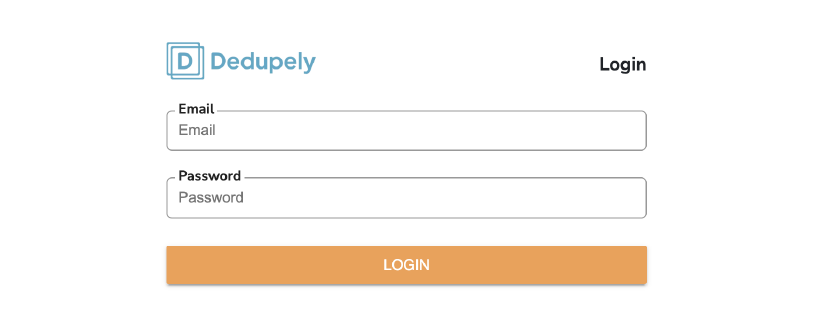
For step-by-step instructions on account creation, see How to create an account.
2. Connect your CRM
Once you’re logged in, it’s time to connect Dedupely to your CRM. Select your CRM from the list of available integrations: HubSpot, Pipedrive, Salesforce, or CSV.
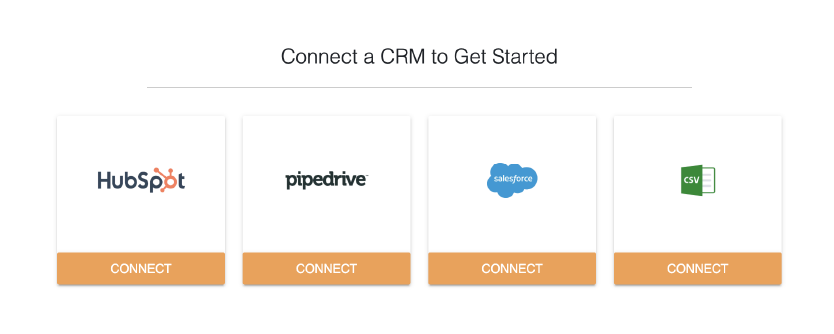
Each CRM may have specific connection steps or permissions required, so be sure to choose the guide that matches your CRM:
Following the prompts, Dedupely will request permission to access your CRM data, which is necessary for syncing and deduplication.
3. Begin syncing records

After connecting your CRM, Dedupely will begin syncing your records. You can customize which objects to sync based on your needs; common choices include Contacts, Companies, and Deals.
Select the objects you’d like to sync, and Dedupely will import the data for those specific objects.
That’s it! With Dedupely’s quick setup, you can have your CRM deduplication up and running in minutes. If you have any questions or need assistance, we offer unlimited support to help you get the most out of Dedupely. Feel free to book a demo with our customer success team to get personalized guidance here: Book a Zoom with Support.
Ready to get started? Here's how to merge your first duplicate.