







How can we help you?
Connect your CRM
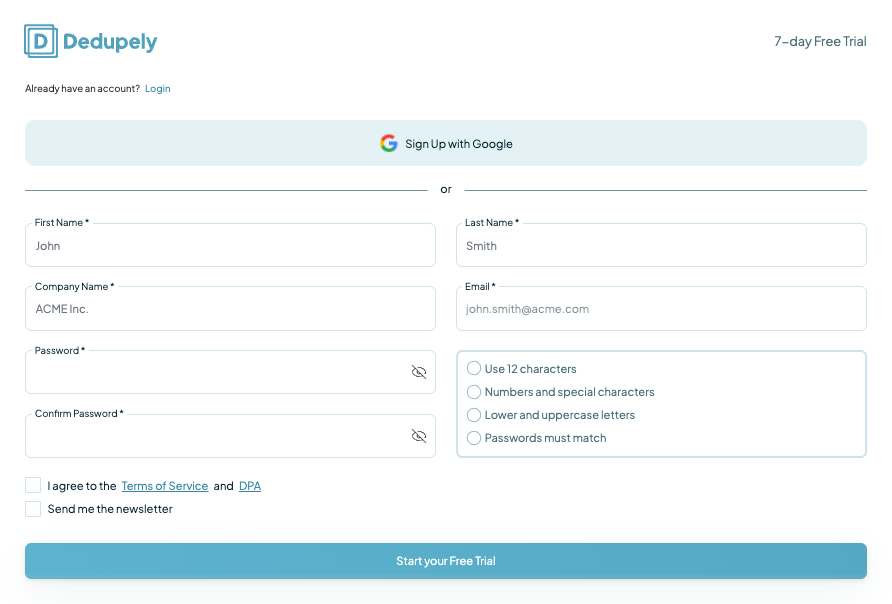
1. Create an account
Start by creating a Dedupely account. Sign up with your email and set a password to access your dashboard.
2. Connect your CRM
Once you’re logged in, select your CRM from the list:

Following the prompts, Dedupely will request permission to access your CRM data, which is necessary for syncing and deduplication.
CSV files are included in your plan, and won't add up to the number of synced records consider for your pricing tier. Files can be up to 100 MB, and it's required they all have headers on the first row.
3. Sync the objects you need

After connecting your CRM, Dedupely will begin syncing your records. You can customize which objects to sync based on your needs, by selecting the object you’d like to dedupe, and Dedupely will sync the entire object.
And that's it! Let's move on with the next step: Here's how to merge your first duplicate.